
The Homelab Bench is reader-supported. As an Amazon Associate we earn from qualifying purchases; this article contains affiliate links.
By the end of this guide you will have Proxmox Backup Server installed, wired up to your Proxmox VE host, and running a fully automated backup schedule that protects every VM and LXC container you care about — with sensible retention rules, integrity verification, and a tested restore flow so you know the backups actually work. Menu names and screens are current as of Proxmox VE 9.x and Proxmox Backup Server 4.x.
Why Proxmox Backup Server Instead of Just Saving to a Network Share?
The built-in Proxmox backup tool can write archives (.vma for VMs, .tar for containers) to a NAS or local directory, and that is perfectly functional for a first backup. But every one of those jobs is a full backup — the whole disk is copied and stored again each night. Proxmox Backup Server (PBS) works differently. It splits each backup into chunks and only stores chunks it has not seen before, so after the first backup each new one adds only the data that has changed. That deduplication also works across guests: blocks shared between VMs, such as common operating system files, are stored once.
For running VMs, PBS goes a step further. QEMU keeps a dirty bitmap that records which disk blocks have changed since the last backup, so the next backup only has to read those blocks — which makes nightly VM backups very fast. The bitmap is lost if the VM is stopped or the host reboots; the next backup then reads the whole disk again, but still only uploads the chunks that are new. Containers are always read in full, with deduplication keeping what is actually stored small.
PBS also gives you single-file restore (pull one file out of a backup without restoring the whole guest), live restore for VMs, chunk-level integrity verification, scheduled garbage collection, and a web UI that runs separately from Proxmox VE — which matters, because if your Proxmox host is the thing that broke, you want your backup server to still be reachable.
If you have not yet built out your Proxmox host, start with our guide on How to Install Proxmox and our roundup of the Best Mini PCs for Proxmox Homelabs. If you are new to creating VMs and containers, read Creating Your First VM and LXC Container in Proxmox first.
What You Need Before You Start
- A running Proxmox VE host with at least one VM or LXC container to protect.
- A separate machine to run PBS on — this is important. If PBS lives on the same hardware as your VMs, a disk failure takes out both. A spare mini PC, an old laptop, a refurbished OptiPlex, or a VM on a completely separate physical host all work. Running PBS on your main host is possible, but for a homelab newcomer a separate physical box is much safer and much simpler.
- A dedicated storage disk on the PBS machine for backup data — keep it separate from the OS disk. An SSD is strongly preferred, because deduplicated storage means lots of small random reads and writes.
- Both machines on the same local network (gigabit is fine for a homelab).
- The PBS ISO downloaded from proxmox.com/downloads.
- A USB drive of at least 2 GB to create an installer.
Proxmox publishes two sets of hardware figures for PBS. The bare minimum — a 64-bit CPU with 2 cores, 2 GB of RAM and 8 GB of disk — is for evaluation only. The recommended spec is a modern 64-bit CPU with at least 4 cores, 4 GB of RAM plus at least another 1 GB for every TB of backup storage, and 32 GB for the OS. For a homelab protecting under 20 guests, that works out to roughly 4 cores, 8 GB of RAM, a small SSD for the OS, and a separate backup disk sized to about twice the raw data you expect to protect. An old mini PC or a refurbished small-form-factor desktop fits easily.
On the backup disk itself: Proxmox recommends fast, high-IOPS storage. A spinning hard drive will work, but garbage collection and verification get slow as the datastore grows. If you do use HDDs, Proxmox recommends adding a metadata cache such as a ZFS special device mirror. For a first PBS box, a single SATA SSD is the simplest choice.
Check price — N100 mini PC (for a dedicated PBS box): Amazon UK | Amazon US | Amazon IE
Check price — 2TB SATA SSD (backup datastore): Amazon UK | Amazon US | Amazon IE
Orienting Yourself: Two Separate Web UIs
Before you dive in, it helps to know that this guide involves two different web interfaces:
- Proxmox VE (PVE) — the hypervisor you already know, accessed at
https://YOUR-PVE-IP:8006. This is where your VMs and containers live, and where you configure backup schedules and restores. - Proxmox Backup Server (PBS) — a completely separate application with its own web UI, accessed at
https://YOUR-PBS-IP:8007. This is where you manage datastores, retention rules, verification jobs, and garbage collection.
Steps 1–4 happen in the PBS UI. Steps 5–6 happen in your PVE UI. Steps 7–8 are back in PBS, and Step 9 is in PVE. You will switch between them.
Step 1: Install Proxmox Backup Server
- Flash the PBS ISO to a USB drive. On Windows, Rufus works well. On macOS/Linux, Balena Etcher is the common choice.
- Boot your PBS machine from the USB drive (you may need to enter the BIOS and set USB as the first boot device).
- Select Install Proxmox Backup Server (Graphical) from the boot menu.
- Accept the EULA, then choose your OS disk on the Target Harddisk screen. Do not choose your backup storage disk here — that comes later.
- Set your country, timezone, and keyboard layout, then click Next.
- Set a strong root password and enter an email address you actually read — PBS sends its own job alerts (garbage collection, verification, prune) to it.
- Configure networking: set a static IP address. Write this down — you will need it repeatedly. Click Next, review the summary, and click Install.
- When installation finishes, remove the USB and let the machine reboot.
- From any browser on your local network, open
https://YOUR-PBS-IP:8007. Accept the self-signed certificate warning. Log in with usernameroot, realm Linux PAM standard authentication, and the password you set.
You are now looking at the PBS dashboard. You will see a warning about no valid subscription — click OK to dismiss it. Without a subscription you use the no-subscription package repository, which has the same features as the enterprise one; it is the normal choice for a homelab.
Step 2: Add and Format Your Backup Disk
Your backup data needs its own disk, separate from the PBS OS. Here is how to set it up through the PBS UI.
- In the left panel of the PBS UI, expand Administration and click Storage / Disks. You will see all disks the machine can see.
- Find your backup disk (identified by its size — it should be the larger, empty one). Select it, then click Wipe Disk to clear any existing partition table. Confirm the prompt — this is destructive, so make sure you have the right disk selected.
- Now click the Directory tab and click Create: Directory.
- In the dialog: select your backup disk from the Disk dropdown. Choose ext4 as the filesystem — it is reliable, well understood, and the right default for a simple homelab. Give the directory a clear name like
backup-store. Tick Add as Datastore so PBS registers it immediately. Click Create.
PBS will format the disk, mount it, and create a datastore pointing at it. You will now see your new datastore listed in the left panel under Datastore.
Step 3: Create a Dedicated Backup User in PBS
You could connect PVE to PBS using the root account, but creating a dedicated user with only the permissions it needs is better practice and limits the damage if those credentials are ever exposed.
- In the PBS left panel, expand Configuration and click Access Control.
- Under the User Management tab, click Add.
- Enter a username (e.g.
backup-user), set a strong password, and leave the realm as Proxmox Backup authentication server (pbs). Click Add. - Now click your datastore name in the left panel, then click the Permissions tab.
- Click Add → User Permission. Select your new user (
backup-user@pbs) and assign the DatastoreBackup role. Click Add.
DatastoreBackup lets the user create backups and restore the backups it owns — everything PVE needs — but it cannot change the datastore’s configuration or touch PBS system settings. Retention is handled by PBS itself in Step 7, so the backup user does not need any more than this.
Step 4: Get the PBS Fingerprint
When you add PBS to PVE, PVE needs to verify it is talking to the right PBS server (not some rogue machine on your network). It does this using a TLS fingerprint unique to your PBS instance.
- In the PBS UI, click Dashboard in the left panel, then click Show Fingerprint at the top. (Your datastore’s Summary page also has a Connection Information button that shows the same fingerprint alongside the repository details.)
- Copy the fingerprint — a long colon-separated string of hex characters — to your clipboard or a text file. You need it in the next step.
Step 5: Add PBS as Storage in Proxmox VE
Now switch to your PVE web UI at https://YOUR-PVE-IP:8006.
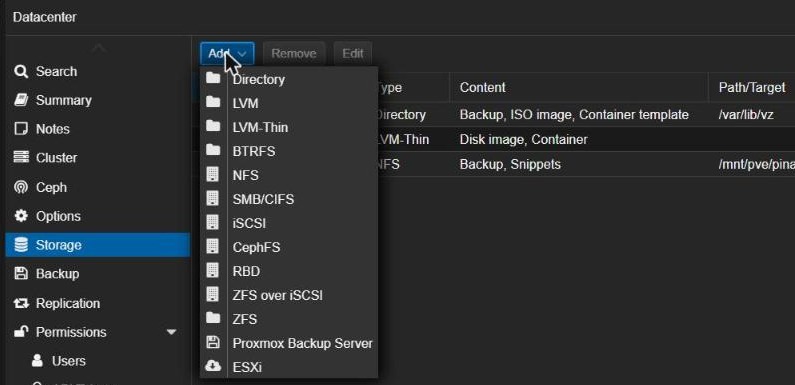
- In the left panel, click Datacenter (the top-level item, not a specific node).
- In the middle pane, click Storage.
- Click Add and select Proxmox Backup Server from the dropdown.
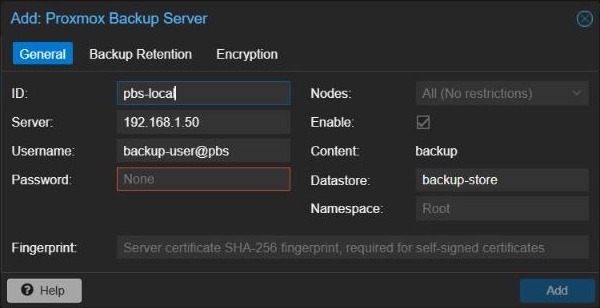
- Fill in the dialog:
- ID: A friendly name for this storage, e.g.
pbs-local. - Server: The IP address of your PBS machine.
- Username: Your backup user in the format
backup-user@pbs. - Password: The password you set for that user.
- Datastore: The name of the datastore you created in Step 2 (e.g.
backup-store). - Fingerprint: Paste the fingerprint you copied in Step 4.
- ID: A friendly name for this storage, e.g.
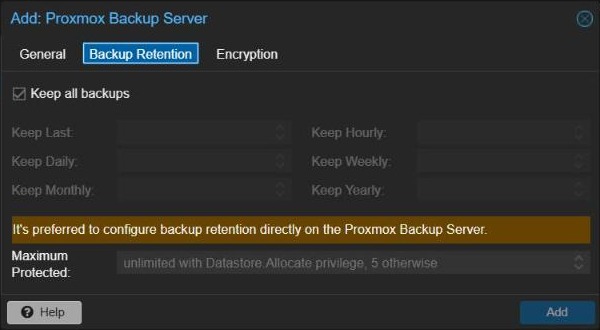
- Open the Backup Retention tab and leave it on Keep all backups. Retention will be handled on the PBS side in Step 7, and having two sets of rules pruning the same backups only causes confusion.
- Optional — encryption: the Encryption tab can create a client-side encryption key (Auto-generate a client encryption key), so backups are encrypted on the Proxmox host before they ever reach PBS. If you turn this on, download and store the key somewhere outside Proxmox (a password manager is ideal). Without it, your encrypted backups cannot be restored if the Proxmox host dies.
- Click Add. The new storage appears in the storage list and under your node in the left panel.
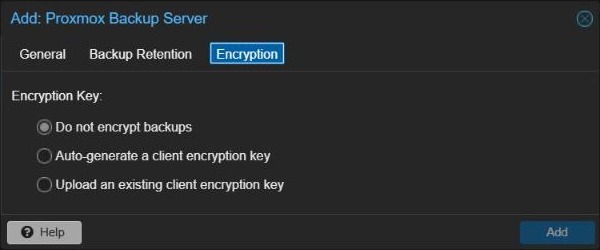
PVE can now write backups directly to PBS. If you get an error instead, double-check the IP, the username format, the password, and that you copied the fingerprint exactly (all colons included, no trailing spaces).
Step 6: Create Your Automated Backup Schedule
This is the core of the whole setup. The scheduler lives at Datacenter → Backup and is separate from the individual Backup now button on each VM or container — use the scheduler, because it covers all your guests centrally and runs automatically.
Before you start: for VMs, install the QEMU guest agent inside each guest and enable it in the VM’s Options. It lets Proxmox freeze the guest’s filesystem for a moment during snapshot-mode backups, which gives you a cleaner, more consistent backup. Our guide to installing Home Assistant in a Proxmox VM shows how to enable it.
- In your PVE UI, click Datacenter in the left panel, then click Backup in the middle pane.
- Click Add. A dialog opens with a handful of important fields.
- Node: Leave this on All (or pick your node if you only have one and prefer to be explicit).
- Storage: Choose the PBS storage you just added (
pbs-local). - Schedule: Set when backups run. A sensible default is
00:30daily — after midnight when activity is low. You can type a time inHH:MMformat or pick one of the presets. - Selection mode: This defaults to Include selected VMs. Change it to All to back up every VM and container. If there are guests you want to leave out (a throwaway test VM, for example), choose Exclude selected VMs instead and tick the ones to skip. Both options automatically include any new guests you create later, which is safer than hand-picking.
- Mode: For VMs, Snapshot is the right choice — the VM keeps running during the backup with no visible downtime. For LXC containers, Snapshot mode needs the container’s storage to support snapshots (ZFS or LVM-thin both do). If your containers live on plain directory storage, use Suspend instead — the container pauses briefly while the backup starts, then resumes. Stop mode shuts the guest down for the duration, which guarantees consistency but means downtime.
- Click Create to save the job.
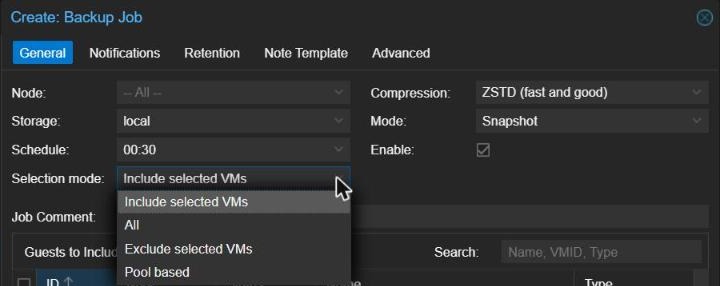
There is no compression choice to make when the target is PBS: the Compression box greys out once you pick the PBS storage, because PBS compresses every chunk itself.
Make sure failures reach you. Backup job alerts come from Proxmox VE, not PBS. On the job’s Notifications tab, leave Use global notification settings selected. Then open Datacenter → Notifications: the built-in mail-to-root target sends to the email address set for the root@pam user (under Datacenter → Permissions → Users). Make sure that is an address you actually read, then select the target and click Test to confirm the mail arrives. Silent failures are the enemy of a reliable backup setup. For more alerting options including Telegram notifications, see our guide to setting up Proxmox email and Telegram health alerts.
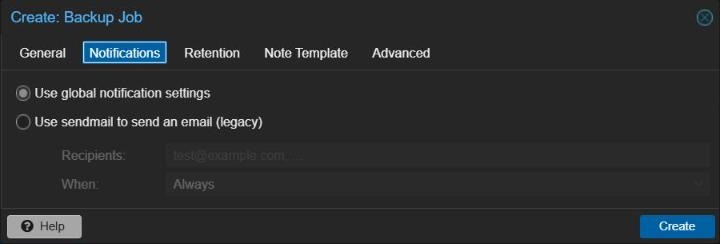
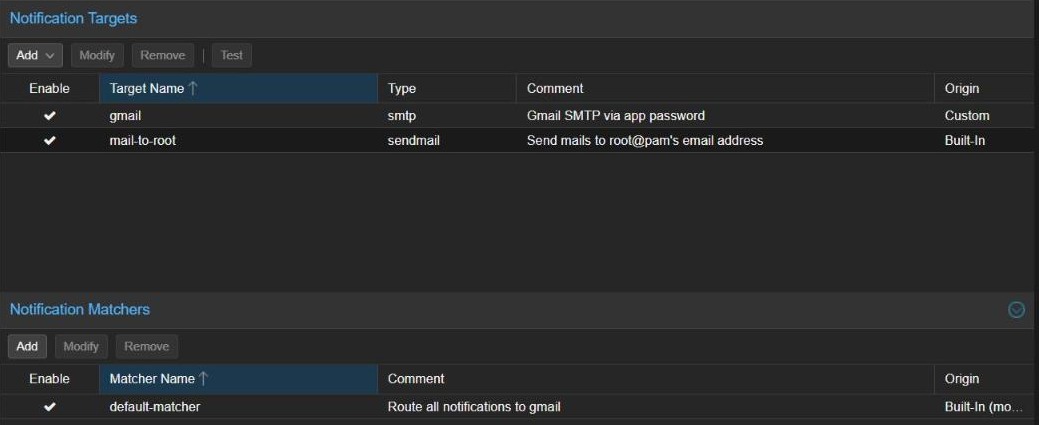
Your backup job now appears in the list and will run every night. Select it and click Run now to trigger an immediate backup and confirm everything works end to end.

Step 7: Configure Retention (Prune) and Garbage Collection in PBS
Without retention rules, your PBS datastore will fill up as backups accumulate. PBS handles this with two separate operations that work together, and the distinction matters:
- Prune removes old backup snapshots according to your retention policy. But it does not immediately free disk space, because the deduplicated chunks those snapshots used may still be referenced by backups you are keeping.
- Garbage collection (GC) is what actually reclaims disk space. It walks the whole chunk store, finds chunks no surviving backup references any more, and deletes them.
Think of prune as deciding which backups to throw away, and GC as taking the rubbish out.
To configure them in the PBS UI:
- Click your datastore name in the left panel, then click the Prune & GC Jobs tab.
- In the prune jobs section, click Add.
- Set your retention policy. A solid homelab starting point is:
- Keep Last: 3 (the 3 most recent backups, regardless of age)
- Keep Daily: 7 (one per day for the last 7 days)
- Keep Weekly: 4 (one per week for the last 4 weeks)
- Keep Monthly: 3 (one per month for the last 3 months)
- Set the prune job to run daily —
22:00works well, well clear of the nightly backup. Click Add. - In the garbage collection section of the same tab, click Edit and set GC to run weekly, for example Sunday at
02:30, after that night’s backup has finished. Daily GC adds disk load with little benefit in a homelab. Click OK.
One quirk to know about: by default, GC will not delete any chunk that was used in the last 24 hours and 5 minutes. This safety window stops GC from removing chunks that a backup running at the same time still needs. So do not be alarmed if your datastore usage barely moves straight after a prune — it drops after the next GC run.
Step 8: Set Up Verification Jobs
A backup that has never been checked is just hope stored on a disk. PBS includes a verify job that reads every chunk back from the datastore and checks it against its stored checksum, catching silent disk corruption long before you would discover it during a real emergency restore.
- In the PBS UI, click your datastore name, then click the Verify Jobs tab.
- Click Add.
- Set the schedule to weekly — Sunday at
04:00, after GC has finished, is a good slot. - Tick Skip Verified so backups that have already passed are not re-read every week, and set Re-Verify After to
30days so every backup still gets re-checked monthly. - Click Add.
Verification confirms the data on disk is intact, but it is not the same as a restore test. At least once a month, do an actual test restore: pick a non-critical VM or container, restore it to a new VM ID in PVE (so you are not overwriting the running guest), boot it, and confirm it works. Intact chunks plus a guest that boots is what matters.
Step 9: How to Restore a VM, Container or Single File from PBS
When you need to restore, here is how it works from the PVE web UI:
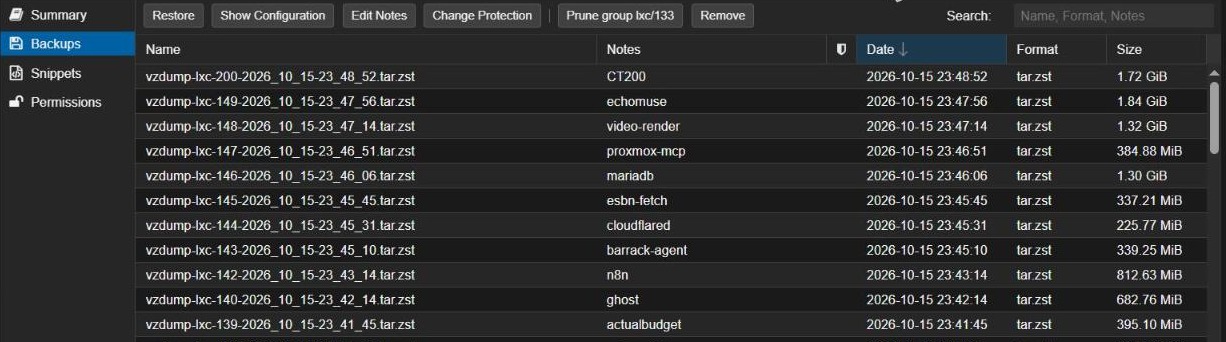
- In the PVE left panel, expand your node and click your PBS storage (
pbs-local). - Click the Backups tab in the right pane. Every backup stored in PBS is listed here by VM ID and timestamp.
- Select the backup you want and click Restore.
- In the restore dialog:
- Storage: Choose the storage where the restored guest’s disks should live (typically
local-lvmorlocal-zfs). - VM / CT (the ID): To restore alongside the running guest (for a test), use a new, unused ID. To replace the existing guest, use the original ID — but make sure that guest is shut down first.
- Unique: Tick this when restoring alongside the original — it generates a new MAC address so the two copies do not clash on your network.
- Storage: Choose the storage where the restored guest’s disks should live (typically
- Click Restore. The task log streams in a popup. When it shows TASK OK, the restore is complete.
- Start the restored guest and check your services are running correctly.
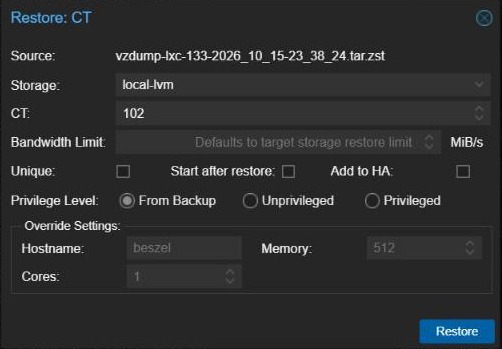
LXC containers follow the same flow from the same storage panel; the dialog also lets you choose whether the restored container is privileged or unprivileged.
Live restore (VMs only). When restoring a VM from PBS, the restore dialog has a Live restore option. The VM starts straight away while the rest of its disk is streamed from PBS in the background, which can dramatically cut recovery time for a large VM. Expect the VM to be slower than normal until the restore finishes.
Single-file restore. Often you do not need the whole guest back — just one config file someone deleted. Select a backup in the same Backups list and click File Restore. You can browse the backup’s contents and download individual files or folders without restoring anything.
Recommended Maintenance Schedule at a Glance
| Task | Where configured | Suggested frequency | Suggested time |
|---|---|---|---|
| Prune job | PBS → Datastore → Prune & GC Jobs | Daily | 22:00 |
| Backup job | PVE → Datacenter → Backup | Daily | 00:30 |
| Garbage collection | PBS → Datastore → Prune & GC Jobs | Weekly (Sunday) | 02:30 |
| Verify job | PBS → Datastore → Verify Jobs | Weekly (Sunday) | 04:00 |
| Manual restore test | PVE → PBS storage → Backups tab | Monthly | Any quiet window |
If your guests are large or your backup disk is slow, check how long the nightly backup actually takes (in PVE under Datacenter → Tasks, or the node’s task history) and move GC and verification later if they would overlap it.
Keep a Second Copy Somewhere Else
PBS on a separate box protects you from a dead Proxmox host, but both machines still sit in the same house. The 3-2-1 rule — three copies of your data, on two types of storage, one off-site — still applies. The PBS way to do this is a second PBS instance (at a friend’s house, or a small hosted one) that pulls a copy of your datastore on a schedule using a Remote and a Sync Job, both under the second server’s settings. Only new chunks are transferred, so after the first sync the nightly traffic is small. Set this up once your local backups are running reliably.
Protecting Home Assistant and Other Critical Services
If you are running Home Assistant in a Proxmox VM — as covered in our Installing Home Assistant in a Proxmox VM guide — PBS backs that VM up automatically once it is included in your backup job. PBS works at the VM disk level, though. For application-level restores (bringing back just your automations or one app without rolling back the whole VM), Home Assistant’s own backups are a complementary layer. Our guide on How to Back Up and Restore Home Assistant walks through that side of things.
If you have a NAS, it makes a good place for a secondary copy of your Proxmox backups outside PBS. See our guide on How to Share a NAS Drive with Proxmox to add it as backup storage.
Wrapping Up
You now have a backup system that runs itself: PVE backs up every guest nightly, PBS stores only what has changed, prune and garbage collection keep the datastore from filling up, and weekly verification catches corruption before you need the data. The two things that are still on you are reading the failure emails when they arrive and doing that monthly restore test — a backup only counts once you have restored from it. When that is routine, add an off-site copy and your homelab can survive almost anything. If you need to move a VM to different hardware first, see our guide on how to migrate a VM between Proxmox nodes.
Frequently Asked Questions
Can I run PBS on the same physical machine as Proxmox VE?
You can — either installed directly alongside PVE, or inside a VM or container on it. For a first setup, though, separate hardware is strongly recommended. If your main host loses a disk or fails entirely, a PBS instance on the same machine is likely to be unreachable at exactly the moment you need it. A spare mini PC or old desktop makes a far more reliable PBS box, and the hardware requirements are modest.
Why is my PBS datastore not getting smaller after pruning?
This is the most common point of confusion with PBS. Prune removes old backup snapshots, but the data chunks they used stay on disk until garbage collection runs, because other backups may still reference them. GC is what physically deletes unreferenced chunks. It also skips anything used in the last 24 hours and 5 minutes, so recently pruned data may not be freed until the following GC run. Prune, wait a day, run GC — your disk usage will drop.
What backup mode should I use for LXC containers — Snapshot, Suspend, or Stop?
It depends on your container’s storage. Snapshot mode for LXC needs storage that supports snapshots — ZFS or LVM-thin both qualify. If your containers live on plain directory storage (common on entry-level setups), use Suspend: the container pauses just long enough for the backup to capture a consistent state, then resumes. Stop mode is the most conservative — the container shuts down for the whole backup — but means visible downtime. For most homelab containers, Snapshot (where supported) or Suspend is the right balance.
Does this back up the Proxmox host itself?
No. The backup job covers your VMs and containers, including each guest’s configuration, but not the Proxmox host’s own settings such as network configuration, storage definitions, or anything you changed on the host by hand. If the host dies, you reinstall Proxmox VE, re-add the PBS storage, and restore your guests. To keep a copy of the host’s configuration too, you can back up its /etc folder to PBS from the node’s Shell with the backup client that comes with Proxmox VE:
proxmox-backup-client backup etc.pxar:/etc --repository backup-user@pbs@YOUR-PBS-IP:backup-store
It asks for the backup user’s password and to confirm the PBS fingerprint the first time. Run it after any host change you would not want to redo from memory.