
Disclosure: the GEAK OS team invited me to try GEAK OS. It was an unpaid invitation with no obligation to publish or to be positive. There are no affiliate links in this article.
GEAK OS is a new, closed-source NAS operating system for ordinary x86-64 hardware, built on Debian and still in preview. It is pitched as an “AI-powered” private cloud: local file sharing, photo albums and a media library, with optional remote access through GEAK’s own cloud service. I installed it in a Proxmox VM on my homelab and put it through the test GEAK asked for — install it, create a shared folder, read and write files from another device — then kept going to see how it handles a second user, updates and your network settings.
Short version: the install is one of the smoothest I have seen on any NAS OS, and the web interface is polished. But file sharing beyond a single admin account has real gaps, the system didn’t use the DNS server I gave it, and the free tier leans hard on upsells. Details, timings and screenshots below.
GEAK OS at a Glance
| Version tested | release-preview 1.0.21 (installer ISO), updated in place to 1.0.23 |
|---|---|
| Base | Debian 13, x86-64 only (no ARM) |
| Install options | Bootable ISO (3.78 GB) or a one-line script on an existing Debian 12/13 or Ubuntu 24.04/26.04 system |
| Licence | Closed source. Free tier, Plus ($47.99/year) or Lifetime ($179) at the time of writing |
| Storage | Basic, Linear, RAID 0, RAID 1, RAID 5; ext4 (no filesystem choice offered) |
| File sharing | SMB (on by default), WebDAV, FTP; SSH available. No NFS |
| Company | YOM LIMITED (trademark owner named on the website) |
My Test Setup
I ran GEAK OS as a virtual machine on my Proxmox VE host, an Intel NUC8i5BEH. GEAK recommends at least 2 CPU cores, 8 GB of RAM and a 64 GB system disk for a VM, plus a separate blank data disk. I gave it:
- 2 cores (CPU type
host) and 4 GB of RAM — half the recommendation, because my host’s RAM was already mostly in use. The core NAS features were fine on that; GEAK’s own docs say the AI features want 16–32 GB, so I did not judge those. - A q35 machine with UEFI (OVMF), Secure Boot keys not enrolled.
- A 64 GB virtual system disk and a separate, blank 32 GB virtual data disk, both on VirtIO SCSI.
- A VirtIO network card on my normal LAN.
Everything GEAK OS could see was virtual and disposable — no real data disks were attached. I took a Proxmox snapshot before first boot and another before the firmware update, which I would recommend to anyone trying a preview OS.
Installation: About Ten Minutes, No Surprises
The ISO downloaded straight to my Proxmox host at around 26 MB/s (two and a half minutes) and its MD5 matched the value published in the site’s download config. The installer then booted on Proxmox’s default VirtIO hardware with no driver workarounds.
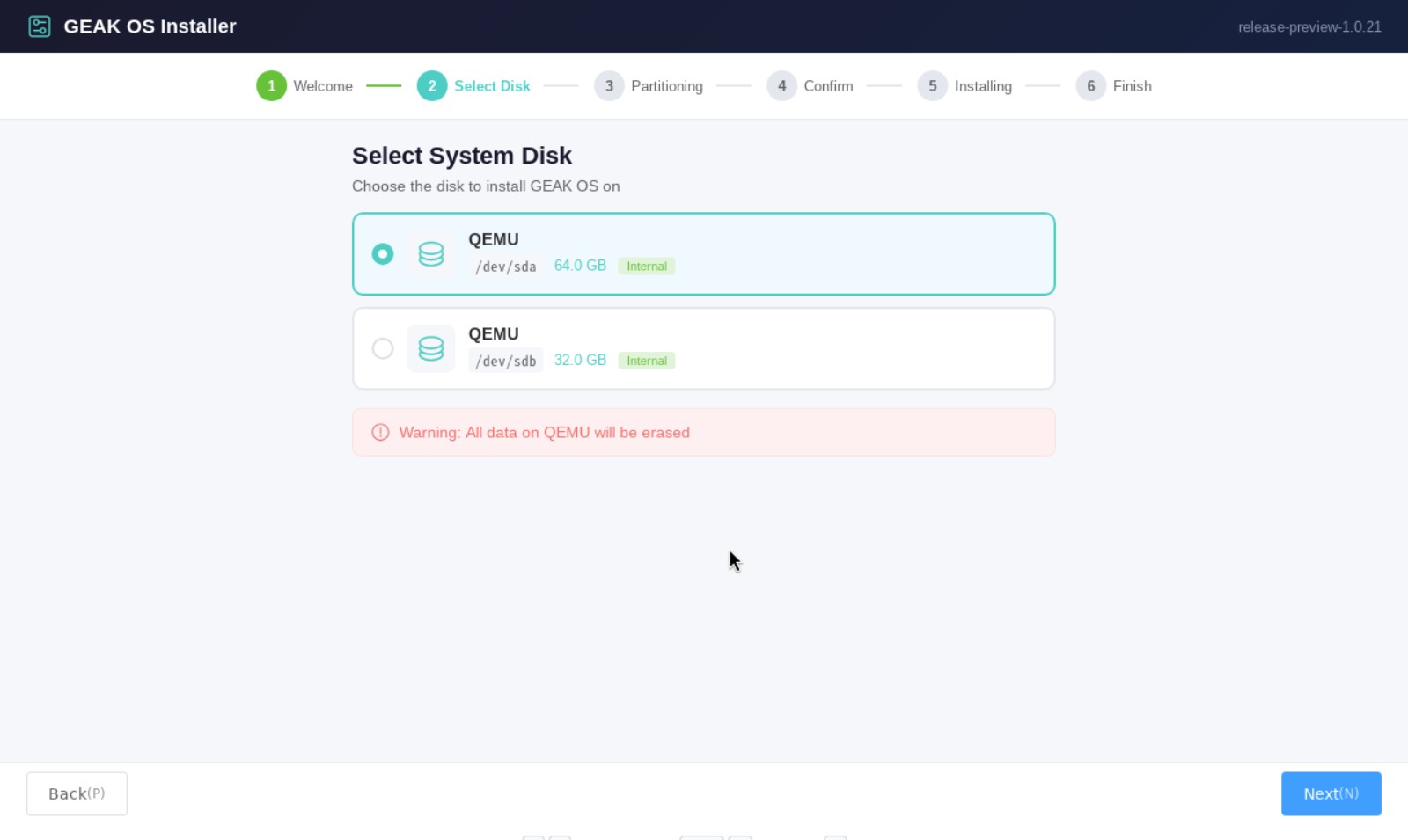
It is a clean six-step graphical wizard: Welcome, Select Disk, Partitioning, Confirm, Installing, Finish. The welcome screen lists what you need before you start, including a reminder that the target disk will be wiped.
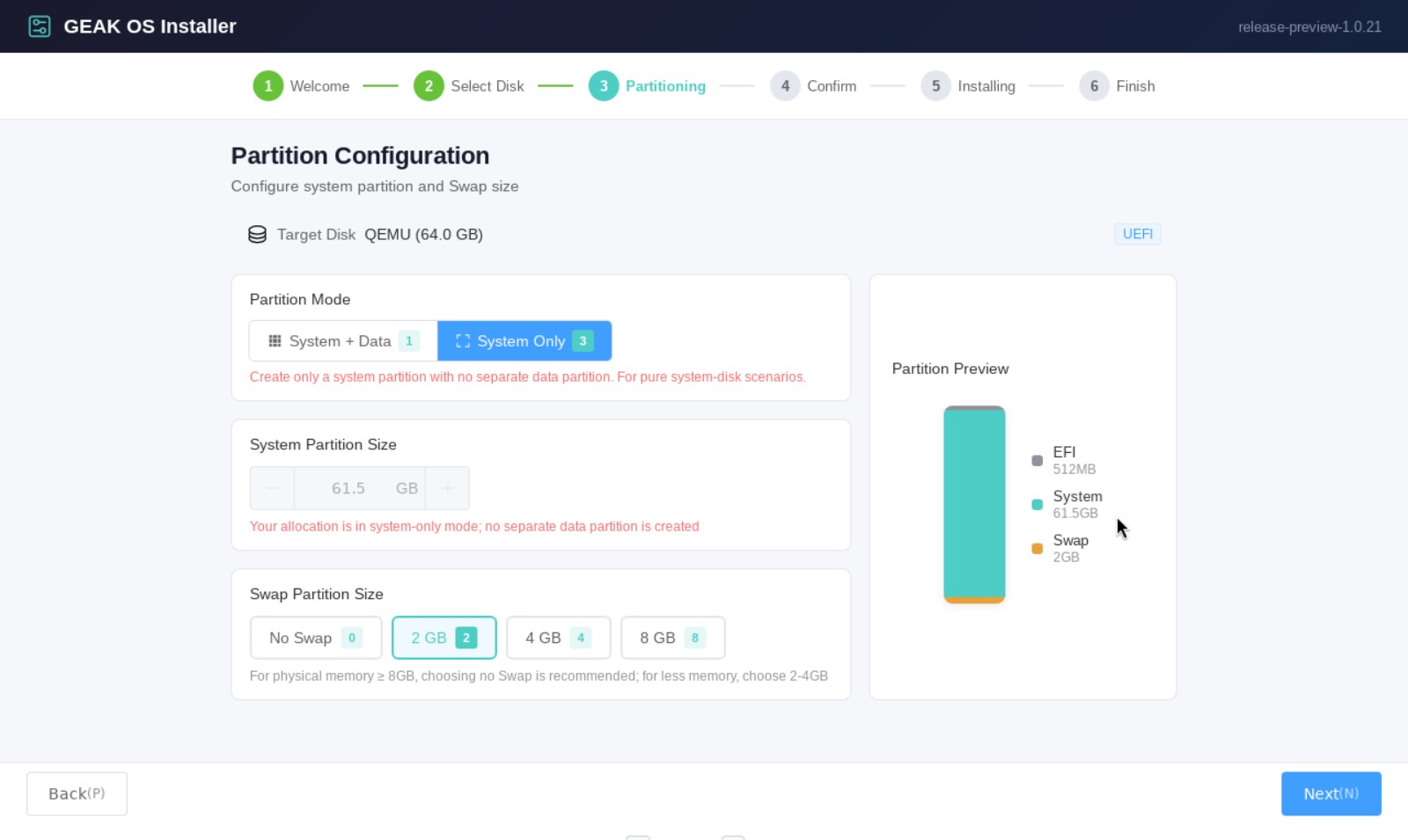
On the partitioning screen you choose between System + Data (one disk split into an OS partition and a data partition) or System Only. I used System Only so the separate 32 GB disk could become the storage pool. The swap guidance is refreshingly plain: no swap if you have 8 GB of RAM or more, 2–4 GB below that.
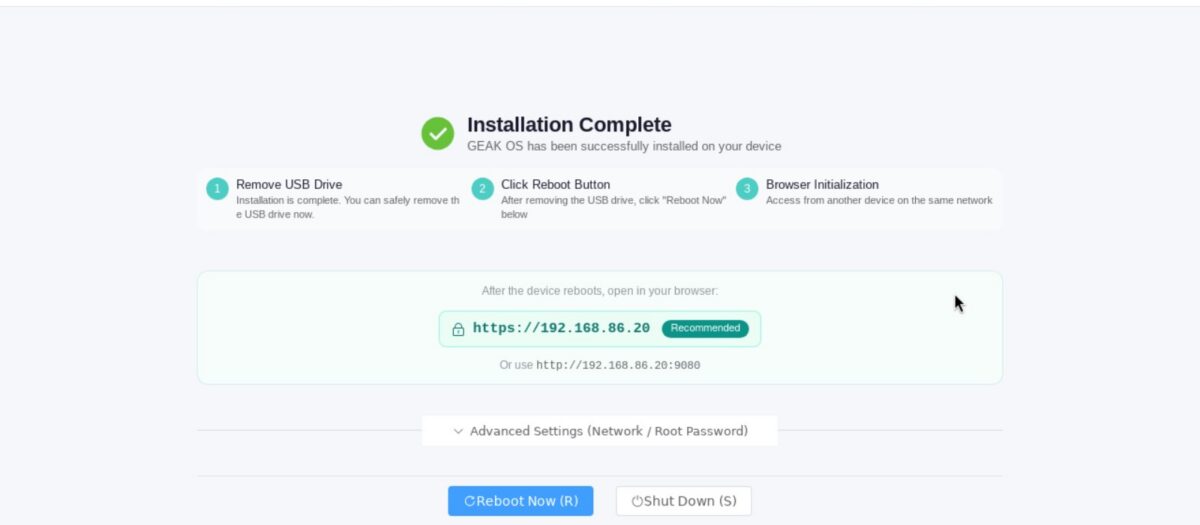
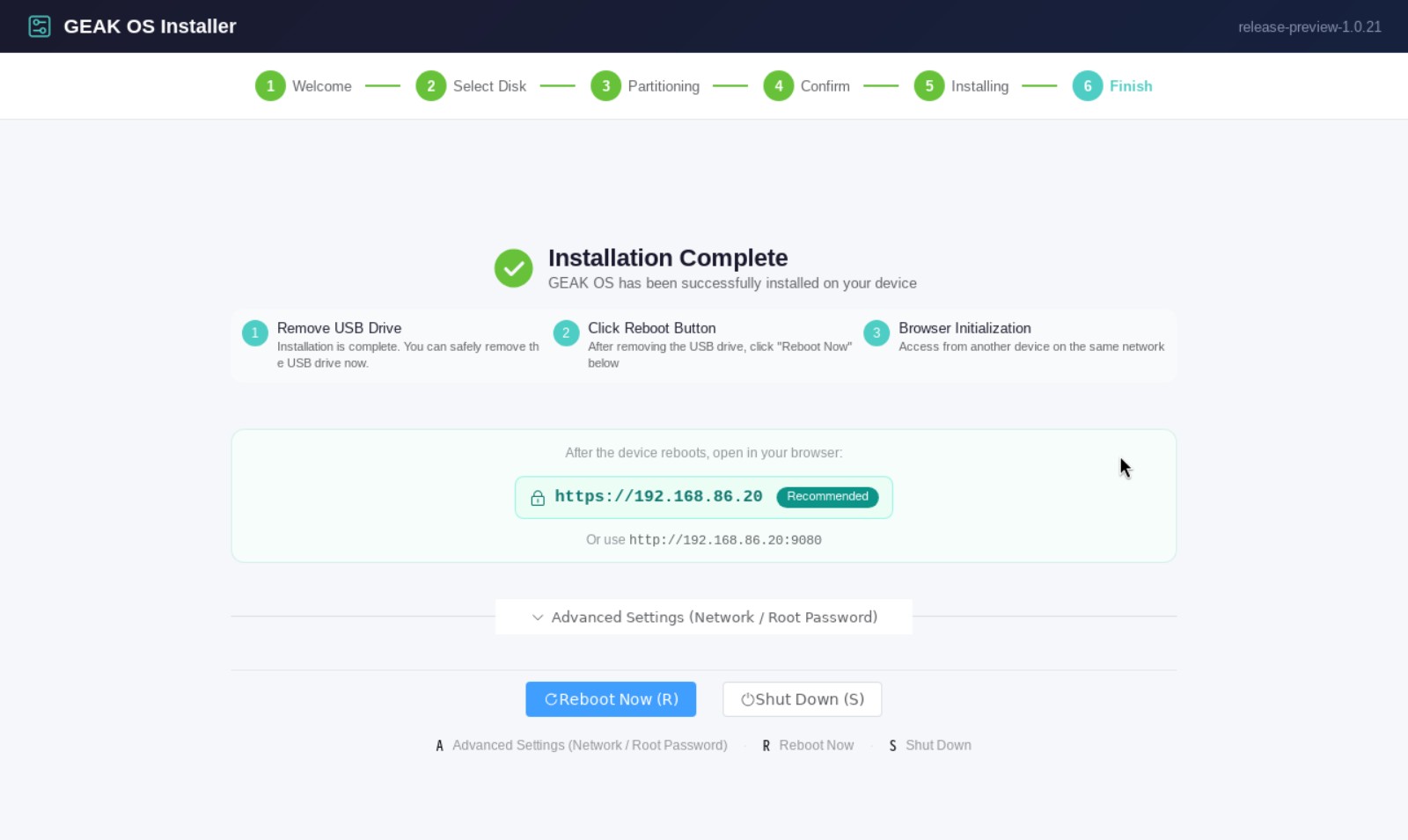
The Confirm step makes you tick a box saying you understand the disk will be erased. The install itself took about three minutes, and the finish screen shows the address to open in your browser — no hunting through your router for the IP.
From first boot to a responding web interface took 36 seconds.
Install Timings
| Step | Time taken |
|---|---|
| Download the 3.78 GB ISO to Proxmox and check it | 2 min 32 s |
| Click through the installer to “Install” | About 1 min |
| Install to the 64 GB disk | About 3 min |
| First boot to web UI | 36 s |
| Create the admin account | About 2 min |
| Firmware update 1.0.21 → 1.0.23 | Under 6 min, no reboot |
| Create a storage pool on the data disk | Under 1 min |
| Reboot to web UI (later in testing) | 42 s |
First-Time Setup
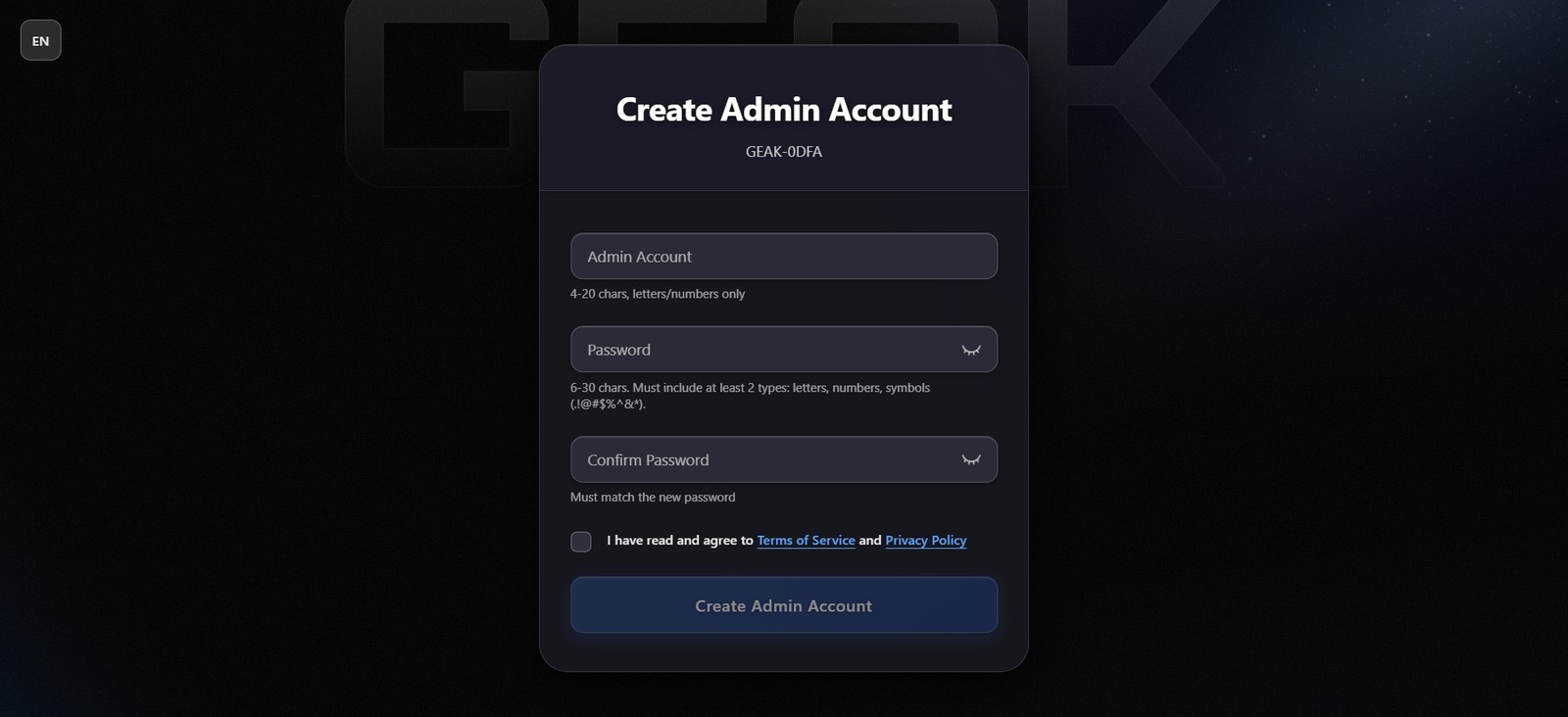
You create the admin account in the browser. Good news for privacy-minded readers: this is a local account — no app, phone number or GEAK cloud account is needed for basic use. The web interface uses a self-signed certificate, so expect a browser warning.
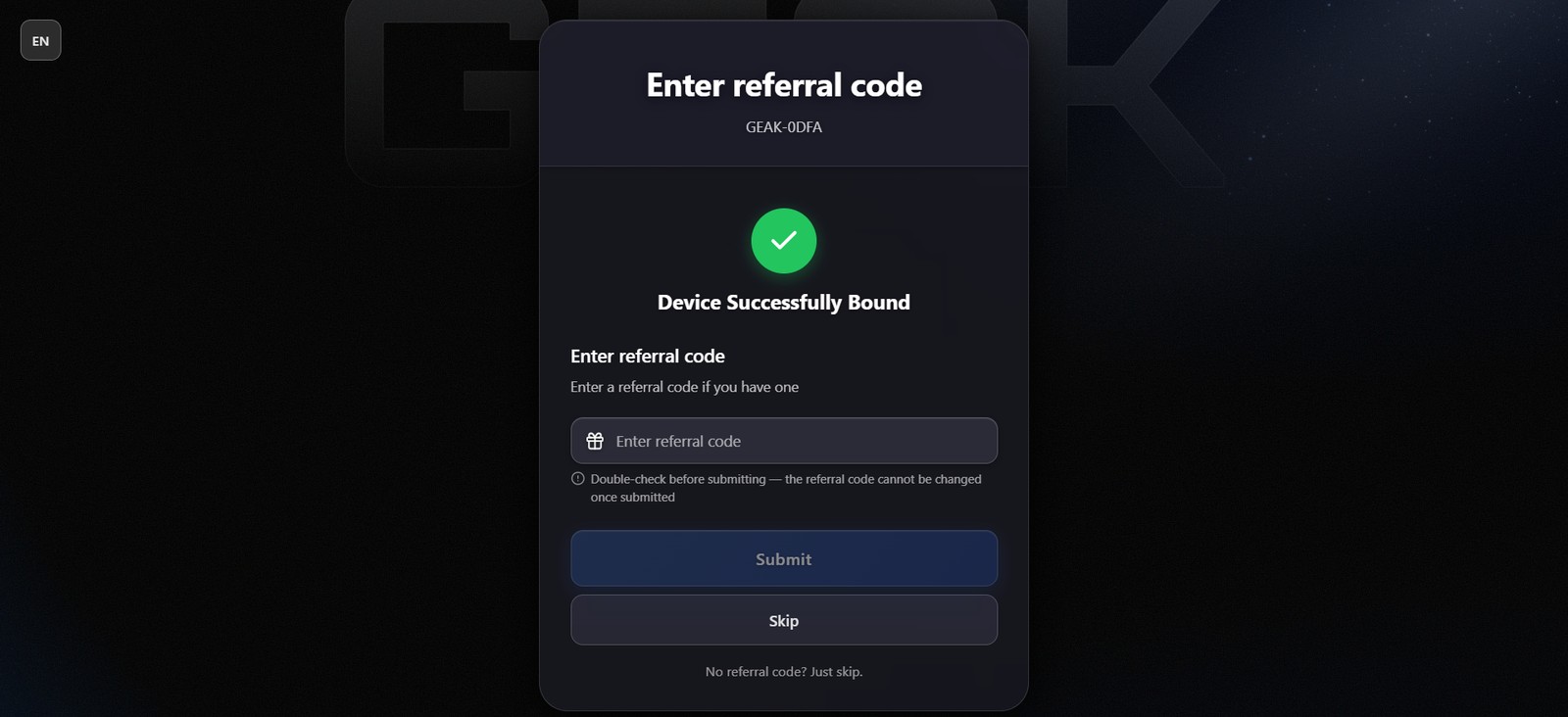
Straight after that, the setup asks for a referral code, tied to GEAK’s “Refer & Earn” scheme. It is skippable, but a referral prompt in a NAS’s first-run setup is an odd priority.
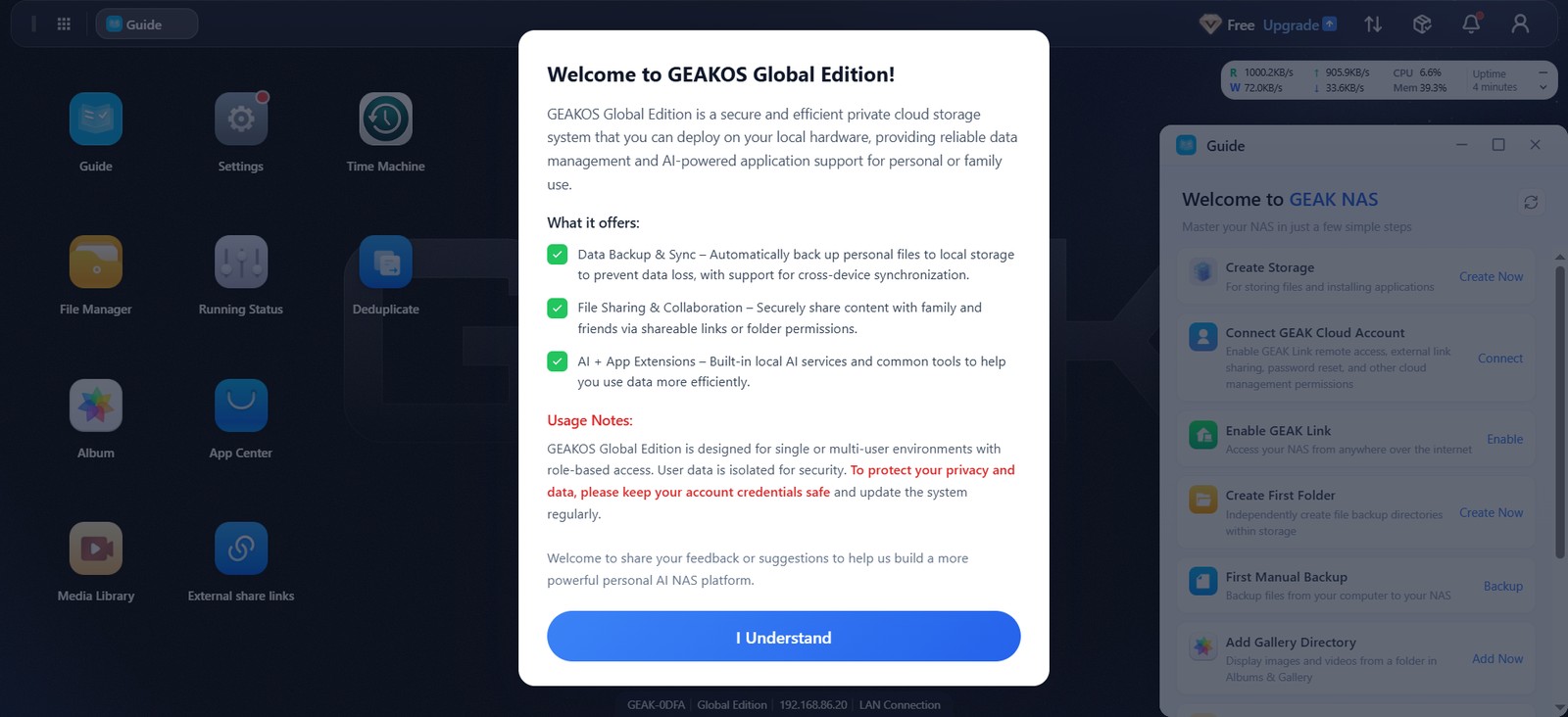
You land on a desktop-style web interface with app icons (File Manager, Album, Media Library, App Center, Time Machine and so on), a welcome dialog and a Guide checklist. Four minutes after first boot it was idling at a few percent CPU and about 1.6 GB of RAM.
Updates: Fast and Painless, Even in Preview
Within about four minutes of first boot — on a local account — GEAK OS offered firmware release-preview-1.0.23. The ISO on the download page was already two releases behind. Release notes are shown before you update.
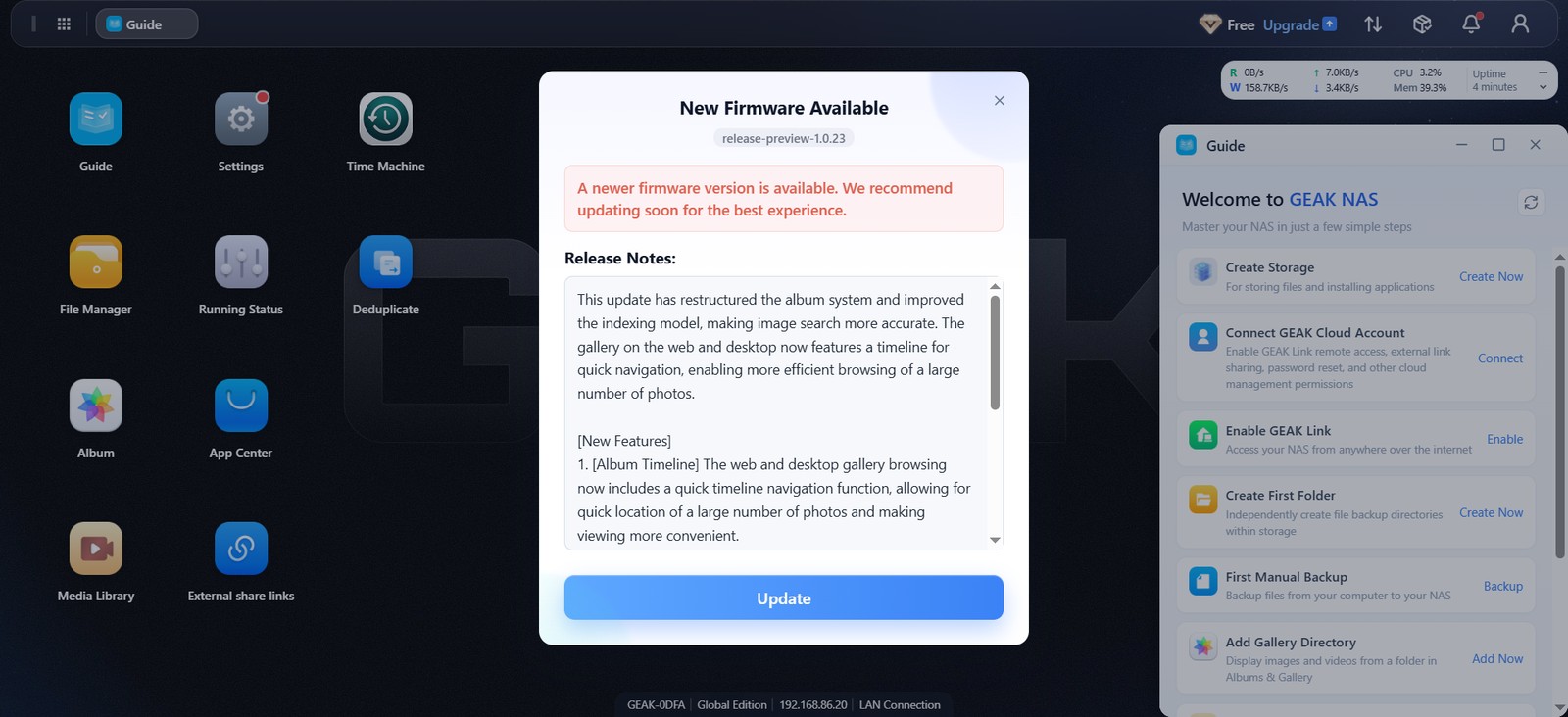
The 332 MB update downloaded in about a minute. The progress dialog then sat at 94% (“Upgrading Postinst Service”) for a few minutes — wait it out rather than refreshing; it finished on its own. The update was applied in place without a reboot, and the web interface never went offline. Proxmox’s uptime counter confirmed the VM did not restart.
Creating Storage
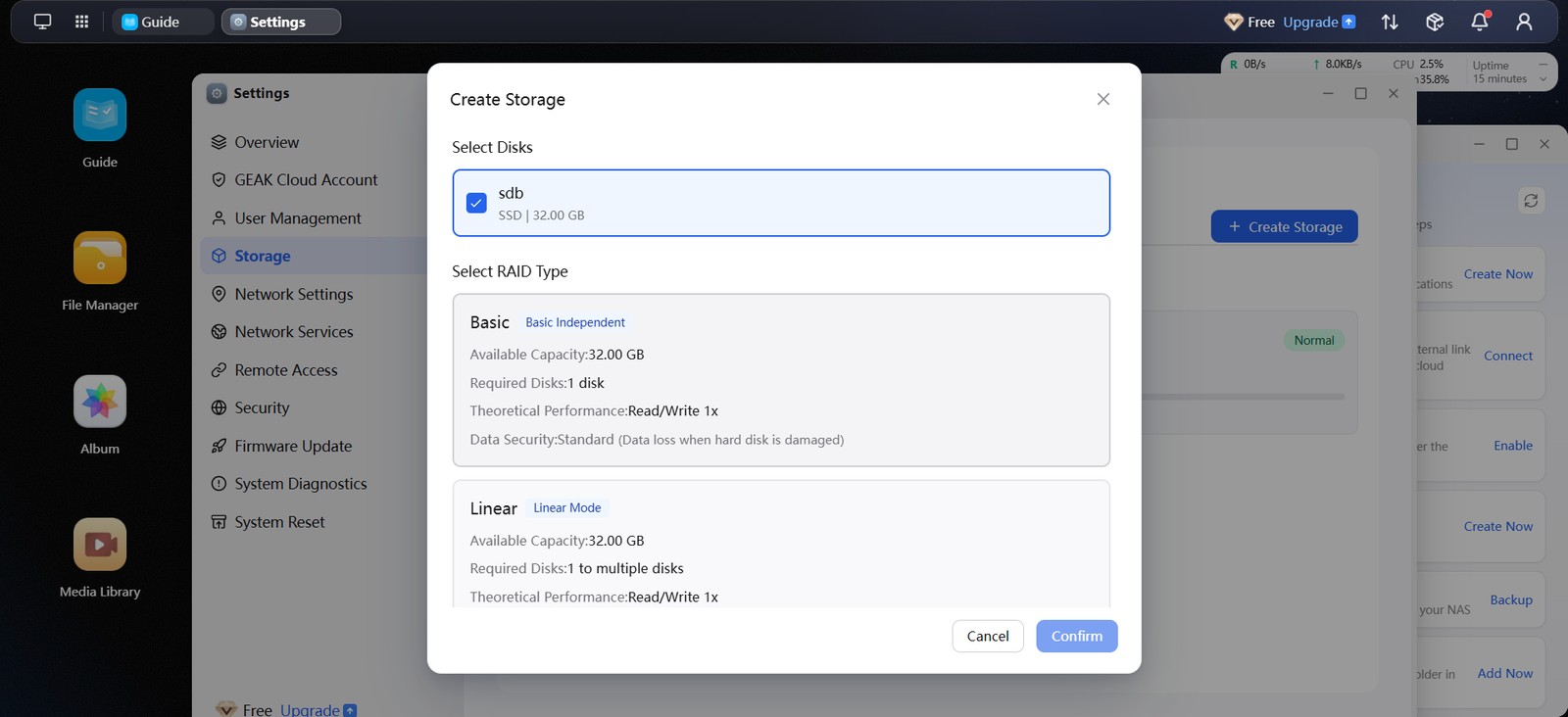
Storage lives under Settings → Storage. Create Storage only offered the blank 32 GB disk; the system disk was correctly excluded. The RAID picker is one of the most beginner-friendly I have seen: each option shows usable capacity, the minimum number of disks, relative speed and a colour-coded data-safety rating.
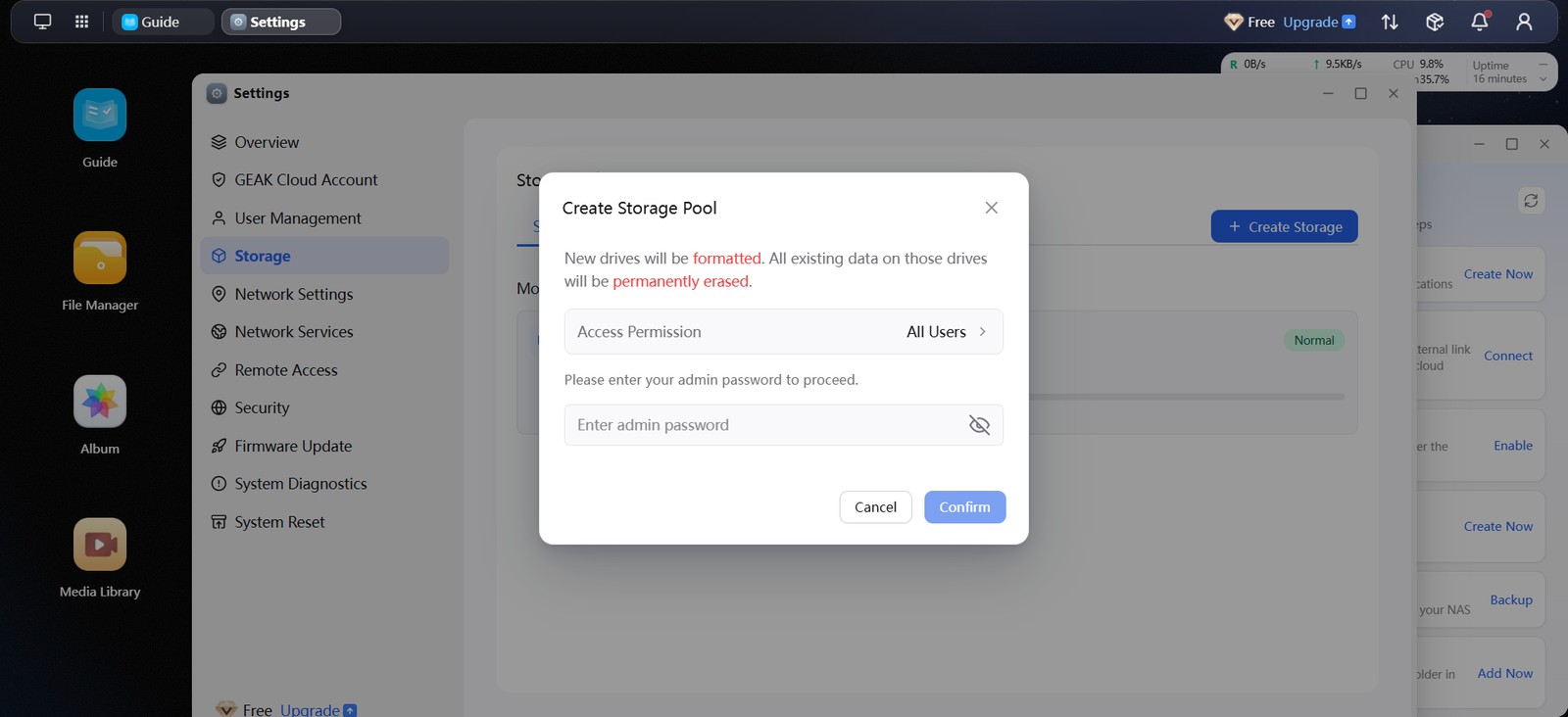
Before it formats anything, you get a red warning that the selected disks will be erased, an access-permission setting, and a prompt to re-enter the admin password — a sensible guard against a mis-click.
The pool was ready in under a minute: 31.32 GB usable, ext4. There is no choice of filesystem, so no Btrfs or ZFS — which means no filesystem snapshots or data checksumming. After the update, the OS itself was using about 7 GB of its 60 GB system partition.
File Sharing Over SMB
Under Settings → Network Services, SMB is on by default and WebDAV, FTP and SSH are off — a sensible default. There is no NFS option, which Linux and Proxmox users will miss.
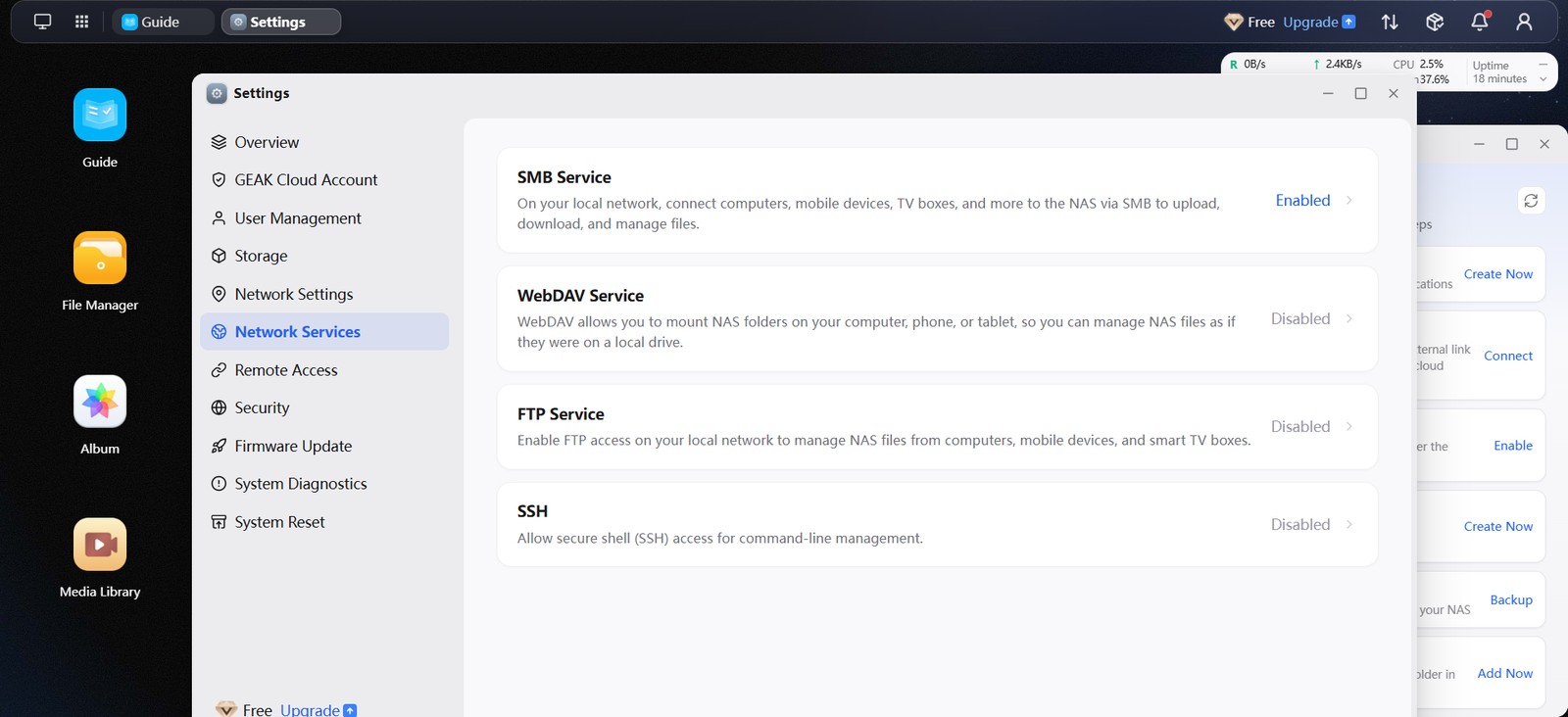
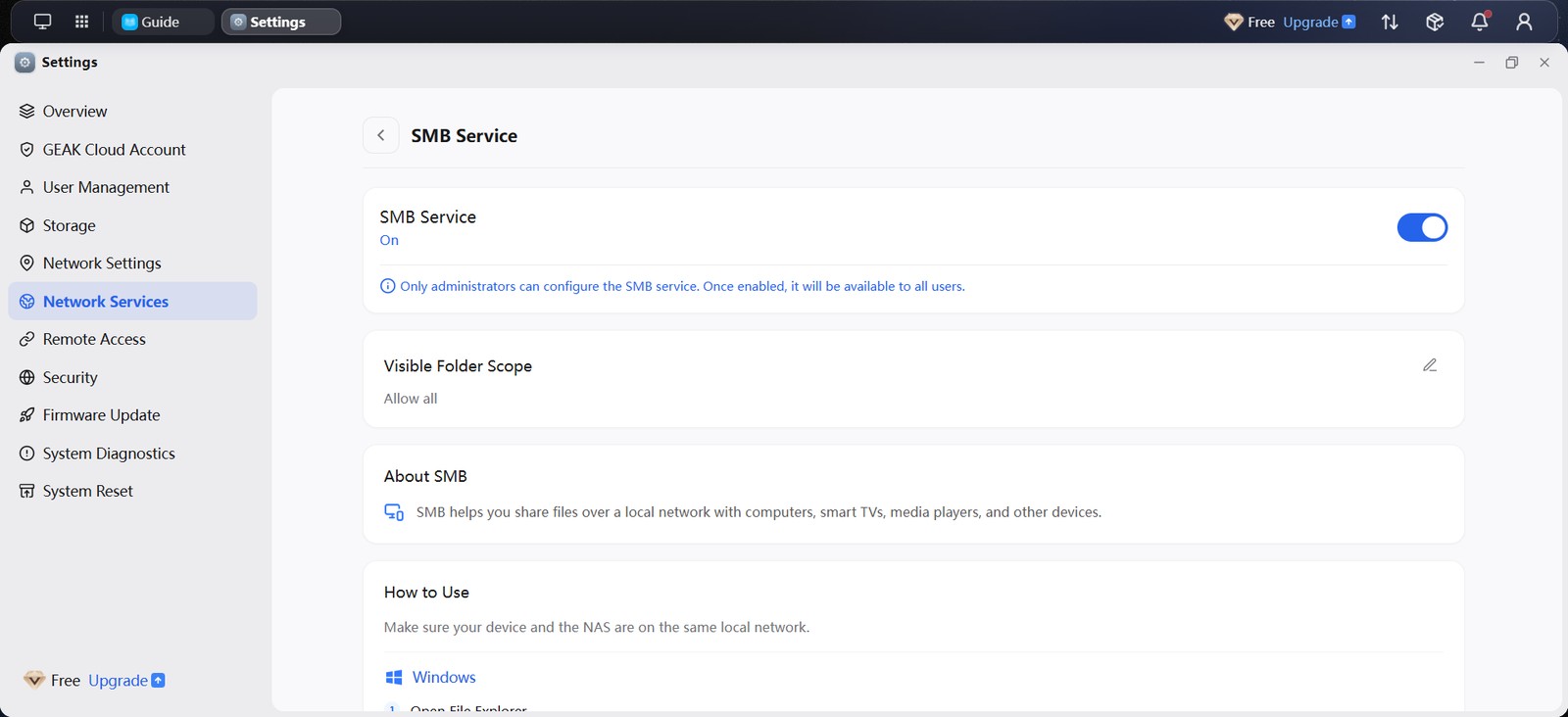
The SMB page itself is minimal: an on/off switch, a “Visible Folder Scope” setting and clear step-by-step connection instructions for Windows and Mac. There are no options for minimum SMB version, guest access, signing or encryption. Windows connected using SMB 3.1.1, the current version, but the session was neither signed nor encrypted — fine on a trusted home network, but you cannot require either.
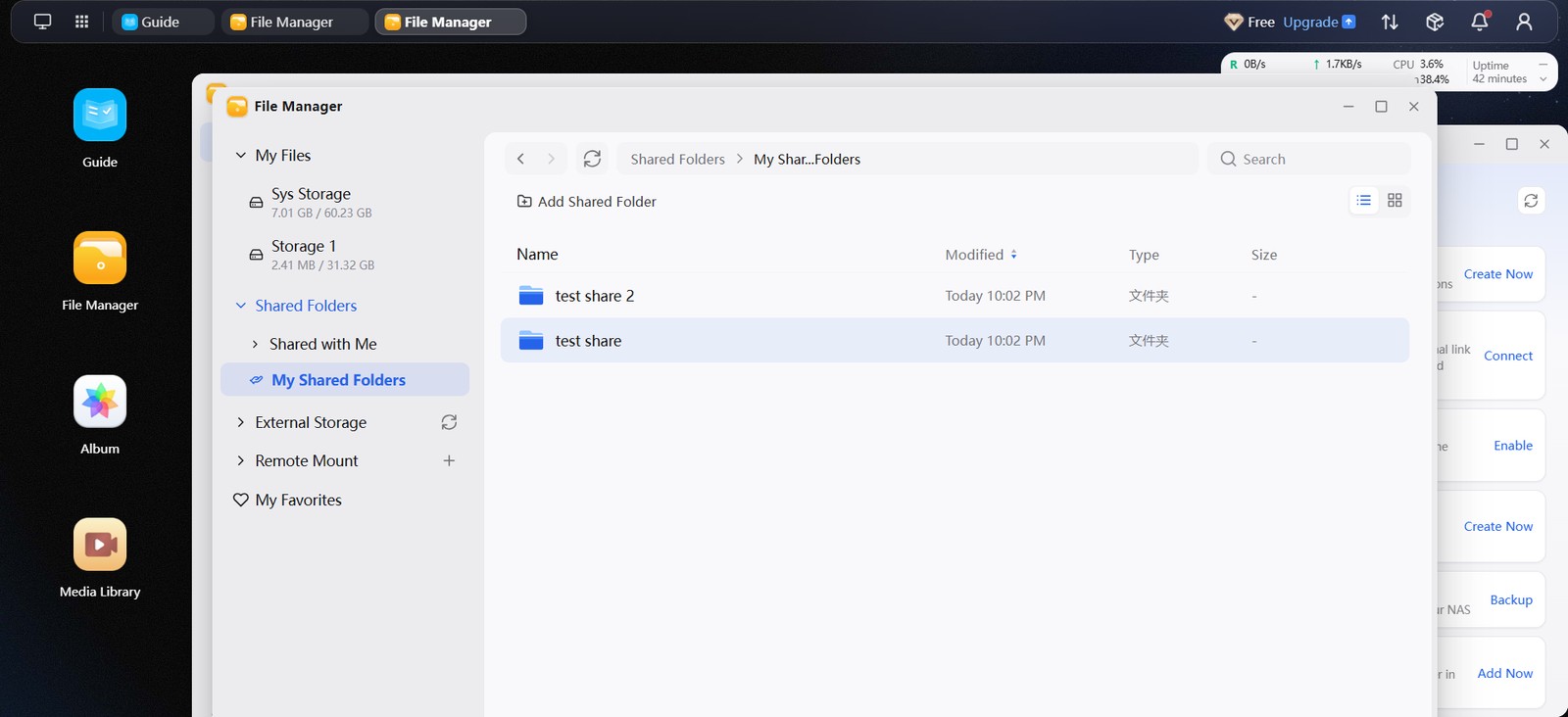
I created two folders on the new pool in File Manager and shared them using Local Share — one read/write, one read-only. Note that both the Administrators and Users groups default to Read-only in the share dialog.
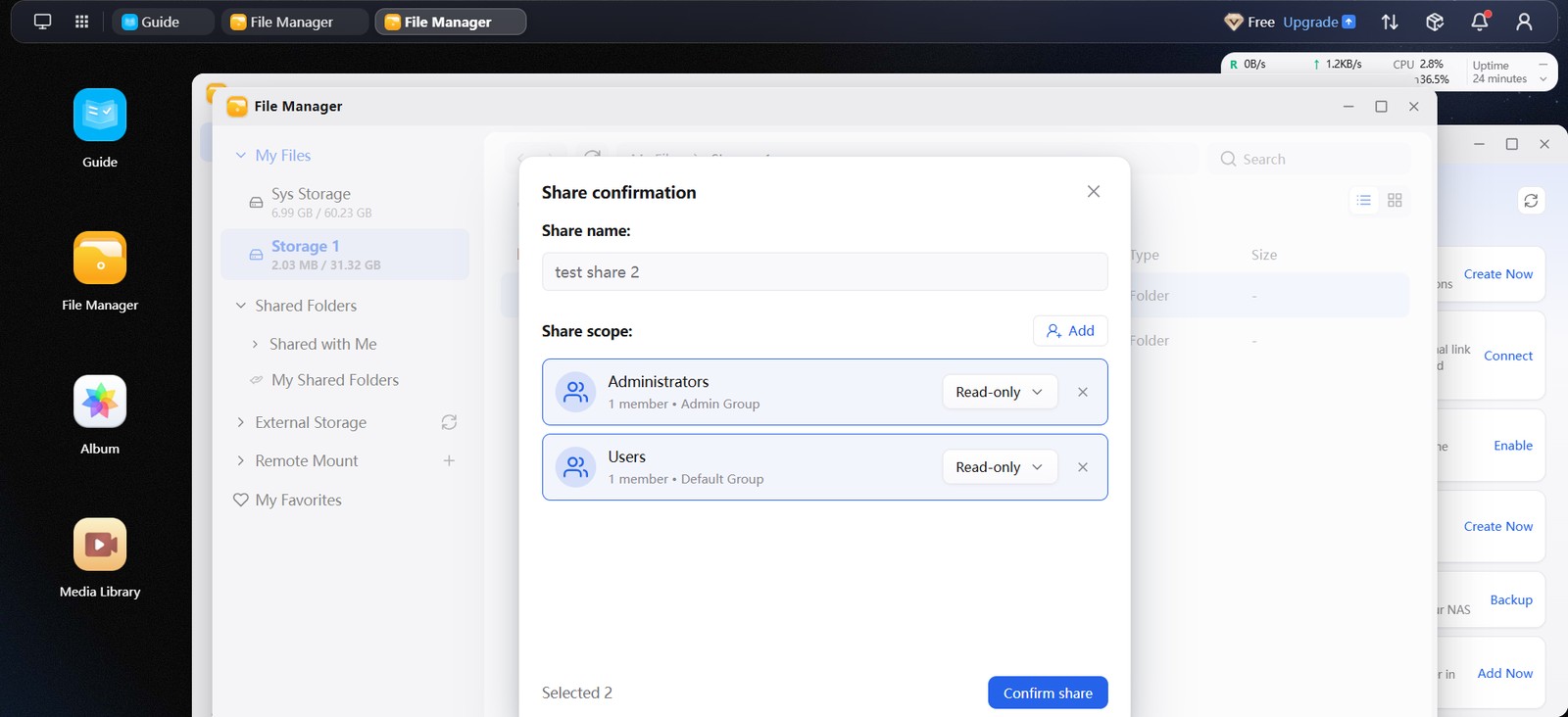
Then I opened \\NAS-IP from a Windows laptop as the admin. Browsing, copying files in and creating folders all worked, so GEAK’s test passed. But what SMB actually exposes surprised me: not the folders I had shared, but the storage pools themselves, including the one holding the operating system.

As admin I could create folders in the read/write share, in the folder I had set to read-only, and in Sys Storage — the system partition. In other words, the Local Share permissions did not restrict the admin over SMB, and the OS disk is writable from the network. Filling that pool by accident could stop the NAS working.
Adding a Second User: Where Things Fall Apart
A NAS is usually shared with family, so I created a second, non-admin user. The free tier allows up to six. Two problems showed up.
1. Non-admin users get no SMB shares at all. The second user could sign in over SMB — from Windows and from an Android phone, which found the NAS on its own — but the share list was completely empty. net view on Windows returned “There are no entries in the list.” That was despite the storage pool being set to “All Users” and the SMB folder scope to “Allow all”. In the web File Manager, the same user could see the folder shared with them, correctly marked read-only. So GEAK’s sharing works in its own web interface, but not over SMB. For a NAS, that is a big gap: a family member cannot simply map a drive on their PC or open it on a TV.
2. Group shares do not reach users added later. I had shared the read-only folder with the built-in Users group before the second user existed. When that user joined the group, the folder appeared under Shared with Me — but always empty, whatever I added to it, over SMB or through the web interface.
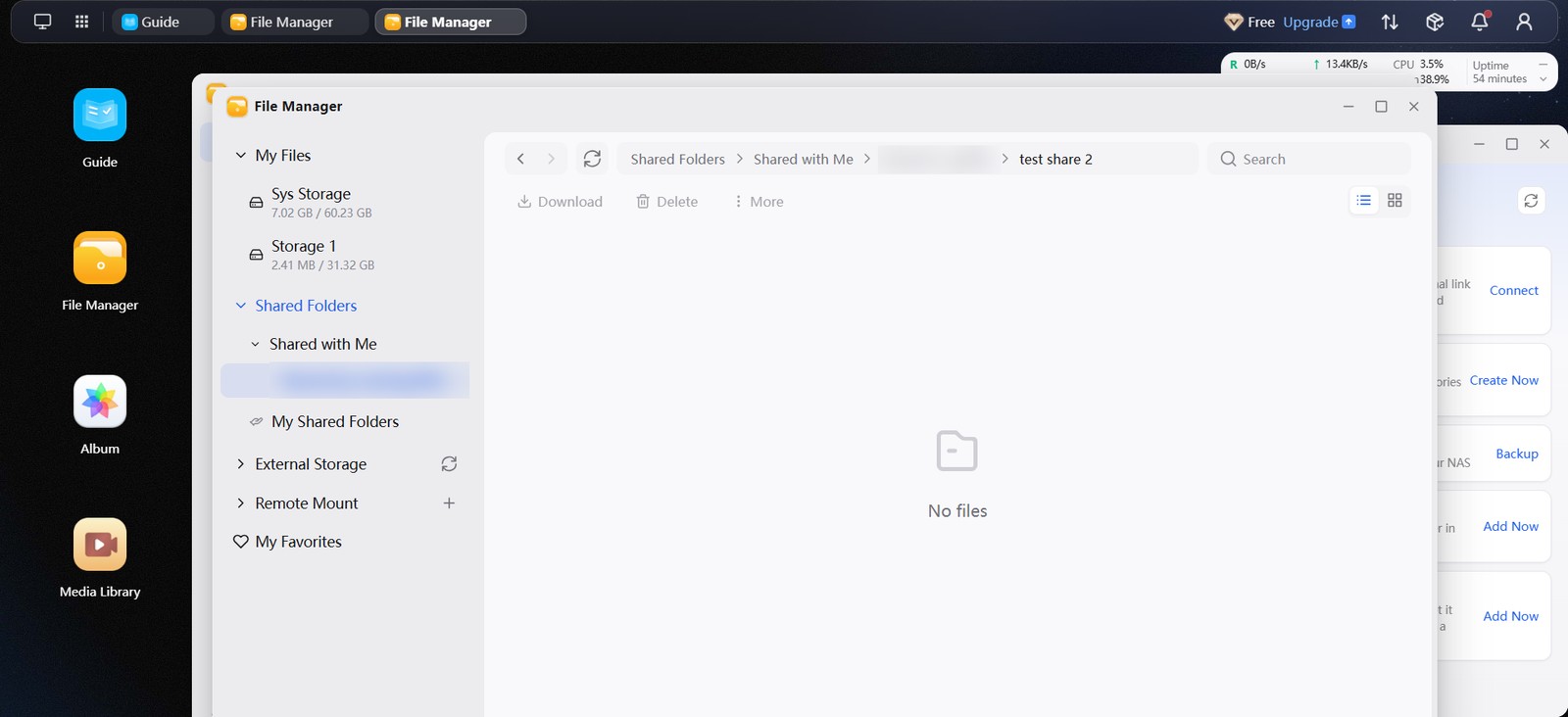
Sharing the same folder again directly with that user, by name, fixed it straight away.
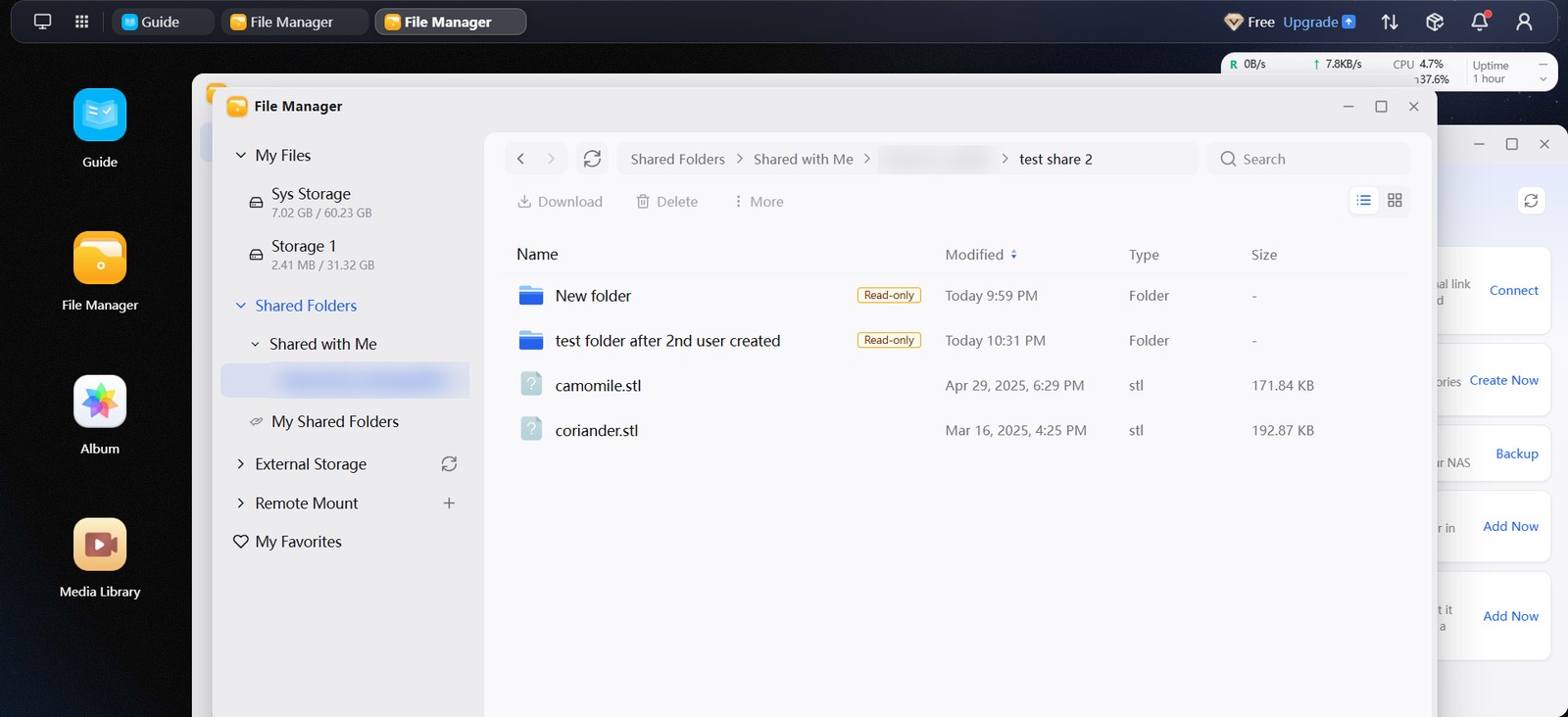
Workaround until it is fixed: share folders with individual users, or re-share after adding someone to a group. I have reported this to the GEAK team.
It Didn’t Use the DNS Server I Set
I wanted to see what GEAK OS talks to on the internet, so I set its network to a manual configuration with my own AdGuard Home server as its only DNS server. (The DNS server can only be changed in Manual mode; there is no DNS override while using DHCP.) The settings page warns that the change may log you out and checks the IP is not already in use before applying — a nice touch.
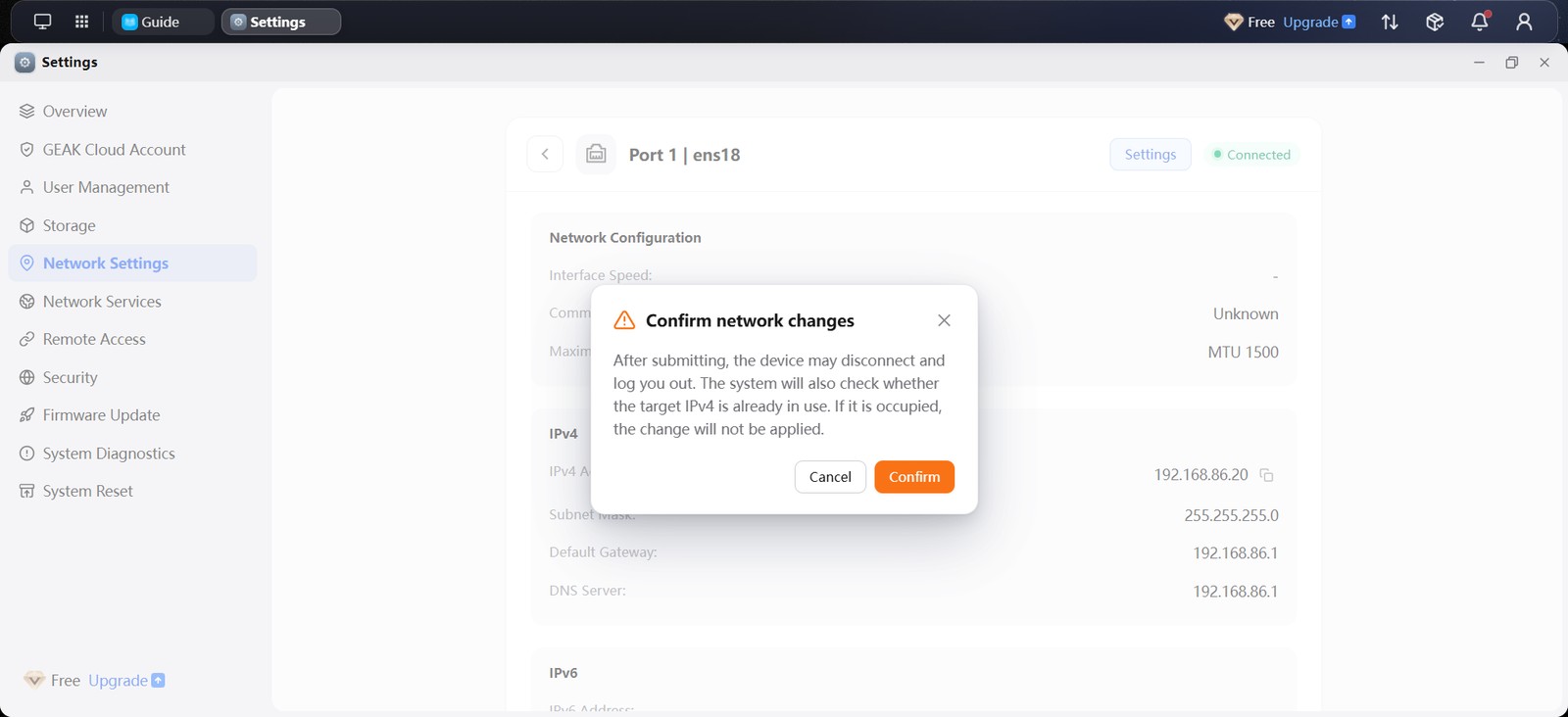
GEAK OS saved the setting and showed my DNS server as active. Then I rebooted it, logged in and out several times and ran a manual update check, which has to contact GEAK’s servers. AdGuard Home did not record a single query from the NAS.
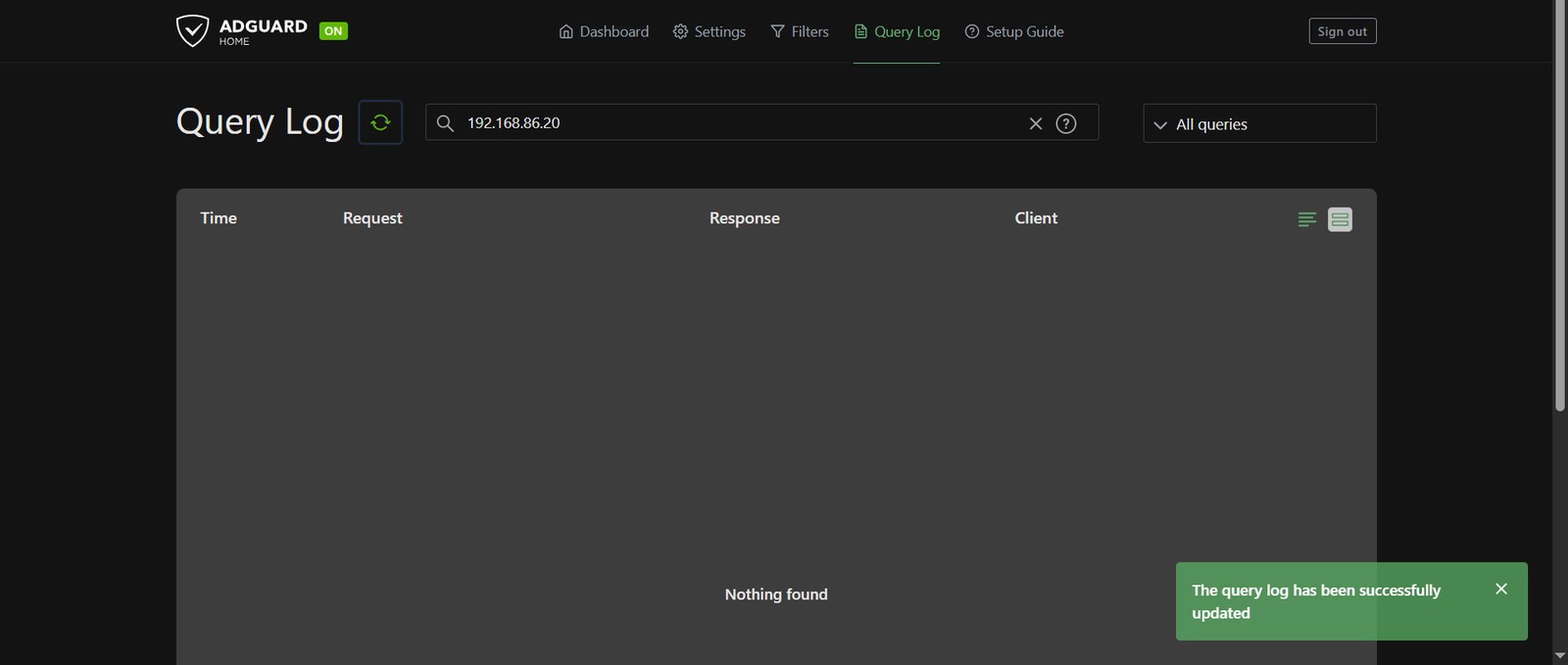
To rule out a logging problem, I looked up geakos.com through the same AdGuard server from my laptop. That query showed up immediately.
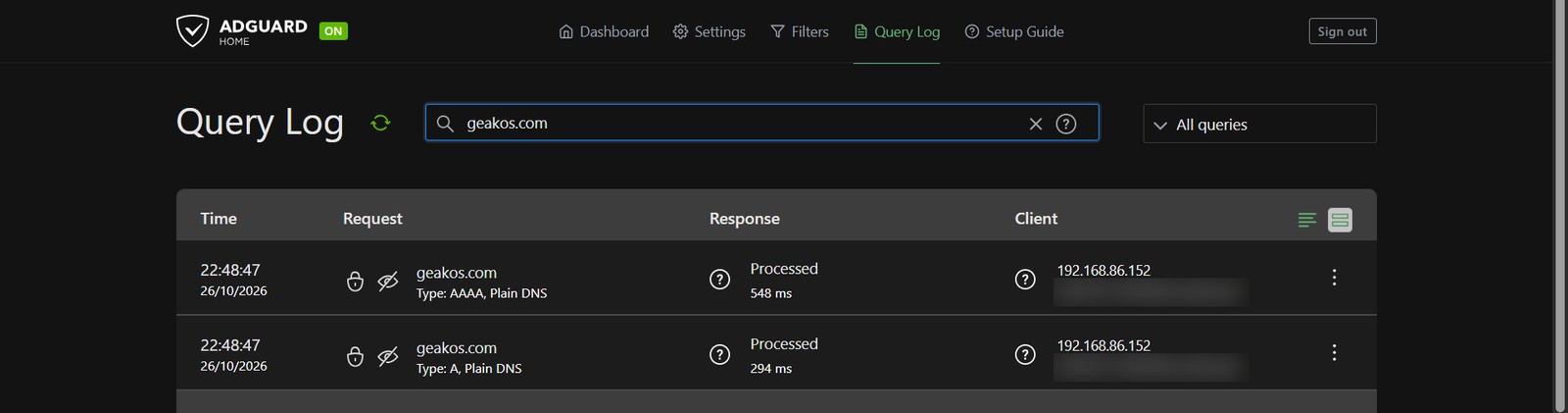
So GEAK OS appears to resolve names some other way than the DNS server you configure — most likely a built-in resolver or encrypted DNS, though cached or hard-coded addresses are also possible. I could not tell which from DNS alone. The practical upshot: if you rely on Pi-hole or AdGuard Home to see and block what devices on your network talk to, setting the DNS server will not cover GEAK OS. You would need firewall rules for that. Given this is a closed-source system, I would like GEAK to document exactly what it contacts.
Free Tier, Paywalls and Privacy
The free tier covers the core NAS features in the web and desktop apps, GEAK AI, lifetime updates and up to six users. The mobile app, GEAK Link remote access and the Android TV photo app are only a two-month trial on Free. External share links need a paid plan.
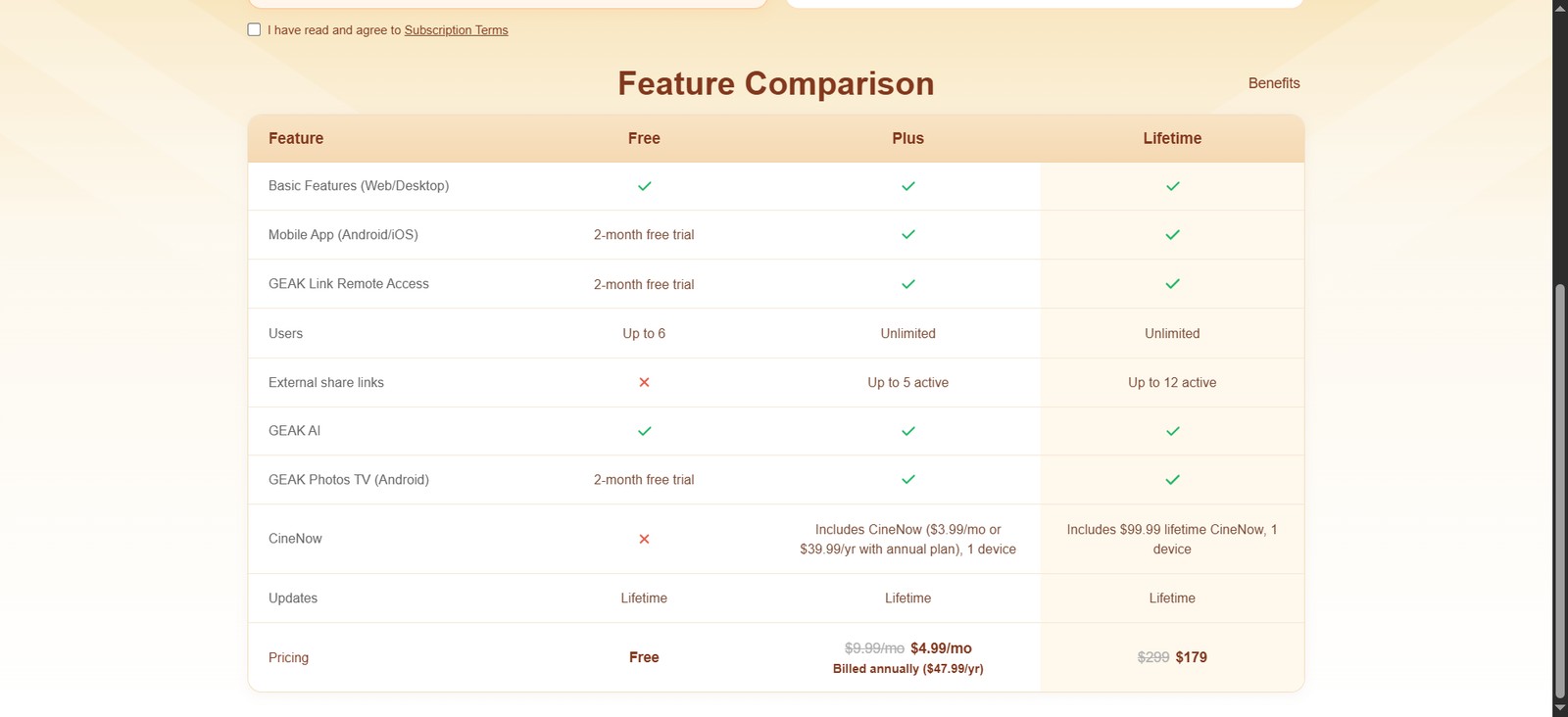
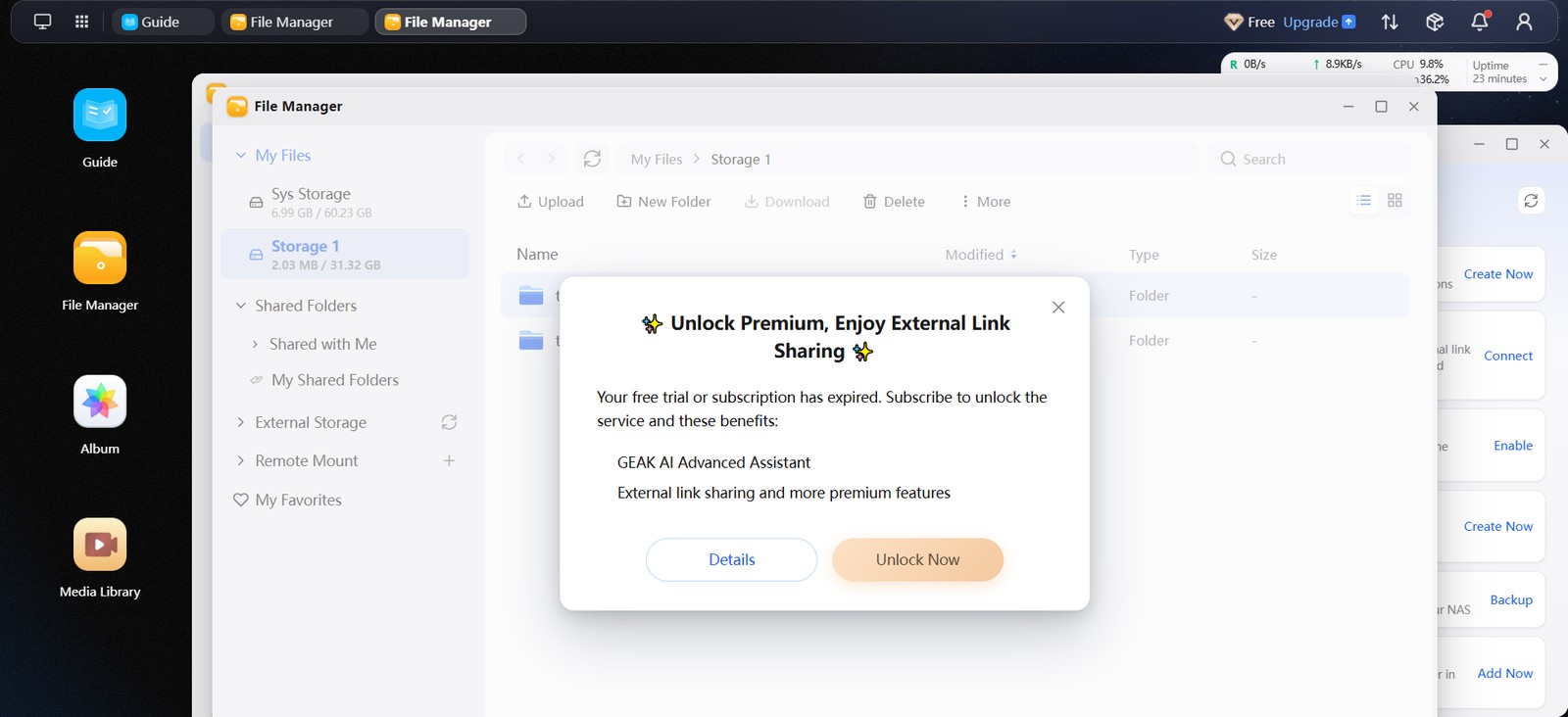
The upsells come early. Right-clicking a folder and choosing External share links on a NAS that was 22 minutes old told me my “free trial or subscription has expired” — I had never started one. That wording needs fixing.
GEAK’s privacy policy (dated 5 June 2026) says a local account collects no personal data, and setup didn’t ask me for anything beyond a local username and password. The same policy lists data that is still collected automatically:
- Software updates: software version, device serial number, IP address and upgrade error details.
- Media Center: the file names of media in folders you add, plus media details such as resolution, codecs and frame rate. I didn’t test whether this leaves the NAS.
- AI features: processed locally, except network features such as RAG, which send data to a third-party AI provider you choose.
- External share links: GEAK staff may access shared content if a link is reported.
Personal data is stored by default on Tencent Cloud in Virginia, USA. Remote access, external share links and password reset all need a separate GEAK cloud account, which I did not create. The website names YOM LIMITED as the trademark owner, and the privacy policy also refers to the company as “Youmang”.
Smaller Rough Edges
- One untranslated string: in My Shared Folders, the Type column reads “文件夹” (Chinese for “folder”) instead of “Folder”.
- The storage usage figure did not update after uploading files.
- STL files get a generic question-mark icon.
- The invite message for a new user tells them to download the mobile app — a two-month trial on Free — and does not mention the NAS address or SMB.
- The “Allow login with initial password” option was left unticked, but the new user was not asked to change their password on first login.
Pros and Cons
Pros
- Very smooth installer with clear disk selection and erase warnings
- Install to working web interface in about ten minutes; 36-second boot
- Runs on Proxmox’s default VM hardware with no tweaks
- Local admin account — no cloud account, app or phone number needed
- Updates install in place without a reboot
- Beginner-friendly storage setup with sensible safety prompts
- Polished, modern web interface
Cons
- Over SMB, only the admin sees any shares, and the system pool is writable
- Group shares do not reach users added later (re-share as a workaround)
- Didn’t use my configured DNS server — no lookups reached AdGuard, so Pi-hole/AdGuard can’t be relied on to see its traffic
- ext4 only, no NFS, no SMB encryption or signing options
- Referral prompt and paywalls appear very early; misleading “trial expired” message
- Mobile app and remote access are only a two-month trial on Free
- Closed source and still in preview
Verdict
GEAK OS makes a strong first impression. Getting from ISO to a working NAS is quicker and friendlier than most alternatives, and the web interface is genuinely nice to use. If you want a simple file server for one person, and you are happy to manage it through GEAK’s own web interface, the free tier does that job today.
For a family or homelab NAS, I would hold off for now. SMB only working for the admin, group shares that silently show empty folders, and a system that didn’t use the DNS server I gave it are not small issues on a device that holds your files. Those are the kinds of problems a preview should shake out, and I have reported all of them to the GEAK team. I will retest when a new build lands. In the meantime, if you want a free NAS OS for a spare PC or a Proxmox VM, established open-source options such as OpenMediaVault or TrueNAS remain the safer choice for anything you cannot afford to lose.
Tested on 26 October 2026 with GEAK OS release-preview 1.0.21, updated to 1.0.23, in a Proxmox VE virtual machine.