
The Homelab Bench is reader-supported. As an Amazon Associate we earn from qualifying purchases; this article contains affiliate links.
Once you have more than one Proxmox host, being able to move a VM from one machine to another is one of the most useful things in your homelab — patch or swap hardware on one box while your Home Assistant VM keeps running on the other. This guide covers what you need before you start, how to join two hosts into a cluster, the difference between live and offline migration, and how to do the move from the web UI and the command line. It also covers what to do if you only have one host today, or want to move containers rather than VMs.
If you are still picking hardware for a second node, see our guide to the best mini PCs for Proxmox homelabs. If you have never created a VM before, start with Creating Your First VM and LXC Container in Proxmox.
Written against Proxmox VE 9.2. Menu names have been stable across 8.x and 9.x, so the steps apply to both.
What You Will Need Before You Start
- Both hosts in the same Proxmox cluster. The built-in Migrate button and
qm migrateonly work between nodes of the same cluster. (Two standalone hosts have other options — see the next section.) - A reliable, low-latency network between the hosts. Proxmox asks for latency under 5 ms between nodes, which any normal home LAN delivers. The nodes need to reach each other on UDP 5405–5412 (cluster traffic), TCP 22 (SSH) and TCP 60000–60050 (live migration data).
- The same network bridge names on both hosts. A VM’s network card points at a bridge such as
vmbr0. That bridge must exist on the target host too. - Same or newer Proxmox version on the target. Live migration is only guaranteed to work when the target runs the same or a newer version of Proxmox VE than the source. Update both hosts before you start.
- CPUs from the same vendor. Live migration between Intel and AMD hosts is not guaranteed. If your two hosts are both Intel (or both AMD) but different generations, the CPU type setting covered in Step 3 handles that.
Only Have One Host Right Now?
You can’t use the Migrate button until a second node is in the same cluster, but you still have two ways to move a VM between separate Proxmox machines:
- Back up and restore. Back up the VM to storage both hosts can see (a NAS share or Proxmox Backup Server), then restore it on the new host. This is the simplest, most reliable route for a one-off move to new hardware. Our guide to automated VM/LXC backups with Proxmox Backup Server covers the backup side, and sharing a NAS drive to Proxmox covers setting up a NAS target.
- Proxmox Datacenter Manager. Proxmox’s separate management tool (1.0 released December 2025) can connect standalone hosts and clusters and live-migrate VMs between them without forming a cluster. It is worth a look if you want to keep two hosts independent. Under the hood it uses
qm remote-migrate, which Proxmox still labels experimental on the command line.
Live Migration vs Offline Migration
Proxmox picks the mode for you based on whether the VM is running. What changes is how much has to be copied and how long it takes.
| Factor | Live (online) migration | Offline migration |
|---|---|---|
| VM state during the move | Running throughout | Stopped |
| Noticeable downtime | A pause well under a second at the hand-over | The whole time the disk is copying |
| Disks on shared storage | Only RAM is copied — fast | Only the config moves — near-instant |
| Disks on local storage | Disks copied while the VM runs (--with-local-disks) |
Disks copied over the network |
| USB or PCI passthrough devices | Blocked — must be removed first | Allowed, but the device must exist on the target host |
“Shared storage” means a storage pool both hosts can see — usually an NFS share from a NAS in a homelab. Put a VM’s disks there and only its memory has to cross the network, so live migration of a typical Home Assistant VM takes seconds rather than minutes.
Local storage (local-lvm or local-zfs) works too, it just takes longer because the whole disk has to be copied. If both hosts use ZFS with the same pool name, you can also set up storage replication (VM → Replication) so the disk is copied in the background on a schedule; a migration then only sends the changes since the last sync.
Orienting Yourself in the Proxmox Web UI
- Resource tree (left) — Datacenter at the top, each host (node) under it, and each VM or container under its host. Click an item to select it.
- Action buttons (top right) — with a VM selected, the row of buttons (Start, Shutdown, Console, Migrate, More) acts on that VM. The Migrate button only appears once the host is part of a cluster.
- Content panel (centre) — the tabs here (Summary, Hardware, Options and so on) change with what you have selected.
- Shell — select a host and click Shell for a root terminal in the browser. This is where the CLI commands below go.
- Tasks (bottom) — every operation, including migrations, shows up here. Double-click a task to see its full log.
Step 1 — Join Your Hosts Into a Cluster
Skip this step if your hosts are already clustered.
Before you start, check the following — two of these can’t be undone later:
- Each host has its final hostname and a static IP. Proxmox does not support changing either once the cluster exists.
- Pick the cluster name carefully; it can’t be changed later either.
- The host you are adding must have no VMs or containers on it. Joining overwrites its configuration, and Proxmox refuses to join a node that holds guests because their IDs could clash. If the second host already runs things, back each one up, delete it, join the cluster, then restore the backups under new IDs.
- Both hosts run the same Proxmox VE version.
On the first host:
- Click Datacenter in the resource tree, then Cluster. On a standalone host you will see “Standalone node – no cluster defined”.
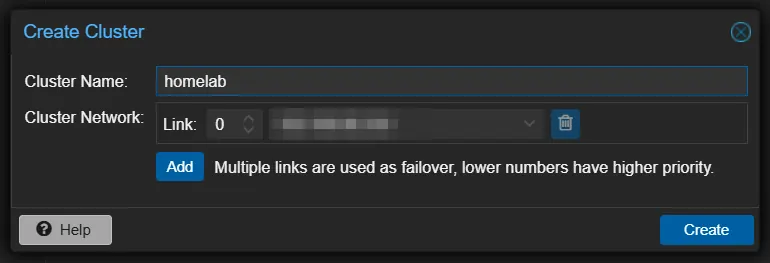
- Click Create Cluster, type a cluster name, check that Cluster Network shows the host’s LAN IP, and click Create.
- When the task finishes, click Join Information, then Copy Information.

On the second host:
- Go to Datacenter → Cluster and click Join Cluster.
- Paste into the Information field. The peer address and fingerprint fill in automatically.
- Enter the first host’s root password and click Join.
- After a few seconds the page will stop responding — that’s expected, because the host’s certificate is replaced. Reload the page and log in again.
Both hosts now appear under one Datacenter. To confirm, open the Shell on either host:
pvecm statusLook for Quorate: Yes and both nodes listed under Membership information.
The Two-Node Catch: Quorum
A cluster needs a majority of votes (“quorum”) to make changes. With two nodes, each has one vote, so if one host goes offline the survivor has only half the votes. Its VMs keep running, but the cluster switches to read-only: you can’t start or stop guests or change settings until the other node comes back.
The fix is a QDevice — a small third machine that casts a tie-breaking vote without running Proxmox. A Raspberry Pi is the classic choice. Install corosync-qnetd on the Pi, install corosync-qdevice on both Proxmox hosts, then run pvecm qdevice setup <pi-ip> on one host. Reliable power to both nodes matters too — see our guide to picking the best UPS for your homelab.
Check price: Amazon UK | Amazon US | Amazon IE
Step 2 — Set a Migration Network (Optional)
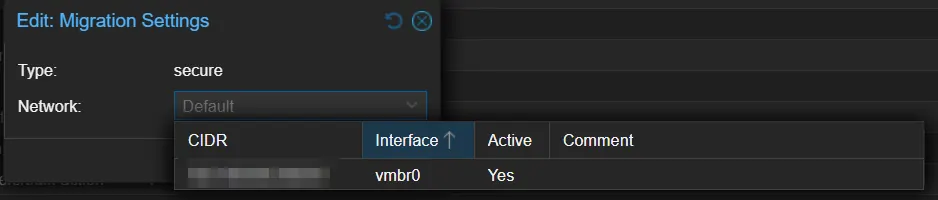
By default, migration traffic uses the same network as cluster communication. Cluster traffic is tiny but very sensitive to delay, and a big disk copy can swamp it. If your hosts have a second network port, go to Datacenter → Options, double-click Migration Settings, and choose that network.
The dialog also shows the migration Type as secure, meaning traffic is encrypted over SSH. You can switch to insecure for a single migration with --migration_type insecure, or for all migrations by editing /etc/pve/datacenter.cfg, but leave it on secure unless you fully control the network: insecure sends the VM’s RAM — including any passwords in memory — in the clear. Disk copies are always encrypted regardless.
Step 3 — Check the VM for Migration Blockers
Select the VM and open its Hardware tab. Look for:
- USB Device or PCI Device entries — passed-through hardware such as a Zigbee dongle or a GPU. These block live migration. Remove them before a live move, or do an offline migration and make sure the same device is plugged into the target host. If you want the VM to work on either host, plug a matching device into both and set it up under Datacenter → Resource Mappings so each host knows which physical device to use.
- CD/DVD Drive with an ISO — an ISO on the host’s
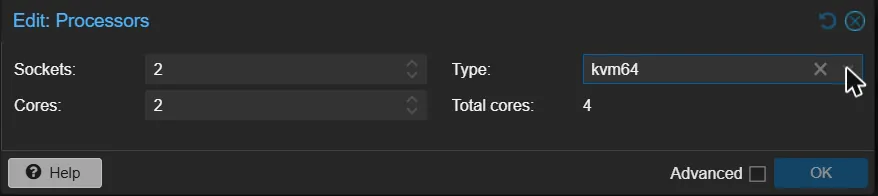
localstorage blocks migration. Select the drive, click Edit, and choose Do not use any media. - Processors → Type: host — this exposes every feature of the host’s exact CPU to the VM, so live migration fails if the target CPU is different. If your hosts aren’t identical, change the type to a portable model such as
x86-64-v2-AES(the default for new VMs). The change takes effect after the VM is fully shut down and started again — a reboot from inside the guest isn’t enough. - Hard Disk location — note whether each disk sits on shared storage or local storage. It decides which path in Step 4 applies.
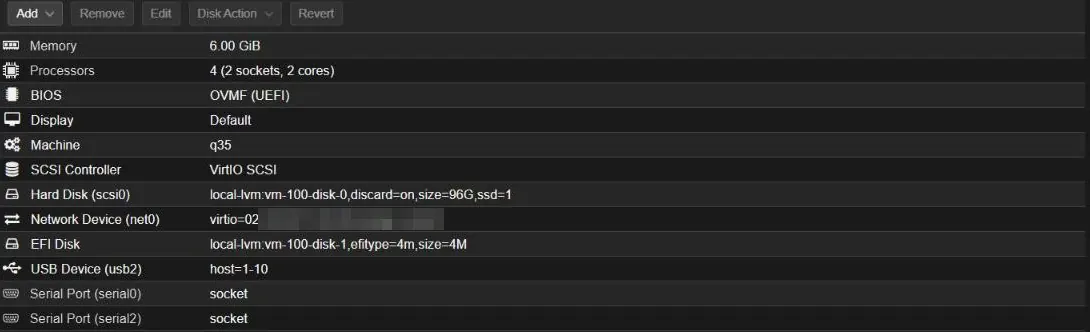
You can see the same information from the Shell:
qm config 100Replace 100 with your VM’s ID. Lines starting usb or hostpci are passthrough devices.
Optional: Install the QEMU Guest Agent
The guest agent isn’t needed for migration, but it’s worth having. It lets Proxmox show the VM’s IP address on the Summary tab — the quickest way to confirm the VM came up after a move — and shut the VM down cleanly. With it enabled you can also tick Run guest-trim after a disk move or VM migration, which frees up space on thin-provisioned storage after local disks are copied.
Inside a Debian or Ubuntu VM:
apt install qemu-guest-agent
systemctl enable --now qemu-guest-agent
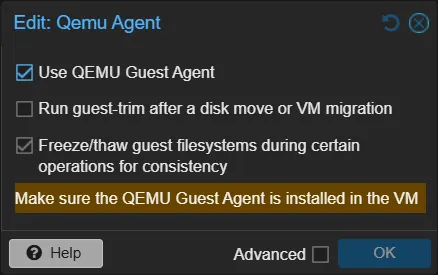
For Windows, install the guest tools from the VirtIO drivers ISO. Then in Proxmox select the VM, go to Options, double-click QEMU Guest Agent and tick Use QEMU Guest Agent (the dialog is titled Edit: Qemu Agent). Shut the VM down and start it again for the change to apply.
Step 4 — Migrate the VM From the Web UI
- Select the VM in the resource tree.
- Click Migrate in the top-right buttons, or right-click the VM and choose Migrate.
- Choose the Target node. The Mode field shows Online if the VM is running and Offline if it’s stopped — you don’t need to set it.
- If the VM has local disks, use the Target Storage drop-down to choose where the disks land on the new host. The dialog warns that copying local disks can take a while; that’s normal.
- If the dialog shows a warning about local resources (a USB device or ISO), the Migrate button will be greyed out. Go back to Step 3.
- Click Migrate. A task window opens and streams progress. For a live migration you will see memory being copied in passes while the VM keeps running, followed by a brief pause while the last changes are sent.
- When the log ends with TASK OK, the VM is running on the new host and appears under it in the resource tree.
Step 5 — Migrate From the Command Line
Open the Shell on the host the VM is currently on. Replace 100 with your VM ID, pve2 with the exact name of the target host, and local-lvm with a storage name on the target.
Live migration, disks on shared storage:
qm migrate 100 pve2 --onlineLive migration, disks on local storage:
qm migrate 100 pve2 --online --with-local-disks --targetstorage local-lvmOffline migration (VM stopped), copying local disks:
qm migrate 100 pve2 --targetstorage local-lvmProgress prints straight to the terminal, and the task also appears in the web UI’s task list.
Limiting Bandwidth
A large disk copy can saturate your network. The --bwlimit option caps it, in KiB/s. On a gigabit link (roughly 115 MiB/s in practice), this caps migration at about 50 MiB/s and leaves room for everything else:
qm migrate 100 pve2 --online --with-local-disks --targetstorage local-lvm --bwlimit 51200To set a default limit for all migrations, use Datacenter → Options → Bandwidth Limits.
Emptying a Host for Maintenance
To move everything off a host before patching or swapping hardware, use the built-in bulk command on that host:
pvenode migrateall pve2 --with-local-disksAdd --vms 100,101 to move only specific guests. It works through VMs and containers together, so check the task list afterwards for anything that didn’t move — usually a VM with a passthrough device still attached.
Migrating LXC Containers
Containers can’t be live-migrated — they share the host’s kernel, so there’s no running machine state to hand over. Instead Proxmox offers restart mode: it shuts the container down, moves it, and starts it on the target. Because containers boot so quickly, the downtime is usually very short.
In the web UI, right-click the container, choose Migrate, and the mode shows Restart for a running container. From the Shell:
pct migrate 105 pve2 --restartLocal container volumes are copied to the target as long as a storage with the same name exists there. Bind mounts (host folders mapped into the container) are not copied — the same path has to exist on the target host. That catches out a lot of people with media or NAS bind mounts; see our guide on accessing a network drive from an LXC for setting those up consistently.
Step 6 — Check Everything After the Move
- Confirm the VM now sits under the new host in the resource tree.
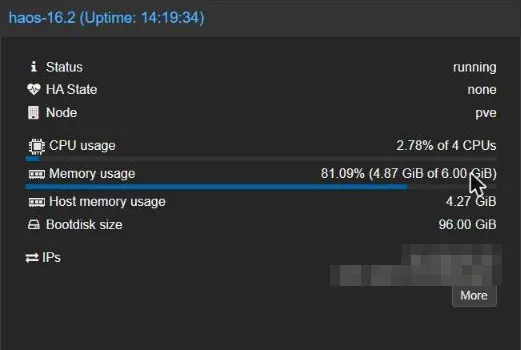
- On the Summary tab, check its IP address shows (needs the guest agent). The IP itself won’t have changed — the VM’s network settings live inside the guest.
- Open the service it runs, such as Home Assistant, and make sure it works.
- Check Datacenter → Backup: backup jobs set to “All” or by VM ID follow the VM automatically, but a job limited to one node won’t include it any more.
Troubleshooting
The Migrate button is missing
The host isn’t in a cluster yet, or the cluster has lost quorum. Check Datacenter → Cluster and run pvecm status.
Migration fails straight away citing local resources or a local CD-ROM
A passthrough device or an ISO on local storage is attached. Remove it (Step 3) and try again, or do an offline migration.
Migration fails because a bridge doesn’t exist
The VM’s network card points to a bridge the target host doesn’t have. Create a bridge with the same name under the target host’s System → Network, then click Apply Configuration.
Migration starts, then fails partway through
Usually a firewall between the hosts blocking TCP 60000–60050, which carries memory and disk data during live migration. If you use the Proxmox firewall, rules for cluster traffic are added automatically, but check any firewall on your switch or router too. A CPU type of host on hosts with different CPUs is the other common cause.
Migration is slow
Copying local disks over gigabit takes time — roughly a couple of minutes per 10 GB at best. Shared storage, ZFS replication, or a faster dedicated migration network (Step 2) all help.
Frequently Asked Questions
Do I need shared storage to migrate a VM?
No. Shared storage makes live migration fast because only the VM’s memory is copied, but Proxmox can migrate VMs with local disks too, live or offline — the disks are copied across the network, which just takes longer.
Can I live-migrate an LXC container?
No. Containers use restart mode instead, which shuts the container down, moves it and starts it again on the target. If something must never go down, run it in a VM.
Can I migrate between two hosts that aren’t in a cluster?
Not with the built-in Migrate button. Use backup and restore, or connect both hosts to Proxmox Datacenter Manager, which supports live migration between separate hosts and clusters.