
The Homelab Bench is reader-supported. As an Amazon Associate we earn from qualifying purchases; this article contains affiliate links.
By the end of this guide your Proxmox host will email you and message you on Telegram when a backup fails, a disk starts reporting S.M.A.R.T. errors, or a ZFS pool degrades — using nothing but Proxmox’s built-in notification system, with no extra scripts or cloud services. Every step happens in the Proxmox web UI, plus one optional terminal command to test it, so you do not need any Linux mail-server experience.
Why Bother With Health Alerts?
Silent failures are the real danger in a homelab. Proxmox already watches your drives (the smartd service checks S.M.A.R.T. health every 30 minutes), your ZFS pools (the zfs-zed event daemon) and your backup jobs — but out of the box those warnings go to a local mailbox nobody reads. If you run Home Assistant inside Proxmox — the setup covered in our guide to Installing Home Assistant in a Proxmox VM — a dying disk or a failed backup could cost you your whole smart home configuration before you notice. Ten minutes of setup fixes that.
If you are still choosing hardware for your Proxmox node, see our Best Mini PCs for Proxmox Homelabs guide. And once alerts are flowing, pair them with automated backups — our Setting up Automated VM/LXC Backups with Proxmox Backup Server walkthrough covers that.
How Proxmox Notifications Work (Quick Orientation)
Since Proxmox VE 8.1, notifications are built from two pieces, both found under Datacenter → Notifications:
- Targets are where a notification gets delivered — an email server, a Telegram bot, a Gotify server and so on.
- Matchers are routing rules. Each one decides which notifications go to which targets. A matcher with no rules matches everything.
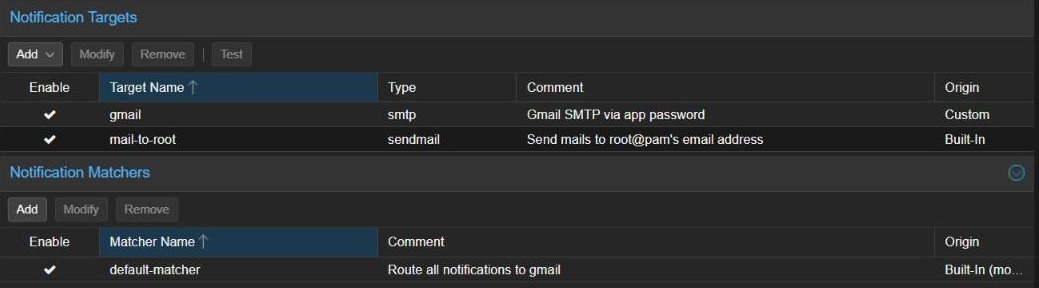
Every notification carries a type and a severity, and matchers filter on those:
| Event | Type | Severity |
|---|---|---|
| Backup succeeded | vzdump | info |
| Backup failed | vzdump | error |
| Replication job failed | replication | error |
| Package updates available | package-updates | info |
| Mail for root (S.M.A.R.T., ZFS and other system daemons) | system-mail | unknown |
That last row matters more than it looks. Disk and ZFS warnings arrive as emails to the local root user, and Proxmox converts them into notifications with the severity unknown. A matcher that only lets through “warning” and “error” will silently drop them — so in Steps 5 and 9 you will build matchers that catch them explicitly.
Proxmox offers four target types: Sendmail (hands mail to the host’s local mail server, Postfix), SMTP (talks directly to an outside mail server such as Gmail), Gotify (self-hosted push notifications) and Webhook (an HTTP request to any URL, which is how Telegram works). Webhook targets need Proxmox VE 8.3 or newer.
What You Will Need
- Proxmox VE 8.3 or newer (8.1 is enough for email only). The screenshots in this guide are from Proxmox VE 9.2.
- Root access to the Proxmox web UI.
- A Gmail account with 2-Step Verification turned on (or any other email provider that supports SMTP).
- A Telegram account for Part 2.
- Outbound internet access from the Proxmox host on port 587 (email) and 443 (Telegram).
Part 1: Email Alerts via Gmail
Step 1 — Give the root User an Email Address
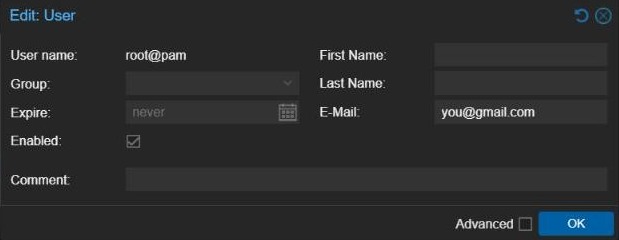
Proxmox looks up a user’s email address whenever a target is told to notify that user, and the built-in mail-to-root target relies on it entirely. Set it now so everything downstream has somewhere to go.
- Click Datacenter in the left-hand tree, then Permissions → Users in the menu beside it.
- Select root and click Edit.
- Type your address into the E-Mail field and click OK.
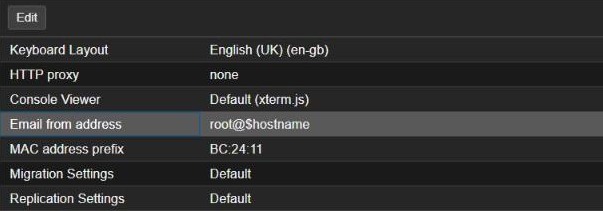
While you are in the Datacenter menu, open Options and look at Email from address. Its default, root@$hostname, is the sender used by the Sendmail target and tends to land in spam. It does not affect the Gmail target below (which sets its own sender), but if you ever use the Sendmail target, double-click this row and set an address on a real domain.
Step 2 — Create a Gmail App Password
Gmail will not accept your normal account password from a server. Instead you create an App Password: a separate 16-character password that only works for sending mail and can be revoked on its own without touching your main login.
- Go to myaccount.google.com and open Security.
- Make sure 2-Step Verification is on — App Passwords are not offered without it.
- Type App passwords into the search box at the top of your Google Account page and open it.
- Name it something like Proxmox Alerts and click Create.
- Copy the 16-character password straight away — Google only shows it once. You will paste it into Proxmox in the next step.
Step 3 — Add a Gmail SMTP Target
The SMTP target sends mail directly to Gmail, so you do not have to configure the host’s own mail server at all.
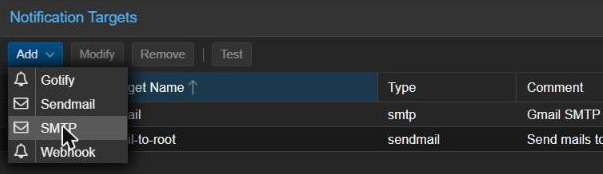
- In Datacenter → Notifications, click Add above the Notification Targets list and choose SMTP.
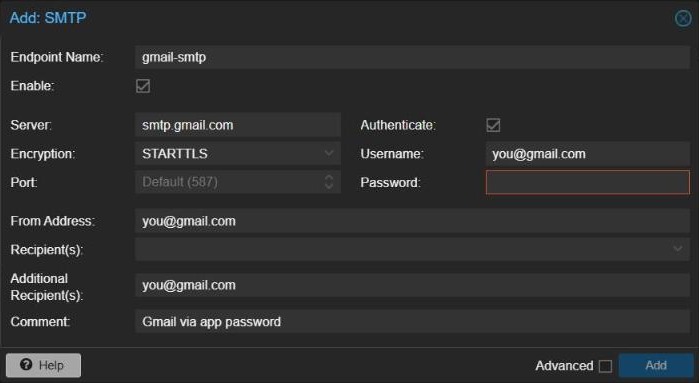
- Fill in the dialog:
- Endpoint Name:
gmail-smtp(any name; no spaces) - Server:
smtp.gmail.com - Encryption: STARTTLS — the Port switches to 587 automatically
- Authenticate: leave ticked
- Username: your full Gmail address
- Password: the App Password from Step 2
- From Address: the same Gmail address (Gmail rejects or rewrites other senders)
- Recipient(s): pick
root@pamto use the address from Step 1, and/or type any address into Additional Recipient(s)
- Endpoint Name:
- Click Add.
Gmail also works with Encryption set to TLS on port 465 — useful if your ISP blocks 587. Note that SMTP targets do not queue and retry; if Gmail is unreachable at the moment an alert fires, that email is lost, which is one more reason to add Telegram as a second channel. If you are also evaluating NAS operating systems to run alongside Proxmox, our GEAK OS review covers a promising new option worth considering.
Step 4 — Test the Target
Back on the Notifications page, click your new gmail-smtp target in the list and press Test in the toolbar. A test email should arrive within a minute. If it does not, the error shown usually says exactly why — most often a mistyped App Password or a blocked port.
Step 5 — Route Notifications to Gmail
A target does nothing until a matcher sends notifications to it. You have two good options:
Option A — send everything (simplest). Select default-matcher, click Modify, open Targets to notify, tick gmail-smtp and untick mail-to-root. Every notification, including successful backups and available updates, now goes to Gmail.
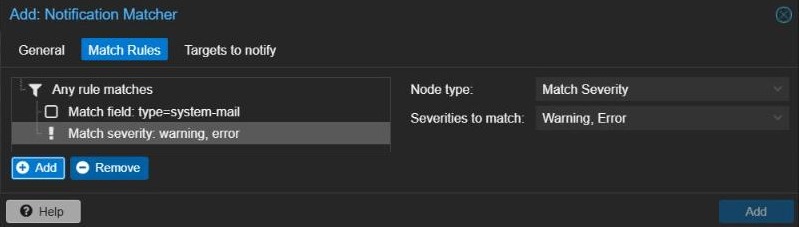
Option B — only what needs attention. Click Add under Notification Matchers and build a filtered matcher:
- On the General tab, name it
important-alerts. - On the Match Rules tab, click the top line (All rules match) and change Match if to Any rule matches.
- Click Add, set Node type to Match Field, Field to
typeand Value tosystem-mail. This rule catches the disk and ZFS warnings. - Click Add again, set Node type to Match Severity and choose Warning and Error. This catches failed backups and replication jobs.
- On Targets to notify, tick your Gmail target, then click Add.
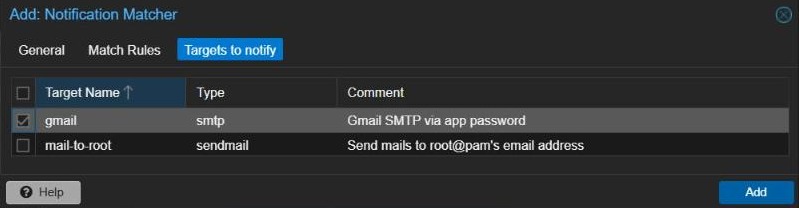
If you choose Option B, also untick the targets on default-matcher (or disable it), otherwise the default matcher will keep sending everything to mail-to-root as well.
Part 2: Telegram Alerts via Webhook (PVE 8.3+)
Telegram makes a great second channel: messages land on your phone instantly, even when email is delayed or filtered.
Step 6 — Create a Telegram Bot
- In Telegram, search for @BotFather (it has a blue verified tick) and start a chat.
- Send
/newbot. Give it a display name (e.g. Proxmox Alerts) and then a username that ends inbot(e.g.my_proxmox_bot). - BotFather replies with an API token that looks like
123456789:ABCdef.... Treat it like a password — anyone with it can post as your bot.
Step 7 — Find Your Chat ID
- Search for your new bot in Telegram, open it and press Start, then send it any message. A bot cannot message you until you have messaged it first.
- In a browser, open the following address, replacing
YOUR_BOT_TOKENwith your token:https://api.telegram.org/botYOUR_BOT_TOKEN/getUpdates - In the response, find
"chat":{"id":— the number after it is your Chat ID. If you see"result":[], send the bot another message and refresh.
Step 8 — Add a Webhook Target for Telegram
- In Datacenter → Notifications, click Add → Webhook.
- Endpoint Name:
telegram - Method/URL: leave POST and enter:
https://api.telegram.org/bot{{ secrets.token }}/sendMessage - Click Add Header and enter
Content-Typewith the valueapplication/json. - In Body, paste:
{ "chat_id": "{{ secrets.chat_id }}", "text": "[{{ severity }}] {{ escape title }}\n\n{{ escape message }}" } - Click Add Secret twice. Name the first
tokenand paste your bot token as its value; name the secondchat_idand paste your Chat ID. - Click Add.
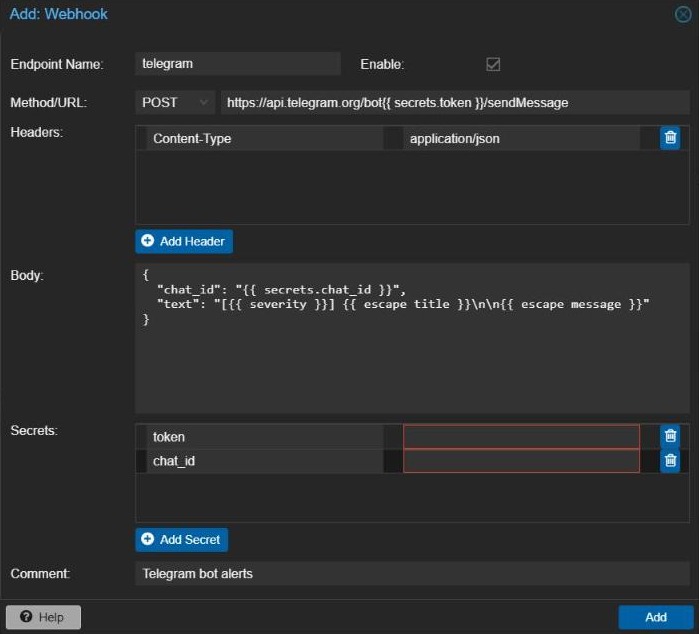
How this works: Proxmox fills in anything between double curly braces before sending. {{ secrets.token }} and {{ secrets.chat_id }} pull in your secrets, which are stored in /etc/pve/priv/notifications.cfg (readable only by root) instead of in plain sight. {{ escape ... }} makes sure line breaks and quotes in the alert text cannot break the JSON. The message is sent as plain text, so characters such as < or & in a backup log will not cause Telegram to reject it.
Select the new telegram target and click Test — a message from your bot should appear within a few seconds.
Step 9 — Route Alerts to Telegram
Telegram works best for alerts that need action, not routine “backup OK” messages. The easiest way is to tick telegram as a second target on the important-alerts matcher from Step 5 (select it, click Modify, open Targets to notify). If you went with Option A for email, create the important-alerts matcher now exactly as described in Step 5, but tick only telegram.
Each target receives a given notification at most once, even if several matchers point at it, so overlapping matchers will not cause duplicate messages.
Part 3: Check the Health Checks Are Wired In
Disk S.M.A.R.T. Monitoring (smartd)
Proxmox installs smartmontools and runs smartd by default. When a drive reports a problem, smartd mails the local root user; Proxmox turns that mail into a system-mail notification, and your matchers deliver it. Confirm the service is running from the node’s Shell (click your node under Datacenter, then Shell):
systemctl status smartdTo check a drive yourself, list your disks with lsblk and run, for example:
smartctl -a /dev/sdaThe same information is in the UI under your node → Disks: select a drive and click Show S.M.A.R.T. values.
ZFS Pool Alerts (zfs-zed)
If you use ZFS, the ZFS Event Daemon reports degraded pools and scrub errors the same way — by mailing root. Check it is running:
systemctl status zfs-zedTest the System-Mail Path End to End
The target Test buttons skip the matchers. To prove a real disk or ZFS warning will reach you, send a mail to root from the node’s Shell:
printf "Subject: Proxmox alert test\n\nThis is a test of system mail forwarding.\n" | sendmail rootWithin a minute it should arrive by email and on Telegram. If it only shows up in one place, check that both targets are ticked on the matcher that includes the type = system-mail rule.
Backup Job Notifications
Backup results are native notifications and flow through your matchers automatically — with one catch. Backup jobs created on Proxmox versions before 8.1 may still be set to the old email-only mode. Open Datacenter → Backup, edit each job, and check that Notification mode is set to use the global notification settings rather than the legacy sendmail option.
Quick Sanity-Check Checklist
- Email address set on
root@pam✓ - Gmail SMTP target added and its Test email received ✓
- Telegram webhook target added and its Test message received ✓
- A matcher that catches
system-mailplus warning/error severities, pointed at both targets ✓ - default-matcher either pointed at Gmail or disabled ✓
smartd(andzfs-zedif you use ZFS) running ✓- The
sendmail roottest arrived on both channels ✓ - Backup jobs using the global notification settings ✓
Frequently Asked Questions
The Test works, but I never get disk or ZFS warnings — why?
Almost always a matcher filtering only on severity. System mail from smartd and ZFS arrives with the severity unknown, so a matcher that only allows warning and error never matches it. Add a Match Field rule for type = system-mail and set the matcher to Any rule matches, as in Step 5, then rerun the sendmail root test.
Do I still need to configure Postfix to relay through Gmail?
No. Older guides configure Postfix as a relay because, before Proxmox VE 8.1, all email went through it. With an SMTP target, Proxmox talks to Gmail directly, and system mail for root is forwarded into the notification system first. You only need a Postfix relay if you insist on using the Sendmail target, or for backup jobs still in the legacy email mode.
I’m on Proxmox VE 8.1 or 8.2 — can I still get Telegram alerts?
The Webhook target type arrived in 8.3. On 8.1 or 8.2 you can still use email (Part 1) and Gotify, but for Telegram the cleanest route is to upgrade to the latest Proxmox VE release, which also brings security fixes.