
Disclosure: LGM-OS’s developer, Luis García Menéndez, invited me to test LGM-OS and gave me a free Home licence (normally €39). There was no payment and no obligation to publish or to be positive. There are no affiliate links in this article. After the review, LGM-OS offered to link to it from its release notes, and I accepted.
Update, 4 November 2026: I sent Luis my findings on the evening of 3 November, and he replied the same evening with a new release. I updated my test NAS to version 4.12.4 the next day and retested everything I could, plus a fresh install, which now gets 4.13.0. Most of the problems below are now fixed, including the false intrusion alarm, the service-account logins and the in-place restore. The licence-linking bug is not fixed. Fixed items are marked in the text, and the full results are in Retest on 4.12.4 near the end.
LGM-OS is a paid NAS operating system for ordinary x86-64 PCs, built on Debian and written by one developer in Spain. It turns a spare PC or a virtual machine into a home or small-office NAS: SMB, NFS and WebDAV shares, Btrfs or ZFS volumes with snapshots, backups, cameras, Docker apps and virtual machines, all run from a desktop-style web panel. For home users it is a one-off purchase rather than a subscription.
Luis asked for three things: install it, connect to it over SMB from a second machine as a second user, and make a backup or snapshot and then really restore from it. I did all three in a Proxmox VM on my homelab over two evenings, checking every restored file against a checksum, and then kept going.
Short version: all three checks passed. File sharing is encrypted by default, permissions behave exactly as set, and backups came back byte for byte. But I also hit a licence-linking bug, a false “someone may have got in” alarm after every boot, a way to turn a system service account into a working login, and a restore option that doesn’t put files back where it says it will. A day later, version 4.12.4 had fixed all of those except the licence bug. Details, timings and screenshots below.
LGM-OS at a Glance
| Version tested | 4.10.0 (installed by the first boot from the current installer ISO), then retested on 4.12.4. A fresh install on 4 November got 4.13.0 |
|---|---|
| Base | Debian 13, x86-64 only (no Raspberry Pi or other ARM boards) |
| Install | Bootable ISO, under 800 MB, which downloads the latest LGM-OS on first boot |
| Licence | Closed source. Home €39 one-off with a year of updates (then €10 a year), Lifetime €200, Business from €29 a month, at the time of writing. 60-day free trial |
| Storage | Btrfs, ZFS, ext4 or XFS; single disk, mirror and RAID levels; snapshots on Btrfs and ZFS |
| File sharing | SMB (on by default), NFS, WebDAV, SFTP, rsync |
| Developer | Luis García Menéndez, a solo developer in Spain |
My Test Setup
I ran LGM-OS as a virtual machine on my Proxmox VE host, an Intel NUC with an i5-8259U. The VM was set up like this:
- 2 cores (CPU type
host) and 4 GB of RAM. - A q35 machine with UEFI (OVMF), Secure Boot keys not enrolled.
- A 32 GB virtual system disk and two virtual data disks on VirtIO SCSI. I started with 20 GB data disks and had to grow them to 40 GB (more on that below). Later I added a third 40 GB disk, while the VM was running, as a backup target.
- A VirtIO network card on my normal LAN, and a Windows laptop on Wi-Fi as the client.
Everything LGM-OS could see was virtual and disposable. I took Proxmox snapshots at each stage so I could roll back, which I’d recommend to anyone trying a new NAS OS.
Installation: Fast, With One Trap
The ISO downloaded to my Proxmox host in 38 seconds, and its SHA-256 matched the value on the download page. It booted on Proxmox’s default VirtIO hardware under UEFI with no workarounds.
The installer is a short text-mode wizard. Before the welcome screen it asks for a language (seven are offered) and a keyboard layout. The keyboard screen explains why it matters: a wrong layout breaks @, y and z when you later type a console password. Then it asks for the NAS’s name and how much of the system disk to use.
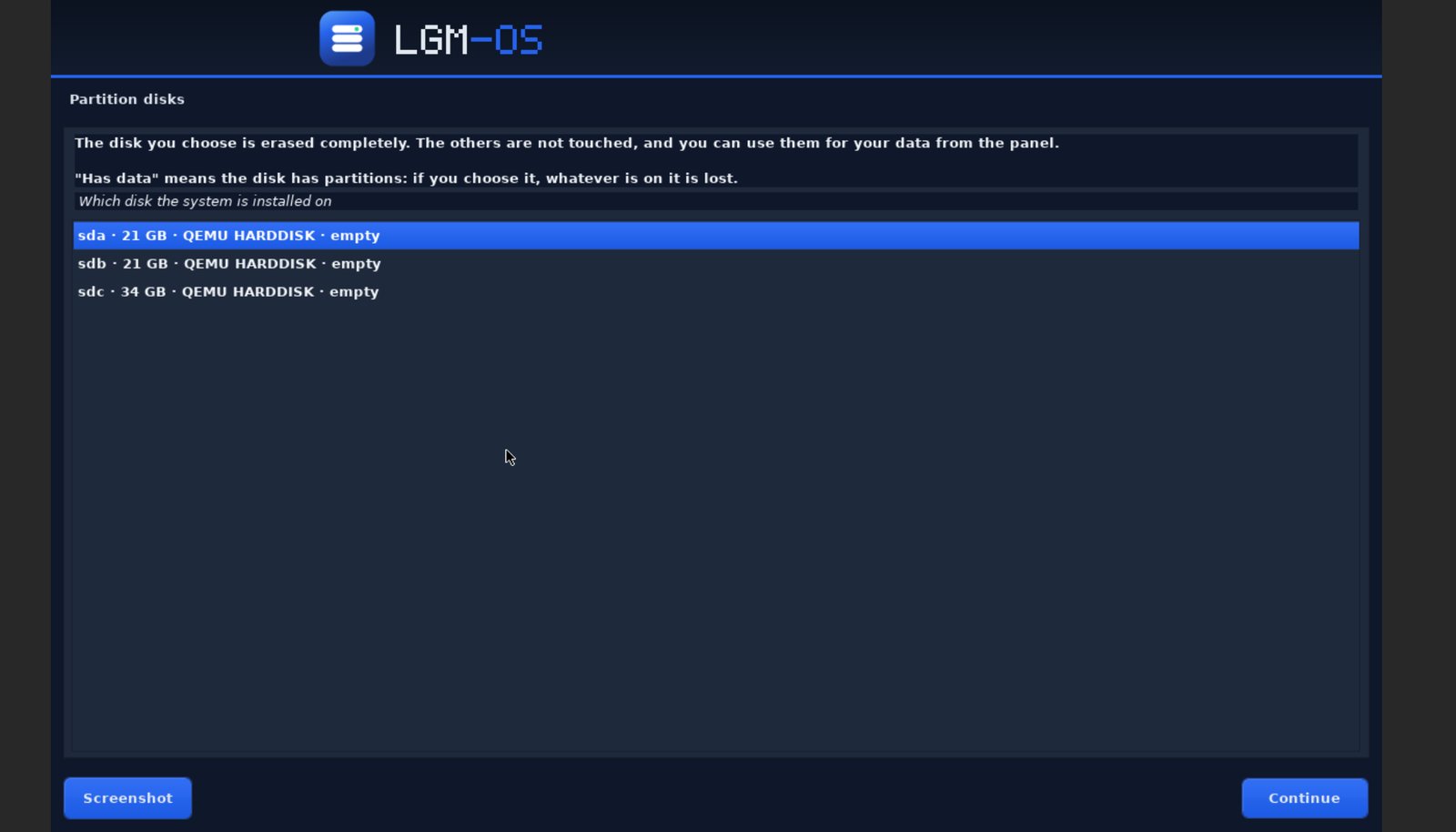
Then comes the trap. My VM had three empty disks, and the disk list pre-selected one of the 20 GB data disks as the place to install the system, not the 32 GB disk I’d set aside for it. It seems to pick the first disk alphabetically. Press Continue without looking and the system lands on a data disk. The list shows each disk’s size and model but not its serial number, so with two identical real drives you’d have only the order to go on. (The Storage page in the finished system does show serial numbers.)
Developer’s response: Luis says the new installer prefers SSDs and shows every disk’s serial number. On 4 November, though, the download page still served the same installer ISO, with an identical checksum, and on a fresh install its disk list still showed no serial numbers. It pre-selected the right disk this time, but that disk also happened to be first in the list.
With the right disk chosen, the base install took about four minutes. It then waits for you to remove the install media and press Continue, rather than restarting by itself as the guide says.
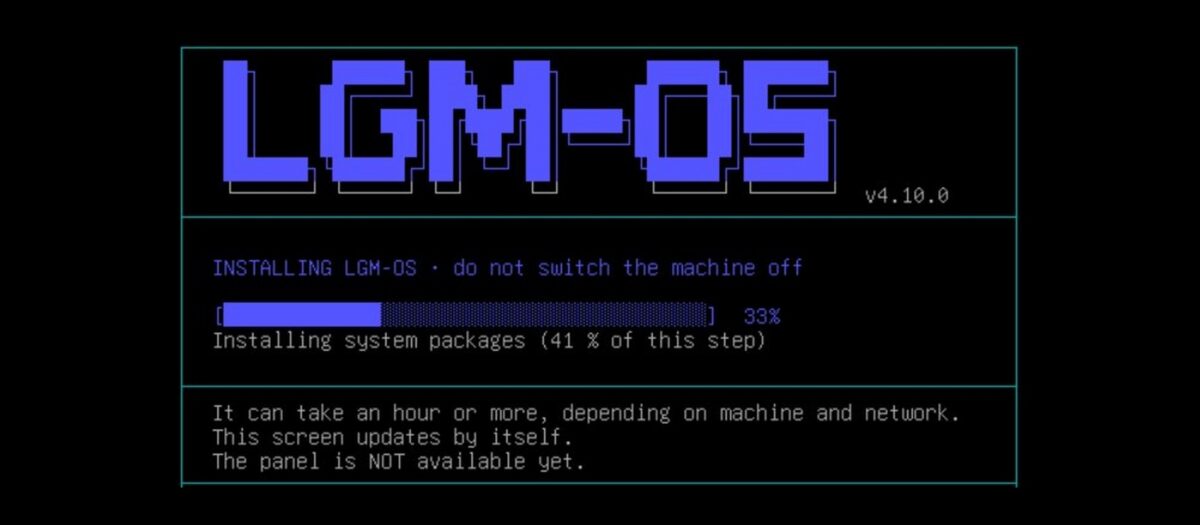
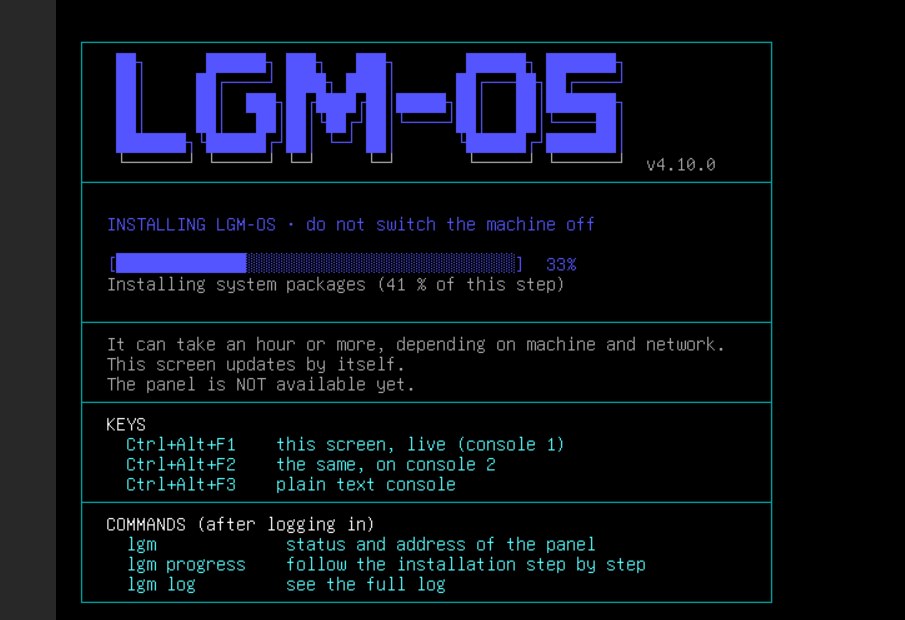
The first boot is the long part. The ISO is only a starter: on first boot the NAS downloads the current LGM-OS and, according to the docs, installs more than a thousand packages. The docs warn this can take an hour or more. Mine took about 13 minutes, with building the ZFS kernel module the slowest step. The first-boot screen is good: a progress bar, the current step, the console login and a warning not to switch off.
Install Timings
| Step | Time taken |
|---|---|
| Download the ISO to Proxmox and check it | 38 s |
| Installer screens, from language to disk choice | About 5 min |
| Base install to the system disk | About 4 min |
| First boot: download and install LGM-OS, panel answering | About 13 min |
| VM start to working web panel, in total | About 25 min |
| Create the admin account | About 2 min |
| Cold start to web panel (next day) | About 40 s |
First-Time Setup
The web panel is at https://<nas>:5001 with a self-signed certificate, so expect a browser warning. The docs recommend using the NAS’s .local name rather than its IP address, but that name didn’t resolve from my Windows laptop; the IP address worked.
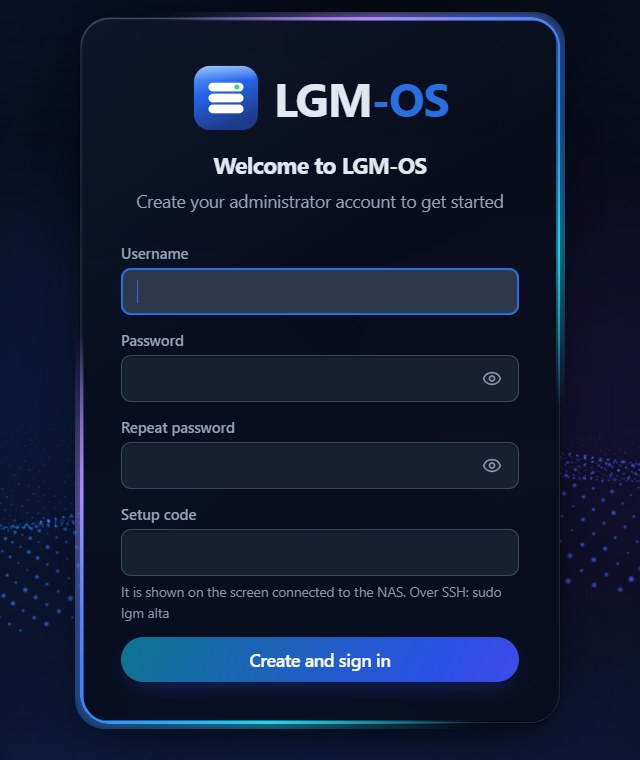
Creating the admin account needs a setup code shown on the NAS’s own screen, so nobody else on your network can claim the box before you. It’s a sensible protection. The only password rule is a minimum of eight characters. There was no referral prompt or upsell.
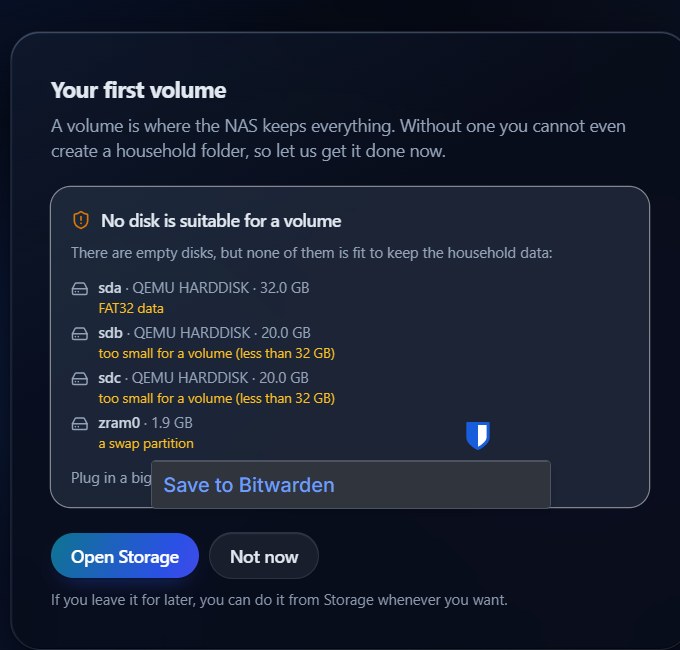
Straight after that, LGM-OS offers to build a volume from your empty disks. With my 20 GB data disks it said “No disk is suitable for a volume”, because each was “less than 32 GB”. I couldn’t find that 32 GB minimum anywhere in the documentation. I grew both disks to 40 GB from Proxmox, reloaded the page, and it picked them up straight away. (Luis says the 32 GB minimum is now in the installation guide in all seven languages.)
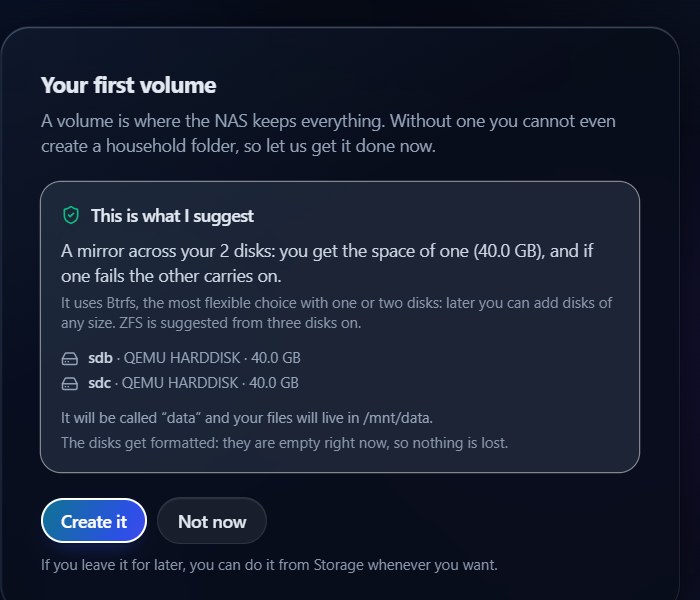
The suggestion it then made was a good one, explained in plain English: a Btrfs mirror across the two disks, 40 GB usable, survives one disk failing, with ZFS suggested from three disks up. It was ready in under a minute and offered to create a first shared folder.
The Licence: A Linking Bug, and a Workaround
A fresh install runs fully for seven days; you then link it to a free lgm-os.com account to start the 60-day trial, or activate a licence. The panel shows a code; you enter it on lgm-os.com from any device and choose a trial or one of your licences.
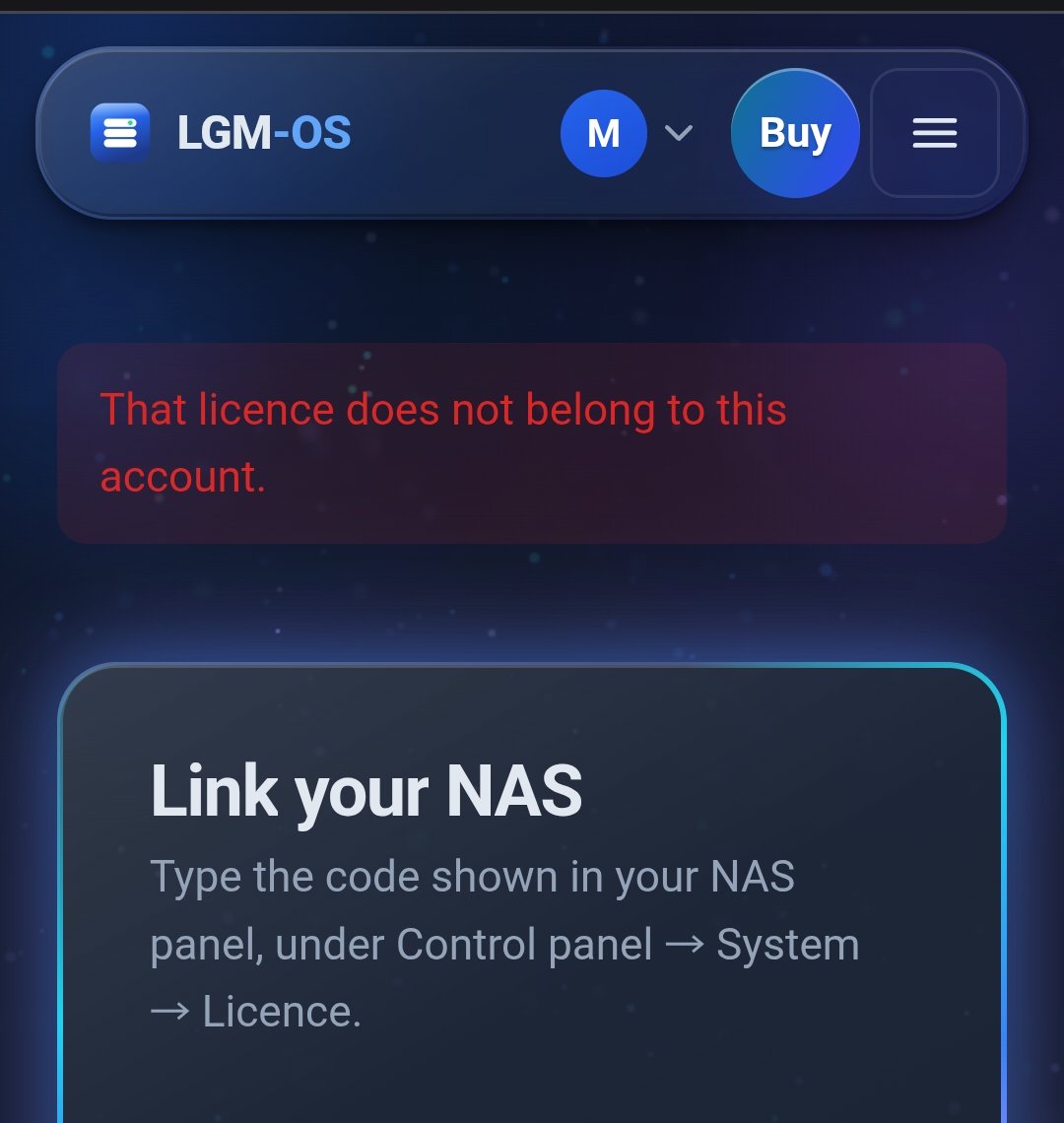
That’s where I hit the first real bug. Signed in to the account that owned my licence, choosing it gave “That licence does not belong to this account”. The My account page, with the same login, showed exactly that licence as Active and Unused. Pasting the key worked instead: copy it from the account page and paste it into the panel, and the licence showed as active.
Still not fixed on 4 November: Luis couldn’t reproduce this. When I unlinked and linked again from Chrome on my Windows laptop, the website gave the same error as soon as I entered the code. Pasting the key worked again.
On privacy, LGM-OS is upfront. Sharing hardware details with the developer is off by default, and the panel says clearly what is still sent even with it off: at start-up and every 12 hours, the NAS checks its licence and reports its version, free space, number of alerts, name, the fingerprint of its panel certificate and its local addresses. A “See what gets sent” button shows the full hardware report as it would be sent: hardware models and counts, no serial numbers, IP addresses, or file, folder or user names. It does include your account email and your browser’s identification string, and the privacy policy doesn’t mention the browser string.
Check 2: File Sharing Over SMB
SMB is on by default; NFS, WebDAV, rsync and media streaming are off, each with a plain one-line status. Under Advanced settings the default is SMB 3 only, with encryption required. Older unencrypted SMB 2 devices have to be allowed deliberately, with a clear warning about what that costs. Windows confirmed the connection as SMB 3.1.1 with encryption on.
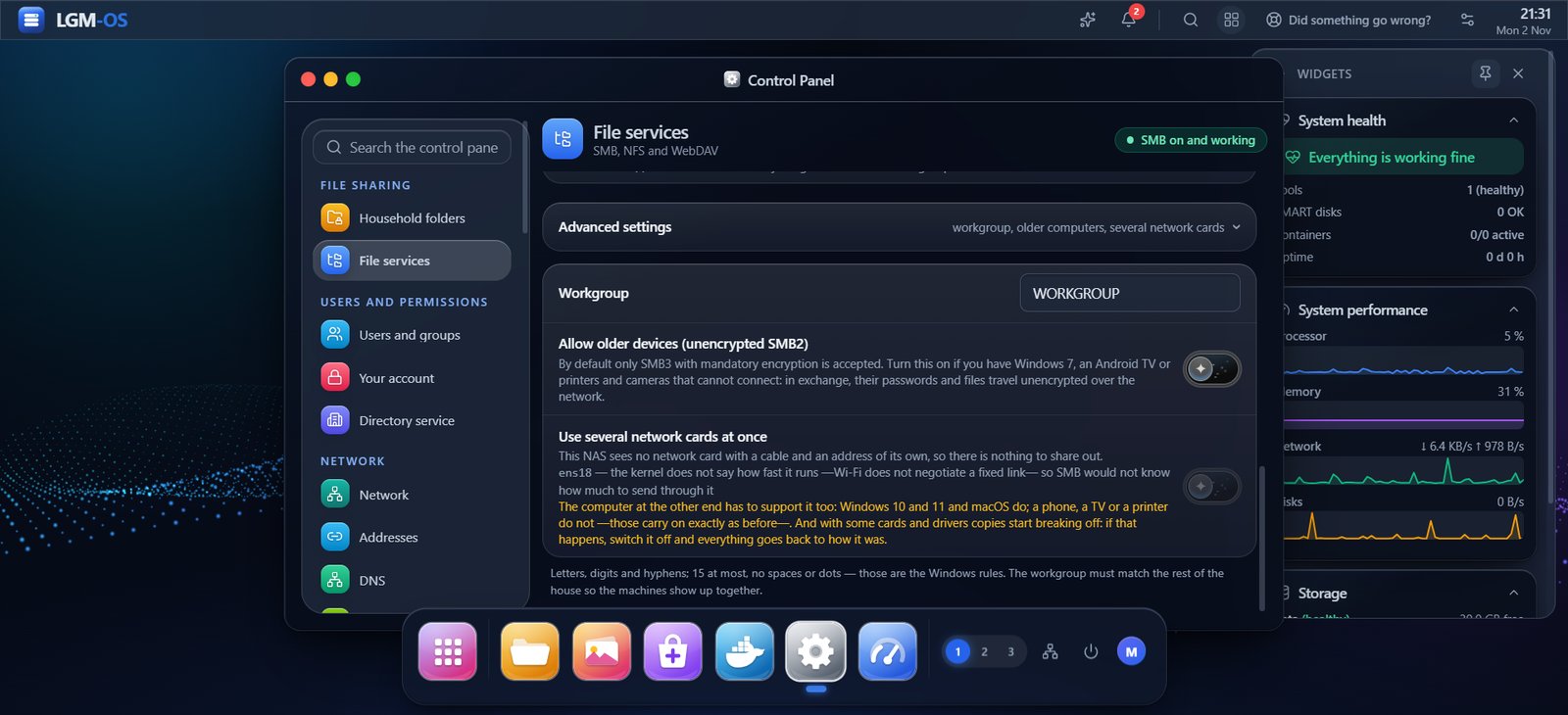
Shared folders (“household folders”) are created in the Control Panel, and each one is closed to everyone but administrators until you add people to it. I made four test folders and a second household user:
- bench-rw: the second user can change files
- bench-ro: the second user can only view
- bench-private: nobody added
- bench-group: shared with a group called “family” before the second user was added to it. This checks that access follows group membership added later, which is easy to get wrong.
As the admin, I copied 41 test files (40 random files of up to 2 MB, plus a text file) into bench-rw and checked every one against a SHA-256 checksum: 41 of 41 matched. Over SMB the admin sees the shared folders and their own drive, but not the system disk.
Then I connected as the second user from the same laptop. Every result was right:
| Test | Result |
|---|---|
| Share list | Only bench-rw, bench-ro, bench-group and their own drive. bench-private wasn’t even listed |
| Write to bench-rw | Worked |
| Write to bench-ro | Access denied |
| Open bench-private by name | Access denied |
| bench-group (shared to the group before they joined) | Worked straight away |
| Read the admin’s 41 files in bench-rw | 41 of 41 matched |
A file deleted over SMB went to the NAS’s recycle bin and restored from there intact. Windows’ Previous Versions tab listed the NAS’s snapshots without any setup, so household users should be able to get an older copy of a file back themselves. (I saw the list, but did my test restore through the panel.)
One thing caught me out on the way. When an admin sets another user’s password, there is no confirm box and no button to show what you typed, although the first-run admin form has both. I mistyped the second user’s password twice and spent a while chasing what looked like an SMB fault. By default, though, the new-user dialog sends the person a link to set their own password, which is the better choice for a real household anyway. Fixed in 4.12.4: there is now a “Repeat it” box and a show button, and Save stays greyed out until the two match.
Speed: over Wi-Fi I measured 3.8 MB/s writing and 10.5 MB/s reading a 1 GB file. That is my Wi-Fi, not the NAS: a write test inside LGM-OS ran at 631 MB/s to its mirror. I’ll add a wired figure when I can.
Check 3: Snapshots and Backups, Then a Real Restore
Snapshot restore
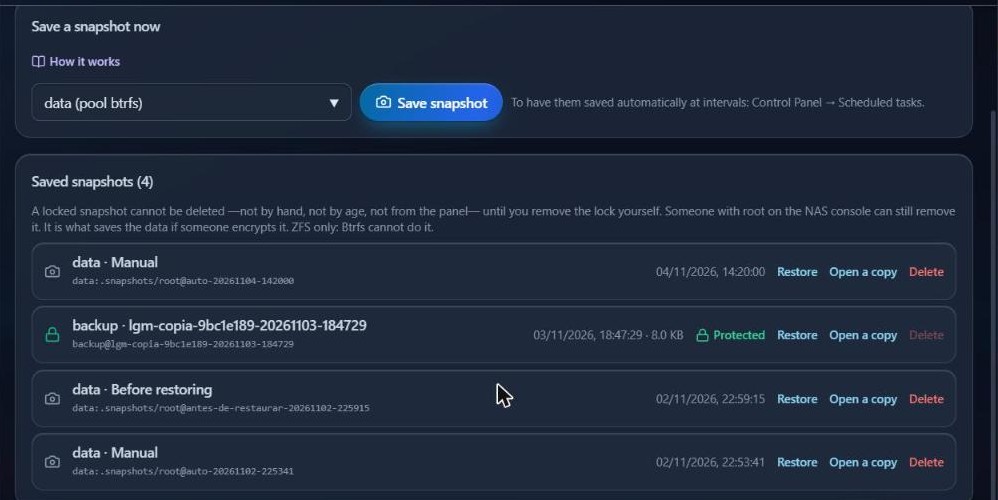
I took a snapshot of the data volume, then deleted one test file, changed another and added a new one. The restore dialog is carefully designed: nothing is ticked by default, it warns that anything created since the snapshot will disappear, and it saves the current state first so the restore itself can be undone. I restored just bench-rw. In under a minute all 41 files matched again and the newer file was gone, exactly as the dialog said. A “Before restoring” snapshot appeared alongside the original.
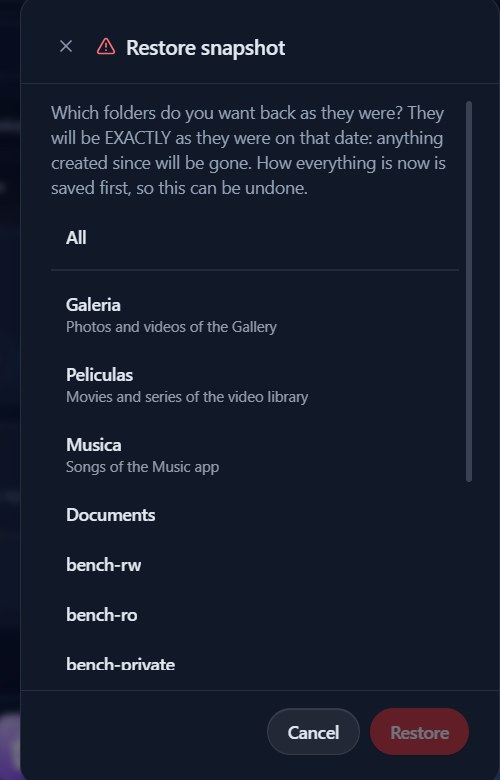
Two caveats. The snapshot I took by hand was labelled “Automatic” and named auto-…. The docs say automatic clean-up only removes auto- snapshots and keeps manual ones, so I worried that a snapshot taken before a risky change could be cleaned up with the rest. Correction: Luis explained that the NAS keeps a separate list of snapshots taken by hand and never purges those, and on 4.12.4 my 2 November snapshot is on that list. In 4.12.4 the label also says “Manual” now, although the name still starts with auto-. Also, the locked snapshots that “even the administrator can’t delete”, a headline anti-ransomware feature on the website, are ZFS only according to the Snapshots page, and the volume wizard chose Btrfs for my two disks. (Oddly, a per-folder “Deletion lock” is still offered on Btrfs; I didn’t test it.)
Backup to a separate disk
For the backup I added a 40 GB disk to the running VM. LGM-OS noticed it within the same minute and sent a “Disk connected” notification. I made it a single-disk ZFS volume and pointed a backup at it.
The backup screens are among the best I’ve used on any NAS. The status page tells you bluntly that “this server has no backup at all” and why RAID and snapshots aren’t enough. The wizard defaults to keeping versions rather than mirroring, explaining that a mirror also copies deletions and ransomware damage. It includes the NAS’s own settings and uses a sensible keep-by-age policy: hourly for a day, daily for a week, weekly for a month, monthly for a year.
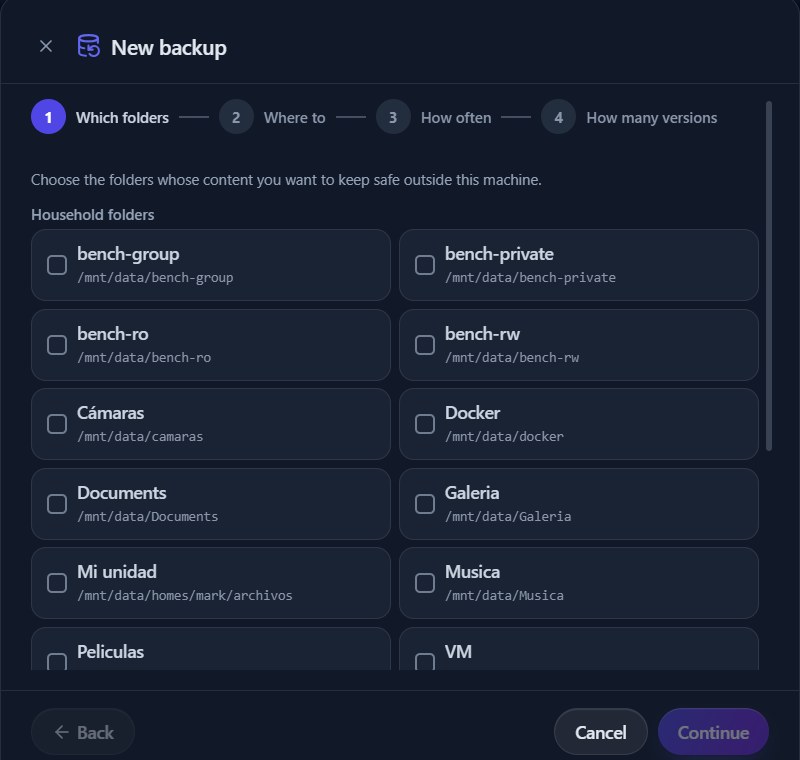
A few rough edges here. The destination test told me the folder I’d typed didn’t exist but offered no way to create it, so I used the volume itself. A “copy on the same disk as the data protects against almost nothing” warning shows even when the destination is a separate disk. A brand-new job was flagged straight away as “not run for too long”.
The backup itself, 48 files and 1 GB, took about ten seconds. I turned on Shield this destination, which locks each backup with a ZFS hold so it can’t be deleted. LGM-OS’s own “Test the lock” passed, and I checked it from a root shell too: deleting the backup snapshot was refused because it was held. One wording note: the panel says “not even root can delete them”. Root can lift the hold and then delete; the backups guide words this correctly. The lock protects against mistakes, scripts and anything using the panel or the backup’s own credentials, but not against someone who already has a root shell. On 4.12.4 the Snapshots page now says root can still remove a locked snapshot, but the backup destination card still says “not even root can delete them”.
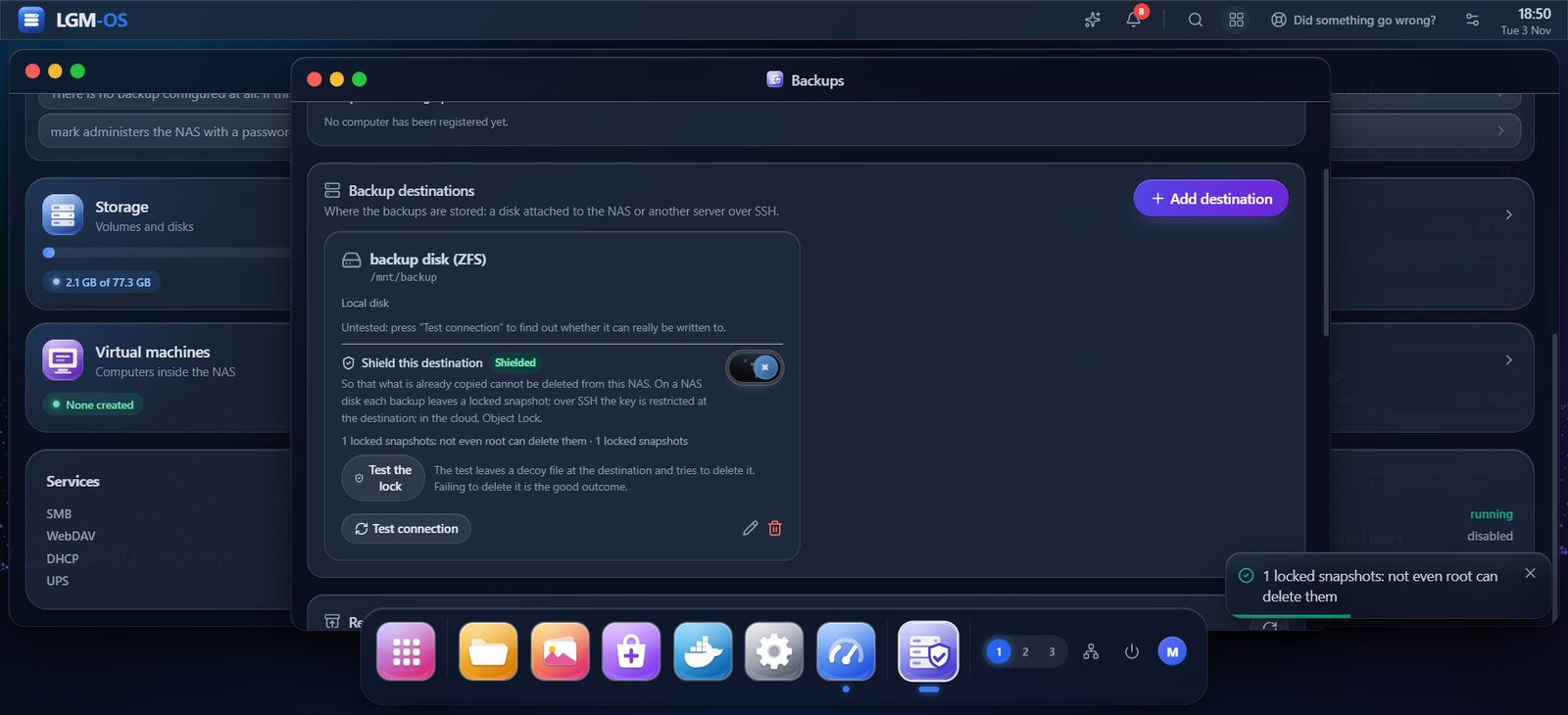
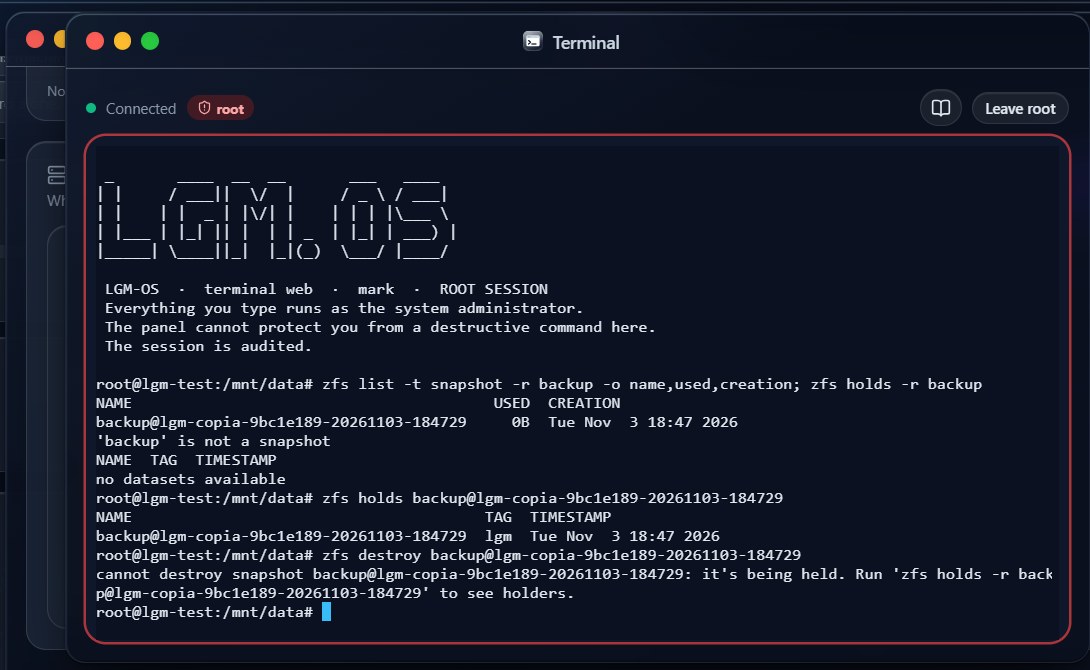
The built-in Check read the whole backup back and confirmed 48 files and 1 GB. The restore drill, which restores a sample of files and compares them with the original, reported 20 of 20 files identical. It runs every 30 days by default.
The real restore
Then the disaster: I deleted the test folder and the 1 GB file over SMB and restored them from the backup into a new shared folder. It took about three seconds and all 41 files matched their checksums, with the 1 GB file back too. That’s Luis’s third check passed.
Where the files landed is less tidy. The restore rebuilds the full original path inside the target, so my files ended up four folders down at bench-restore/mnt/data/bench-rw/data/. The docs mention this, but it isn’t obvious. The dialog’s recommended target is also on the backup disk itself, not in a shared folder you can open from Windows to check the result. Fixed in 4.12.4: the recommended target is now a new folder on the data volume.
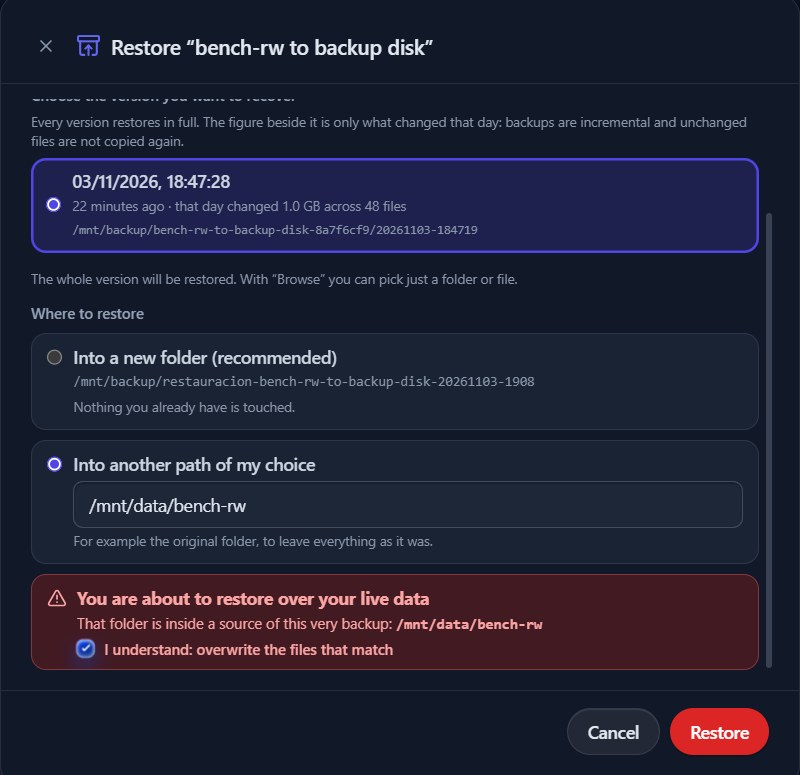
Restoring to the original folder is the case that matters when something has gone wrong, and it doesn’t do what it says. The dialog’s own hint suggests “the original folder, to leave everything as it was”, and warns that you are about to restore over live data, with a tick box to confirm. I did that, and the files again landed nested inside the live folder at bench-rw/mnt/data/bench-rw/data/. Nothing was put back where it came from, although the notification said “restored to /mnt/data/bench-rw”. The data was intact (41 of 41 matched), but you’d have to move it back by hand.
Fixed in 4.12.4: the same restore to the original folder put the files straight back into bench-rw/data/, all 41 matching, in about three seconds.
One more thing from this section: once the backup volume existed, the location for new shared folders defaulted to the backup disk. The list also offered the system disk, which the install guide says is never used for data. A user could fill the system disk over SMB without realising. Fixed in 4.12.4: new folders default to the data volume, and the system disk is no longer offered.
Two Bugs I Wouldn’t Expect in a Security-Minded NAS
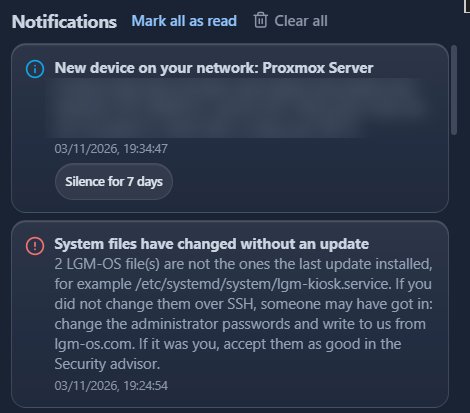
A false intrusion alarm. About half an hour after each boot, the notification bell showed a red alert: “System files have changed without an update… for example /etc/systemd/system/lgm-kiosk.service. If you did not change them over SSH, someone may have got in: change the administrator passwords and write to us.” Nobody had touched it. The file’s timestamp was the exact moment the first boot finished and LGM-OS switched the VM’s screen into its own kiosk mode, minutes before my admin account even existed. LGM-OS appears to change this file itself when a screen is attached, then report it as a possible break-in. At the same time the dashboard said “All good”. A home user seeing “someone may have got in” on a new NAS will panic, and after a few false alarms they’ll stop believing real ones.
Fixed in 4.12.4: on 4.10.0 the alarm fired again a minute after the VM started on 4 November. After the update the integrity check re-sealed with nothing flagged, and no alarm appeared after a reboot or in the 36 minutes after it. A fresh install of 4.13.0 stayed quiet too: it took its integrity baseline 30 minutes after first boot, after the screen change that caused the old alarm, and flagged nothing.
A system account that becomes a login. The user list includes two accounts that aren’t people: lgm, the console account (which has administrator rights), and wsdd2, the service that makes the NAS show up in Windows’ Network view. Both open the normal user editor. As a test I gave wsdd2 a password and “view only” panel access. It saved without a warning, added the service account to the household users’ group, created an SMB account for it, and I could sign in to the panel as wsdd2. The lgm editor also offers a new password, a panel role and “Duplicate”. I rolled the VM back afterwards. These accounts should be hidden or locked, as the Delete button already is.
Fixed in 4.12.4: wsdd2 no longer appears in the user list. lgm is shown as the console account, and although its editor still opens, saving a change is refused with a clear explanation.
Network and Privacy: It Used the DNS Server I Gave It
Out of the box, LGM-OS uses Google’s and Cloudflare’s public DNS servers rather than the one your router hands out. That means a Pi-hole or AdGuard on your network won’t see its lookups. It says so openly, in the privacy policy, in the panel and in a comment in the system’s DNS file. The setting is under Network → Advanced settings → NAS DNS, which is easy to miss: the separate “DNS” page is for the NAS’s own optional DNS server.
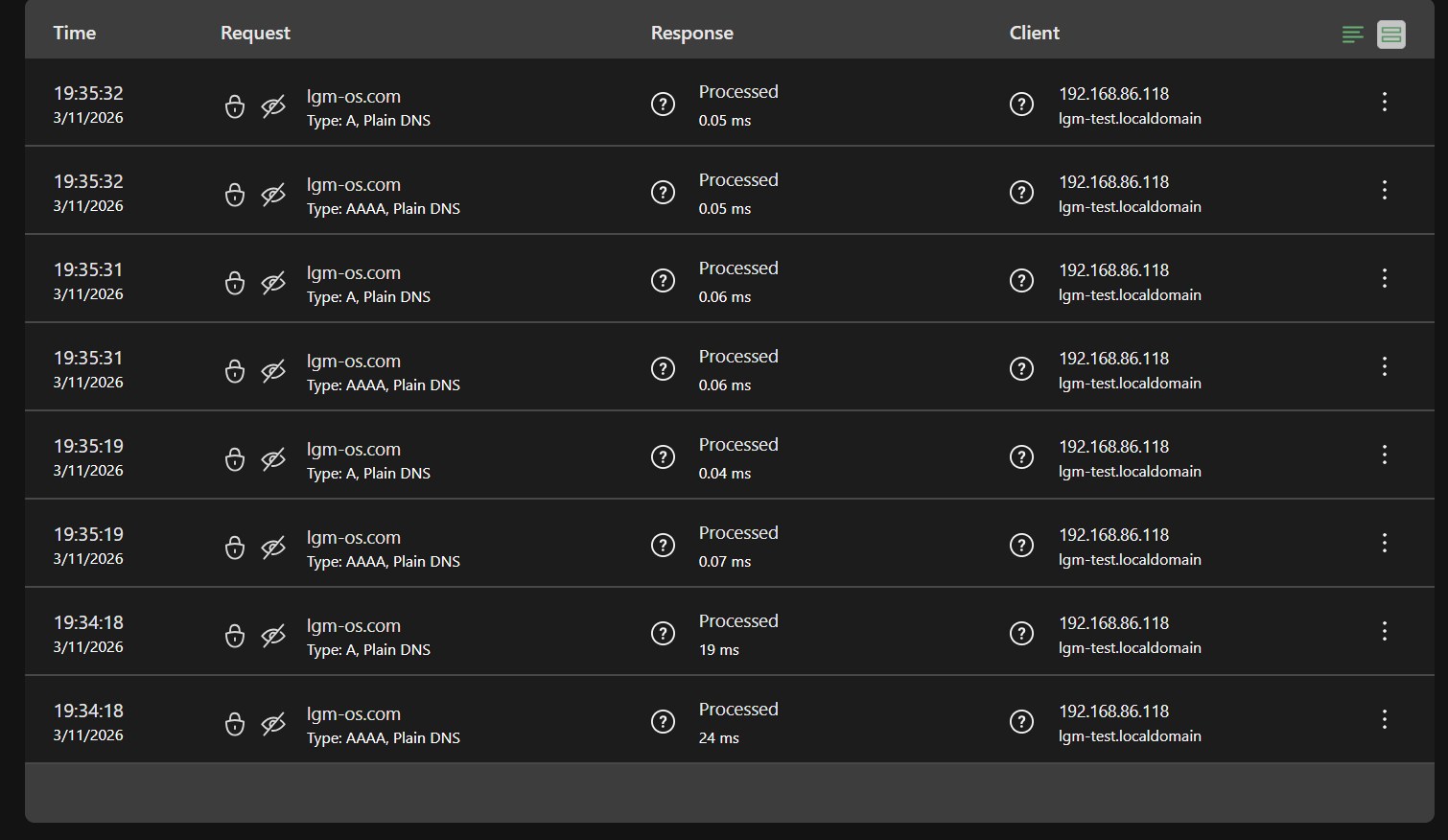
I pointed it at my AdGuard server and it took effect at once. Its lookups then appeared in AdGuard’s log as ordinary DNS. During a licence check and a manual lookup, the only name it looked up was lgm-os.com. LGM-OS passes this test. (The privacy policy also mentions a connection check to Google’s and Cloudflare’s DNS servers every three minutes; a DNS log can’t show that.)
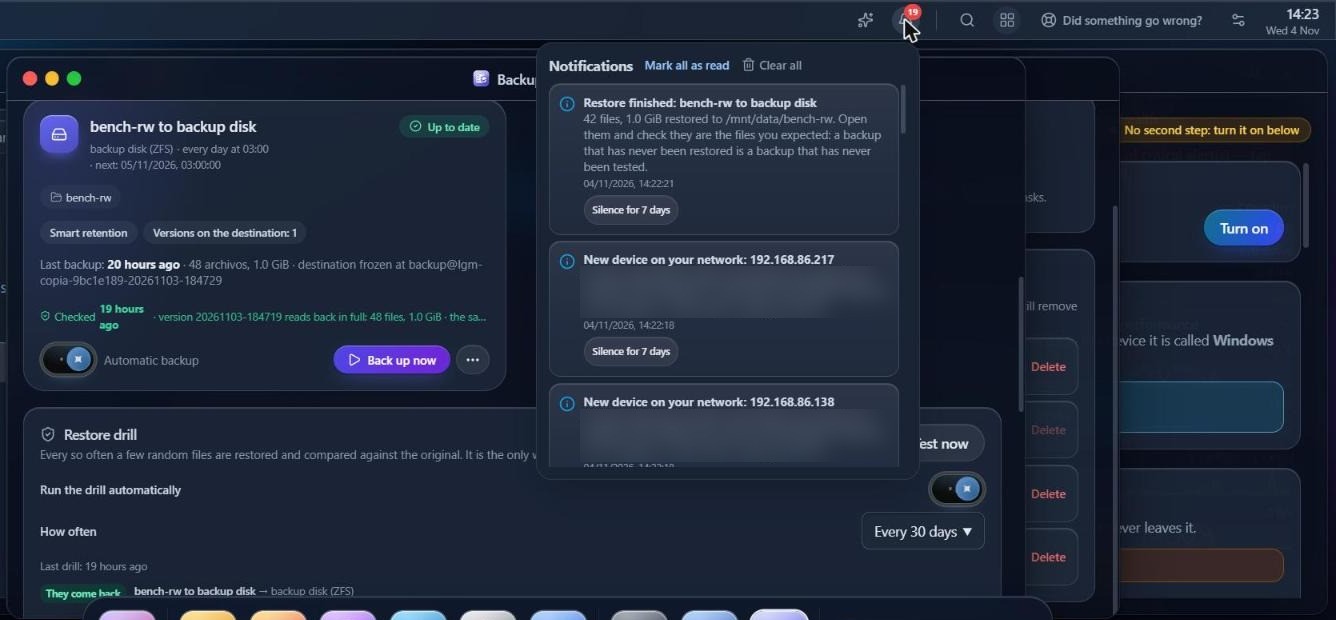
The Network page also lists every device seen on your LAN, with its address, make and a Wake-on-LAN button. “Notify when a new device joins” is on by default, so within a day my bell held half a dozen “If you do not recognise it, check who is using your Wi-Fi” alerts for my own TV sticks, smart lights and DNS server. It’s useful, but a lot of worrying messages for a brand-new install. Luis says new installs now spend 24 hours quietly learning the household’s devices before alerting. On my existing install the alerts kept coming after the update, now with a “Silence for 7 days” button.
Smaller Rough Edges
- Spanish in an English install. The photo, music and film folders are called Galeria, Musica and Peliculas and can’t be renamed. Windows shows Spanish descriptions next to the shares (“Mi unidad”, “Fotos y vídeos de la Galería”). Every new folder gets five hidden warning files with Spanish names (part of a ransomware trap). Groups, the backup user, snapshot names, restore folders and some progress messages are Spanish too. In 4.12.4 the Windows share descriptions are English (“My Drive”), but much of the rest is still Spanish.
- The security advisor’s “Still to do” list is honest and useful. It pointed out that SSH is on with password logins by default and that my admin account had no second factor.
- Sizes mix units: “connect a disk of at least 43 GB” sits next to a volume shown as 40.0 GB. The compressed-memory swap is listed as a physical disk, and the storage widget counts the backup disk as data space. (Both fixed in 4.12.4.)
- The two system accounts are counted in “accounts in use” (fixed in 4.12.4). A manual snapshot is called “Automatic” (fixed in 4.12.4). The restore drill said “no backup to test” until I ran it. The licence page’s “Online check” time didn’t update after Check now.
- On Proxmox, harmless system messages print over the first-boot status screen.
- The documentation lags the product. It mentions Debian 12 (it’s Debian 13) and older version numbers, says SMB 2 is the minimum (the product defaults to SMB 3 with encryption), and says cloud backups and encryption aren’t available (the panel lists both as available). On those points the product is better than its docs.
Retest on 4.12.4
Luis replied to my findings the same evening with a list of fixes in version 4.12.2. On 4 November I took a Proxmox snapshot of the test VM, ran sudo lgm update, and it installed 4.12.4 in about two minutes with no errors. I then repeated the tests that the fixes cover, on the same data, from the same laptop. I also did a fresh install in a second VM. The installer ISO hadn’t changed, but first boot downloaded and installed 4.13.0, which let me check the false-alarm fix on a brand-new system.
| Problem on 4.10.0 | On 4.12.4 |
|---|---|
| False “someone may have got in” alarm after boot | Fixed. No alarm after the update, after a reboot, or in the 36 minutes after it, and none on a fresh 4.13.0 install |
wsdd2 service account can become a login |
Fixed. It’s gone from the user list |
lgm console account editable |
Fixed. Changes are refused, though the editor still opens |
| “Restore to the original folder” nests the files | Fixed. The files went back into bench-rw/data/, 41 of 41 matching |
| Recommended restore target on the backup disk | Fixed. It now suggests a new folder on the data volume |
| New shared folders on the system or backup disk | Fixed. They default to the data volume, and the system disk isn’t offered |
| No confirm box when an admin sets a password | Fixed. There’s a “Repeat it” box, and Save is blocked until the two match |
| Manual snapshot labelled “Automatic” | Fixed. It now says “Manual” (the name still starts with auto-) |
| Compressed-memory swap listed as a disk; storage total counts the backup disk | Fixed. Four physical disks are listed, and the total is 39 GB |
| Licence linking rejects my own licence | Not fixed. Same error on the live site; pasting the key still works |
| “Not even root can delete them” on the Shield card | Partly fixed. The Snapshots page is accurate now, but the card isn’t |
| Installer pre-selects a data disk, and shows no serial numbers | Not released yet. The download page still serves the same ISO, and a fresh install showed no serial numbers |
I also re-ran the second-user SMB tests on 4.12.4 and every result matched the first test: the same shares visible, the same writes allowed and refused, and 41 of 41 files matching for both users.
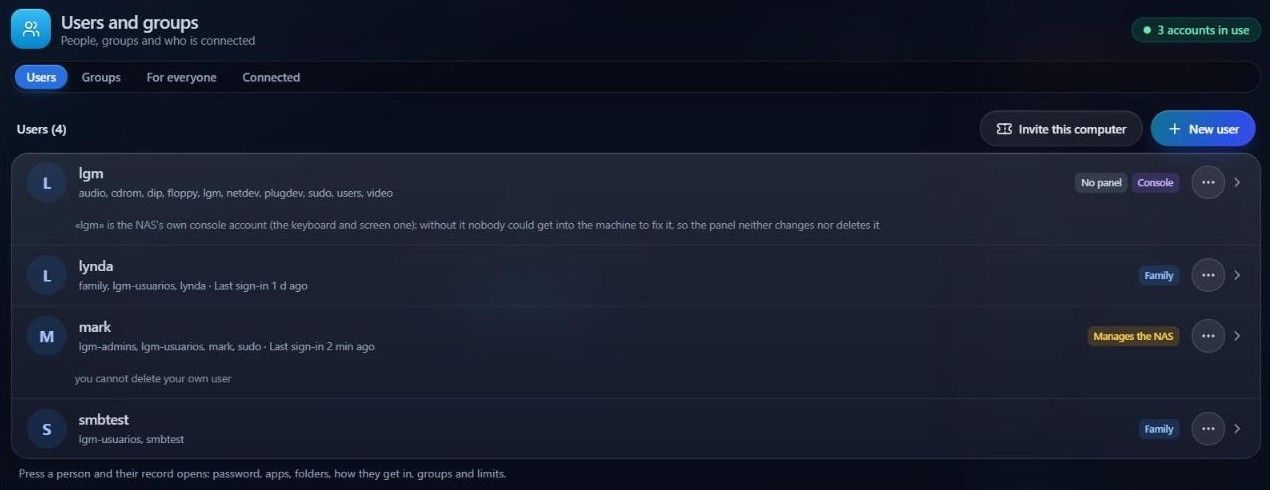
wsdd2 is gone, and lgm is marked as the console account.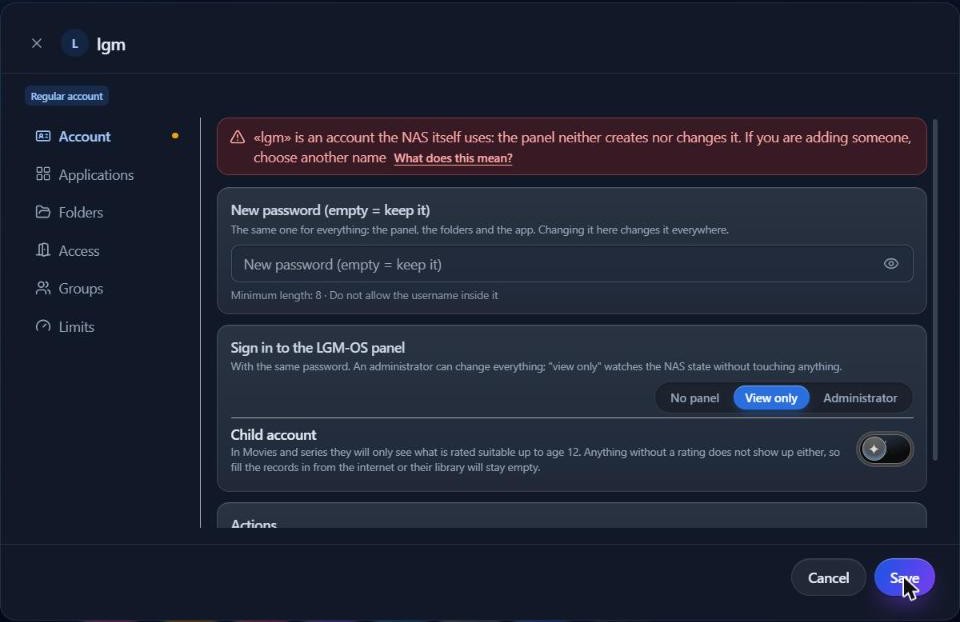
lgm account on 4.12.4: the panel refuses and explains why.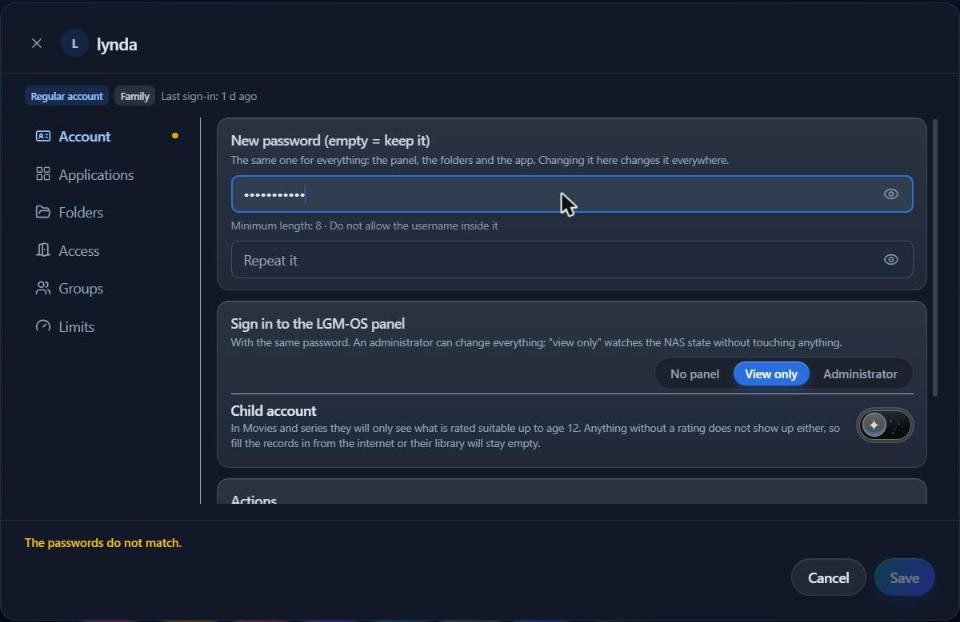
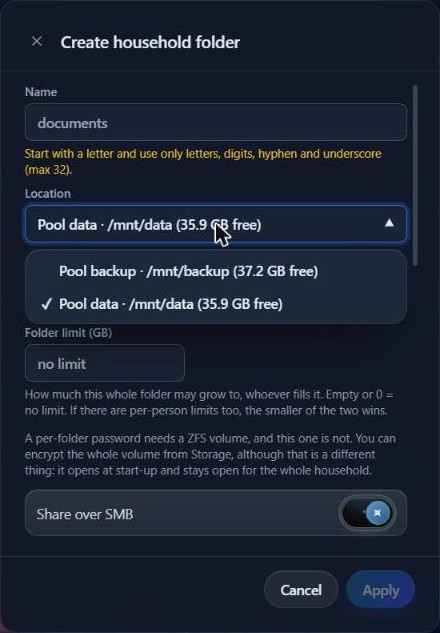
auto-.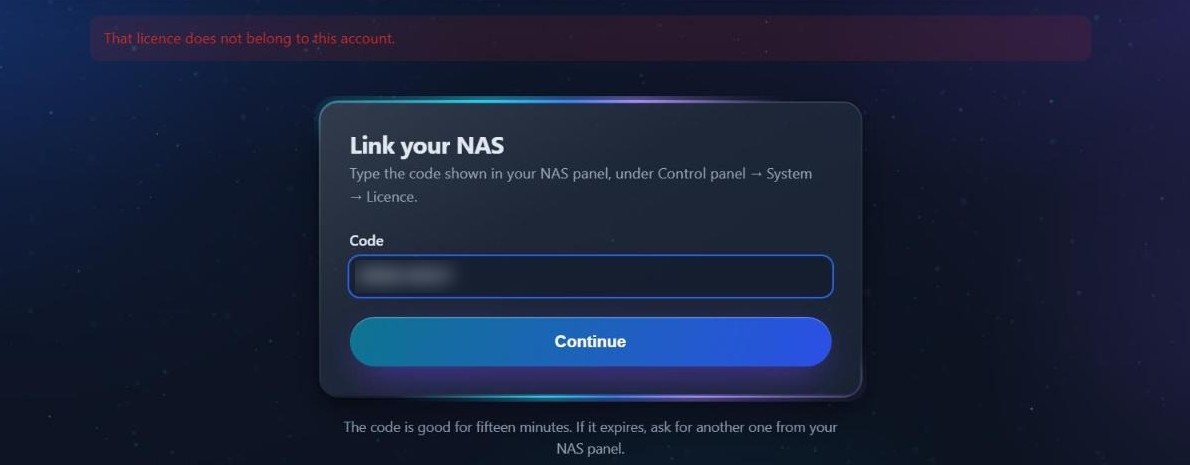
A fast and specific response like this is a good sign for a one-person project. A day after my report, nine of the problems were verifiably fixed, and the developer was open about the ones he couldn’t reproduce.
Pros and Cons
Pros
- All three of the developer’s checks passed, verified file by file
- SMB 3 with encryption by default; per-user and group permissions behave exactly as set
- Shared folders are closed by default and hidden from people who can’t open them
- Btrfs or ZFS with snapshots, Windows Previous Versions and a recycle bin out of the box
- Careful restore dialogs with an automatic “before restoring” safety snapshot
- Excellent backup tools: versioned by default, a real ZFS lock, integrity check and automatic restore drill
- Setup code stops anyone else claiming a new NAS on your network
- Used the DNS server I set; hardware reporting off by default and fully visible
- One-off price; the licence page says the NAS keeps working when the year of updates ends
- A responsive developer: most of my findings were fixed in a day
Cons
- Account linking rejected my own licence, still on 4.12.4 (pasting the key works)
- On 4.10.0: a false intrusion alarm, system accounts that could become logins, and an in-place restore that nested the files. All three are fixed in 4.12.4
- Installer pre-selected a data disk on 4.10.0 (the developer says this is improved, but the fix isn’t in the downloadable installer yet)
- Locked anti-ransomware snapshots need ZFS, but two-disk setups default to Btrfs
- Spanish still left in the English interface, and documentation behind the product
- New-device alerts are noisy on an existing install
- Closed source, from a single developer
Verdict
LGM-OS gets the hard parts right. Sharing files securely between people, keeping versions, and really getting your data back are what a NAS is for, and in my testing every one of those worked and every restored file checked out. The backup tools in particular are better thought out than on many commercial NAS systems, and it doesn’t hide what it sends home.
On 4.10.0 the problems were mostly at the edges, but some were the kind that erode trust: a false break-in alarm, a restore option that didn’t do what it said, and service accounts that could become logins. None of them lost data, and within a day of my report all three were fixed in 4.12.4, which I checked myself. What’s left is the licence-linking bug, which has a simple workaround, plus wording and translation gaps.
If you’re comfortable with Linux and want a polished, one-off-price NAS OS for a spare PC or a Proxmox VM, LGM-OS is worth trying. The 60-day trial is long enough to test it properly, and you should. On 4.12.4 I’d also be happy to try it for a family NAS, with a separate backup as for any NAS. Choose ZFS if you want the ransomware lock, and expect to paste your licence key rather than link it.
Tested on 2 and 3 November 2026 with LGM-OS 4.10.0, and retested on 4 November 2026 with 4.12.4 and a fresh install of 4.13.0, on Debian 13 in Proxmox VE virtual machines.