
The Homelab Bench is reader-supported. As an Amazon Associate we earn from qualifying purchases; this article contains affiliate links.
By the end of this guide you will know how to build a golden-image LXC container in Proxmox, convert it into a reusable template, and spin up identical clones from it in seconds — so you never have to start a new service from scratch again. You will also understand the difference between a full clone and a linked clone, and which one to reach for in your homelab. If you are brand new to LXC containers altogether, check out our guide on Creating Your First VM and LXC Container in Proxmox before diving in here.
Why Bother Templating at All?
Every time you spin up a new container from a raw Proxmox base template, you do the same work: update packages, install your favourite tools (curl, htop, vim), set up SSH the way you like it, tweak your shell. Multiply that by the number of services in a busy homelab — an MQTT broker, Zigbee2MQTT, Frigate, a reverse proxy, a VPN endpoint — and the repetition adds up fast.
A template solves this by letting you do all that configuration once. From that point forward, cloning a new container takes seconds. Changes to the clone never touch the template, so you always have a clean starting point to return to.
Orientation: Where to Find Everything in the Proxmox UI
Before touching anything, spend sixty seconds getting your bearings. The Proxmox web interface lives at https://YOUR-IP:8006. The layout has three main areas:
- Left sidebar (the resource tree) — lists your Datacenter at the top, then each node (your physical machine), then every VM and LXC container underneath that node, followed by the node’s storage. LXC containers have a small cube icon; VMs have a monitor icon.
- Content area — when you select something in the tree, a menu appears down its left edge (Summary, Console, Resources, Network, DNS, Options, Snapshots and so on for a container) and the chosen page fills the rest.
- Top-right toolbar — contains the blue Create VM and Create CT buttons.
Right-clicking any container in the tree opens a context menu — this is where Clone, Convert to template, Take Snapshot and other key actions live. Storage lives in the tree too: expand your node and click the local storage item. Its CT Templates page is where downloaded base images are kept.
What You Will Need
- A running Proxmox VE node. These steps apply to Proxmox VE 8 and 9; the screenshots are from Proxmox VE 9.2.
- At least one storage that holds Container templates — the default local storage on a fresh install already does.
- Root access to the Proxmox web UI.
- About 30–45 minutes for the first build. After that, cloning takes seconds.
If your Proxmox node is a mini PC — a very common setup — see our Best Mini PCs for Proxmox Homelabs roundup for hardware that is well-suited to running multiple containers simultaneously.
Step 1: Download a Base OS Template
Proxmox ships a built-in catalogue of base OS images maintained by the Proxmox team and the TurnKey Linux project. You do not need to find anything externally for a standard Debian or Ubuntu base.
- In the left sidebar, expand your node and click local (or whichever storage you keep templates on).
- Click CT Templates in the storage menu. Anything you have already downloaded is listed here.

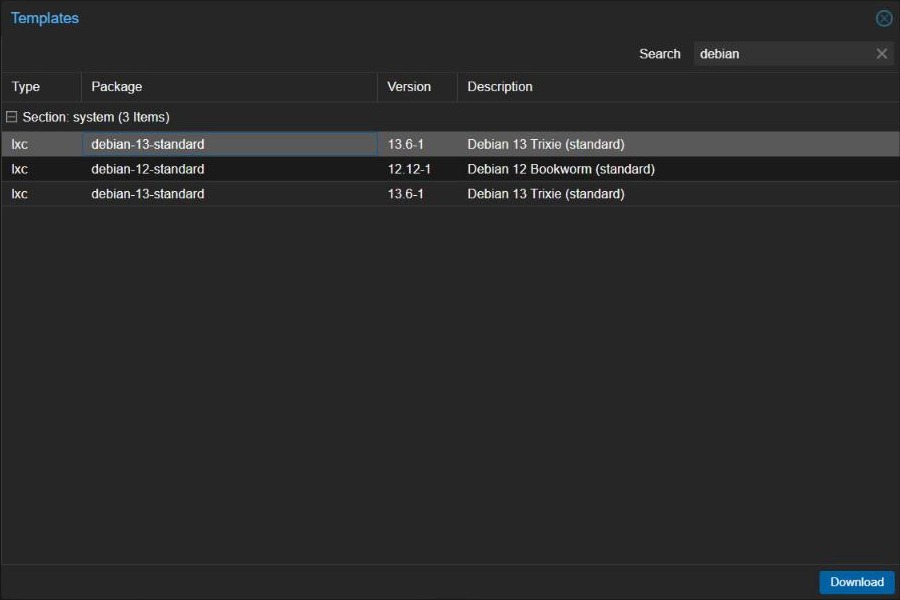
- Click the Templates button. A dialog appears listing every image Proxmox can download for you.
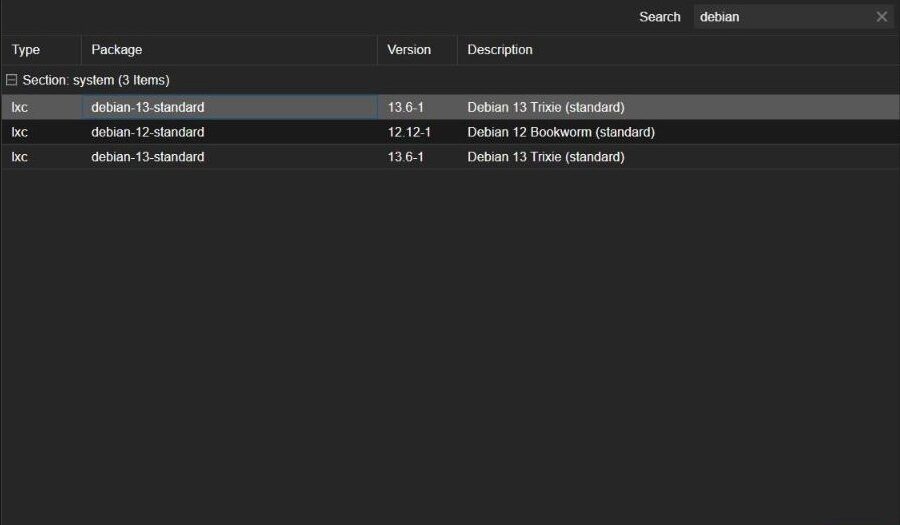
- Type
debianinto the Search box, select debian-13-standard and click Download. Debian 13 “Trixie” is the current Debian release and the same base Proxmox VE 9 itself is built on. The template is small (around 120 MB) and ships without unnecessary background services. When the download task reports TASK OK, close the dialog.
If you prefer Ubuntu, pick ubuntu-24.04-standard instead. The rest of this guide applies equally to both.
Step 2: Create Your Golden-Image Container
You are now going to build the container you will eventually freeze into a template. Think of this as your master copy — get it right once, and every future container you spin up will inherit this configuration automatically.
- Click Create CT in the top-right toolbar.
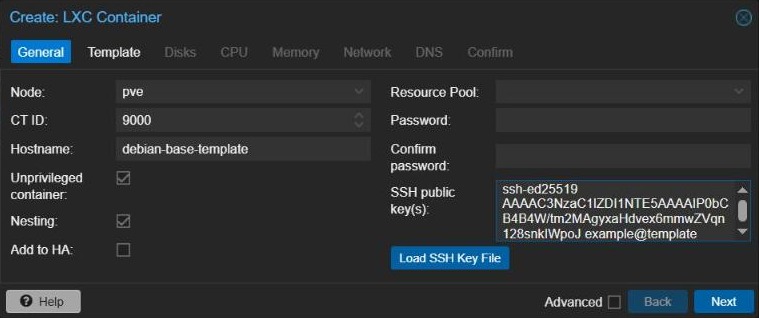
- On the General tab, set a descriptive hostname like
debian-base-template. Choose a CT ID in the 9000–9099 range so templates stand out from live containers (purely a convention, but a useful one). Leave Unprivileged container ticked — it is the safer default, and only some edge cases (like certain NFS mounts) need a privileged container. Leave Nesting ticked too; recent Debian and Ubuntu releases need it for systemd to work properly inside the container. Set a strong root password, and paste your SSH public key if you have one.
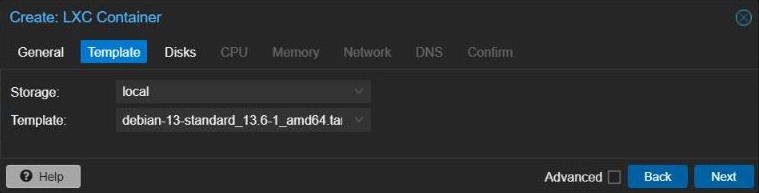
- On the Template tab, pick the storage you downloaded to and select the Debian 13 template.
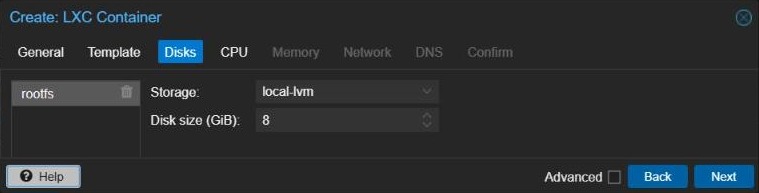
- On the Disks tab, 8 GiB for the root disk is plenty for a lean base; you can always enlarge a clone’s disk later. Note which storage it lands on — local-lvm on a default install — because that matters for linked clones later.
- On the CPU tab, 1 core is enough; on the Memory tab, 512 MiB. Each clone can be resized after creation.
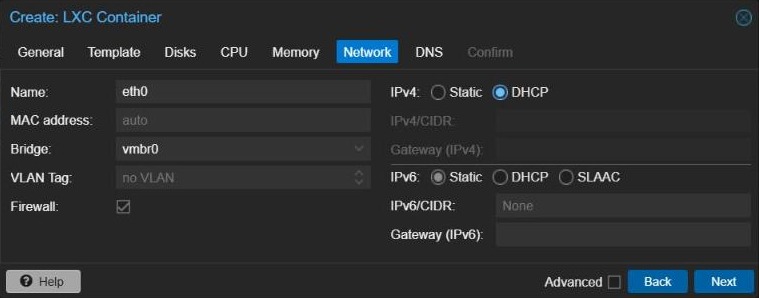
- On the Network tab, leave the bridge as vmbr0 and set IPv4 to DHCP. Leave Firewall ticked — that lets you use Proxmox’s built-in firewall for this container and every clone, which is simpler and more reliable than running a firewall inside each container.
- Leave the DNS tab at its defaults, check the summary on the Confirm tab and click Finish. Proxmox creates the container in a few seconds.
Step 3: Configure the Base Container
Now boot and configure the container with everything you want baked into every future clone. Select it in the sidebar, click Start at the top right, then open Console from the container’s menu.
Log in as root with the password you set. Run the following:
# Update everything first
apt update && apt full-upgrade -y

# Install a sensible baseline toolkit
apt install -y curl wget git vim htop net-tools unzip ca-certificates gnupg sudo
Next, add one small but important piece: a service that creates fresh SSH host keys the first time each clone boots. In Step 4 you will delete the template’s own keys so clones do not share them — and Debian does not recreate missing host keys by itself, so without this service SSH would simply fail to start on every clone.
cat > /etc/systemd/system/regen-ssh-host-keys.service <<'EOF'
[Unit]
Description=Create SSH host keys on first boot of a clone
ConditionPathExists=!/etc/ssh/ssh_host_ed25519_key
Before=ssh.service ssh.socket

[Service]
Type=oneshot
ExecStart=/usr/bin/ssh-keygen -A

[Install]
WantedBy=multi-user.target
EOF

systemctl enable regen-ssh-host-keys.service
The service only runs when the host keys are missing, so it does nothing on normal reboots.
Beyond that, this is the moment to add anything you want on every container — your shell config, a standard .bashrc, a monitoring agent. Keep it to the lowest common denominator; application-specific installs belong in the clone, not the template. For firewalling, use the container’s Firewall page in Proxmox rather than installing ufw inside it: firewalls running inside unprivileged containers tend to be unreliable, and Proxmox’s version is managed from the same place as everything else.
A useful tip: create a file at /etc/template-manifest.txt listing what is installed and why. Future you will thank present you.
Step 4: Clean Up Before Templating (Do Not Skip This)
This is the step most guides gloss over. If you template the container as-is, every clone will share the same SSH host keys and the same machine ID. Shared host keys mean one leaked key compromises every clone, and a duplicated machine ID confuses anything that expects it to be unique, from journald to some DHCP setups.
Inside the container console, run the following cleanup block:
# Remove SSH host keys — the service from Step 3 recreates them on each clone
rm -f /etc/ssh/ssh_host_*

# Empty the machine ID — systemd generates a new one on each clone's first boot
truncate -s 0 /etc/machine-id
rm -f /var/lib/dbus/machine-id
ln -s /etc/machine-id /var/lib/dbus/machine-id

# Optional: uncomment to stop clones inheriting your SSH public key
# rm -f /root/.ssh/authorized_keys

# Clean up the package cache to keep the template small
apt clean
rm -rf /var/lib/apt/lists/*

# Truncate log files (do not delete them — services may expect the paths)
find /var/log -type f -exec truncate -s 0 {} \;

# Clear shell history and shut down cleanly
history -c && > /root/.bash_history
poweroff
One knock-on effect: because the apt package lists were removed, run apt update first on each new clone before installing anything.
Wait until the container shows as stopped in the sidebar before moving on.
Step 5: Convert the Container to a Template
With the container stopped and cleaned, you are ready to freeze it.
- In the left sidebar, right-click your golden-image container.
- Select Convert to template and click Yes to confirm.
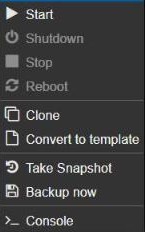
The container’s icon in the sidebar changes to the template icon, and it can no longer be started — it now exists purely as a read-only master image for cloning. Behind the scenes, Proxmox renames its disk from vm-CTID-disk-0 to base-CTID-disk-0; you do not need to do anything about that.
You can also do this from the Proxmox host’s shell (the node’s Shell page, not the container console):
pct template 9000Replace 9000 with your container’s actual ID. This is irreversible — a template cannot be started again, only cloned.
Step 6: Clone the Template — Full Clone vs. Linked Clone
Now for the part you will use daily. When you right-click a template and choose Clone, Proxmox offers two modes: Full Clone or Linked Clone. Understanding the difference matters.
Full Clone
A full clone copies every block of the template’s disk into a brand-new, independent disk. The resulting container has no ongoing relationship with the template — you can delete or rebuild the template later and the clone keeps working. It takes a little longer to create and uses as much disk space as the source.
Linked Clone
A linked clone does not copy the disk data. Instead, it stores only the differences from the template, so creation is nearly instant and initially uses almost no extra space. The catch: the clone depends on the template permanently. Proxmox will refuse to delete a template that still has linked clones for exactly this reason.
Which Should You Use?
| Factor | Full Clone | Linked Clone |
|---|---|---|
| Creation speed | Slower (full copy) | Near-instant |
| Disk usage | Full size | Minimal at first |
| Depends on template | No | Yes |
| Can delete template later | Yes | No |
| Good for long-lived services | Yes | Not ideal |
| Good for short-lived test environments | Fine | Excellent |
| Easy to migrate to another node | Yes | Limited |
For most homelab use — persistent services like an MQTT broker, a reverse proxy or a dashboard — full clones are the right default. The storage cost is predictable, you are never blocked from rebuilding the template, and backups are straightforward. Linked clones shine for throwaway environments: quick experiments, test runners, anything you plan to destroy the same day.
How to Clone via the GUI
- Right-click the template in the sidebar and choose Clone.
- Set a new CT ID (Proxmox suggests the next free one) and a meaningful Hostname — e.g.
nginx-proxy-01. - In the Mode dropdown, choose Full Clone (or Linked Clone if you have a specific reason). The Mode option only appears when you clone a template.
- For a full clone, pick the Target Storage for the new container’s disk.
- Click Clone and wait for the task to report success.
How to Clone via the Shell
For speed or scripting, pct clone on the Proxmox host is the command-line equivalent:
# Full clone of template 9000 to new container 101, with a custom hostname
pct clone 9000 101 --hostname nginx-proxy-01 --full

# Optionally put the new disk on a specific storage
pct clone 9000 102 --hostname mqtt-broker-01 --full --storage local-lvm
The --full flag makes an independent copy; without it, cloning a template creates a linked clone wherever the storage supports one.
Step 7: First-Boot Housekeeping on Each Clone
After starting a new clone for the first time, do three quick checks before putting it to work:
-
Confirm SSH host keys were created. The service from Step 3 should have generated fresh keys on first boot:
ls /etc/ssh/ssh_host_*You should see files such as
ssh_host_ed25519_keyandssh_host_rsa_key. If the list is empty (for example, on a template built before you added the service), create them by hand:ssh-keygen -A && systemctl restart ssh -
Confirm the machine ID is unique.
cat /etc/machine-idBecause the template’s file was emptied, systemd writes a new ID on each clone’s first boot. If two containers show the same ID, the cleanup step was missed — empty the file and reboot.
-
Set a static IP if needed. DHCP is fine for testing, but services you use often are easier to reach on a fixed address. Select the clone, open Network, and edit net0 — or from the Proxmox host:
pct set 101 --net0 name=eth0,bridge=vmbr0,ip=192.168.1.101/24,gw=192.168.1.1,firewall=1Adjust the IP and gateway to match your network. If you run a separate IoT VLAN for smart home devices, our guide on VLAN Separation for IoT vs Trusted Devices covers that setup in detail.
Step 8: Keeping Templates Fresh
A template built on today’s packages gradually falls behind. Rebuild it every few months rather than letting it drift:
- Clone the existing template to a new working container:
pct clone 9000 9001 --full. - Start the working container, run
apt update && apt full-upgrade -y, and make any changes. - Run the cleanup block from Step 4.
- Convert the container (9001) into your new template.
- Once you are confident the new one works, destroy the old template (9000) — as long as no linked clones still depend on it.
While you are thinking about protecting your homelab, it is also worth having automated backups for your containers. Our guide on Setting Up Automated VM/LXC Backups with Proxmox Backup Server walks through that setup from start to finish.
Tips and Common Mistakes
- Never skip the SSH host key step. Shared keys are a security risk, and deleting them without the first-boot service leaves every clone without working SSH.
- Do not bake secrets into the template. API keys, passwords and certificates should be added after deployment, not stored in the master image.
- Keep templates minimal. The more software you pre-install, the heavier every clone becomes. Stick to what genuinely applies to every container you will ever create.
- Use a CT ID range for templates. Keeping templates in the 9000–9099 range makes them easy to spot at a glance.
- Use tags. Click the pencil icon next to a container’s name at the top of its page to add tags. Tagging templates with
templateand the distro (e.g.debian-13) makes them easy to find. - Do not use linked clones for anything you plan to run long-term or move to another node. The dependency on the template limits your flexibility.
Frequently Asked Questions
Can I convert a template back into a regular container?
Not directly — Convert to template is one-way. The practical workaround is to make a full clone of the template, change it, run the cleanup again, and convert that clone into a new template. This is also the recommended way to update templates, because the original stays available as a fallback until you are sure the new one works.
Do linked clones work on all storage types in Proxmox?
No — linked clones need storage that supports snapshots, such as LVM-Thin (the default local-lvm), ZFS, Btrfs or Ceph RBD. Plain LVM and directory storage do not support linked clones for containers. If Linked Clone is not offered, the template’s storage does not support it — use a full clone, or move the template to a snapshot-capable storage first.
Can I run Home Assistant from one of these templates?
Home Assistant OS is best run as a virtual machine rather than an LXC container — it expects to manage its own operating system and hardware. The templating workflow in this guide is ideal for everything around it: your MQTT broker, Zigbee2MQTT, a reverse proxy or any other supporting service. See our guide on Installing Home Assistant in a Proxmox VM for the Home Assistant side, and our Zigbee2MQTT setup guide for getting your Zigbee devices connected once the infrastructure is in place.