
Disclosure: I chose to test HyperFrames myself after seeing it recommended online. HeyGen, the company behind it, didn’t ask me to review it and doesn’t know about this article. There was no payment, and there are no affiliate links. HyperFrames is free and open source; HeyGen sells an optional Pro tier, which I didn’t test.
HyperFrames is an open-source tool from HeyGen that turns HTML into video. You build each scene as a web page, with CSS for the look and an animation library such as GSAP for the movement, and HyperFrames plays it back frame by frame in headless Chrome and encodes the result to MP4 with FFmpeg. Its headline pitch is “ask your AI agent for a video, get an MP4 back”: every new project comes with instructions written for coding agents, and the command-line tool has a checker built for them.
I make the videos for this site’s YouTube channel on my homelab, so I wanted to know three things. Does it run well on a modest home server with no graphics card? Is the output really the same every time, as HeyGen claims? And can an AI agent actually produce something usable from a plain-English brief?
Short version: it installs in under two minutes, and the “same input, same video” claim held up, byte for byte, across five renders. On a 4-core container with no GPU it renders a 10-second 1080p clip in about 17 seconds once you tell it to use all the cores. The built-in checker is genuinely useful. But usage telemetry is on by default, the example templates download files from the internet on every render, and several templates don’t look good without your own footage. The new intro for our how-to videos was made with it.
HyperFrames at a Glance
| Version tested | hyperframes command-line tool 0.9.47 (run with npx) |
|---|---|
| What it does | Renders HTML, CSS and JavaScript animations to MP4, WebM, MOV, GIF, HLS or a PNG sequence |
| Requirements | Node.js 22 or newer, FFmpeg, and Chrome or Chromium (it can download its own) |
| Licence | Apache 2.0, free. An optional paid Pro tier adds HeyGen’s own AI models and templates |
| AI agent support | Writes agent instructions into every project; a Claude Code plugin and installable “skills” are available |
| Maker | HeyGen |
My Test Setup
I ran HyperFrames in a fresh Linux container (LXC) on my Proxmox VE host, an Intel NUC with an i5-8259U. The container was set up like this:
- Debian 13, unprivileged, 4 CPU cores at low priority so it couldn’t slow down anything else on the host, and 4 GB of RAM.
- No GPU. The NUC’s integrated graphics stay with my CCTV object detection, so everything here is CPU-only.
- Node.js 22 from the NodeSource repository (Debian 13’s own Node.js is version 20, which is too old), FFmpeg 7.1 and Debian’s Chromium 156.
- DNS pointed at my own DNS server, and a packet capture running inside the container during renders, so I could see exactly what it connected to.
Installation: Quick and Painless
There’s nothing to install as such: npx hyperframes downloads the tool from npm the first time you run it. Creating a project from one of the examples takes one command:
npx hyperframes init starter -e warm-grain --non-interactive --skip-skillsEvery project gets an index.html for the video, a compositions/ folder for scenes, and two instruction files for AI agents, CLAUDE.md and AGENTS.md. They’re well written: they list the rules a composition must follow and tell the agent to run the checker and look at frames before saying it’s finished.
npx hyperframes doctor checks your system. On mine it flagged two things worth knowing: unzip was missing (it needs it to unpack its own copy of Chrome), and Docker wasn’t installed (optional, only for its Docker render mode). Local speech-to-text, text-to-speech and music generation are optional extras it can also install.
Install Timings
| Step | Time taken |
|---|---|
| Create and start the container | 20 s |
| Install FFmpeg, Chromium, fonts and Node.js 22 | 1 min 21 s |
First run of npx hyperframes (downloads the tool) |
6 s |
| Create a project from an example | 1 s |
The npm download takes 318 MB of disk, and HyperFrames’ own copy of Chrome another 264 MB if you use it.
Telemetry Is On by Default
The first command you run prints a short notice: “Disable anytime: hyperframes telemetry disable”. It’s easy to miss in the rest of the output. Until you do, the tool sends usage data to PostHog, an analytics service. My packet capture confirmed it: during a normal render the container looked up us.i.posthog.com and connected to it twice.
Turning it off is one command, and there are two environment variables that do the same:
$ npx hyperframes telemetry disable
  ✓  Telemetry disabled

  Disable:    hyperframes telemetry disable
  Env var:    HYPERFRAMES_NO_TELEMETRY=1 or DO_NOT_TRACK=1
After that, my captures over three more renders showed no PostHog traffic at all, so the switch works. The status screen reported “Tracked commands: 6”. I’d rather this were off until you turn it on, but at least it’s announced and easy to disable.
It isn’t offline, even with telemetry off
Every render still reached out to the internet. npx checks npm for a newer version each time it starts, and the example template I used loads its animation library from the jsDelivr CDN and a paper-texture image from transparenttextures.com on every render. The chart block I tried also loads its fonts from Google Fonts. That’s at odds with the project’s own agent instructions, whose rule 6 says “Only deterministic logic — no Date.now(), no Math.random(), no network fetches”. If you want renders that work without internet access, copy GSAP, fonts and images into the project and point the HTML at the local files.
Rendering Speed
I timed the 10-second, 1920×1080, 30 fps “warm-grain” example at the default quality setting. “Render” is HyperFrames’ own figure; “total” includes starting the tool.
| Run | Browser | Workers | Render | Total | Average CPU cores used |
|---|---|---|---|---|---|
| 1 | Debian Chromium 156 | auto (it chose 1) | 28.5 s | 39.8 s | 1.4 |
| 2 | Debian Chromium 156 | auto (1) | 27.9 s | 30.4 s | 1.6 |
| 3 | HyperFrames’ Chrome 152 | auto (1) | 28.5 s | 30.8 s | 1.7 |
| 4 | HyperFrames’ Chrome 152 | auto (1) | 28.6 s | 30.9 s | 1.6 |
| 5 | HyperFrames’ Chrome 152 | 4 | 16.8 s | 19.1 s | 2.8 |
Two things stand out. First, the automatic worker setting used only one worker on a 4-core container. Asking for four with --workers 4 made it 1.7 times faster. Set it yourself. Second, HyperFrames has a faster capture method, but it needs a GPU. Even with its own headless Chrome, its browser check found only software graphics in my container and fell back to the slower screenshot method every time. On a server without a graphics card, these are the speeds to expect.
Memory use was modest: 0.7 to 0.9 GB per render, nowhere near the container’s 4 GB. Other renders with four workers:
- A 15-second animated chart at 1080p: 20.0 s.
- A 10-second vertical video (1080×1920, YouTube Shorts size): 16.0 s.
- A 5-second intro: 7.7 to 9.1 s.
Same Input, Same Video: Confirmed
HeyGen says the renderer produces the same video from the same input. I checked by hashing the output files: all five runs in the table above came out byte-for-byte identical (the same SHA-256), across two different Chrome builds and with one worker or four. That’s useful in practice: you can re-render a video months later and get exactly the same file, and an AI agent’s edits show up as real differences rather than noise.
Templates and Blocks
The starter example I used, “warm-grain”, is built around a main video clip of your own. Without one it logs a warning (GSAP target #a-roll not found), and most of the 10 seconds is a cream background with a small label on it.
Creating the same example with --resolution portrait gives a vertical 1080×1920 canvas, but the layout isn’t rearranged for it. The label simply runs off the right-hand edge.

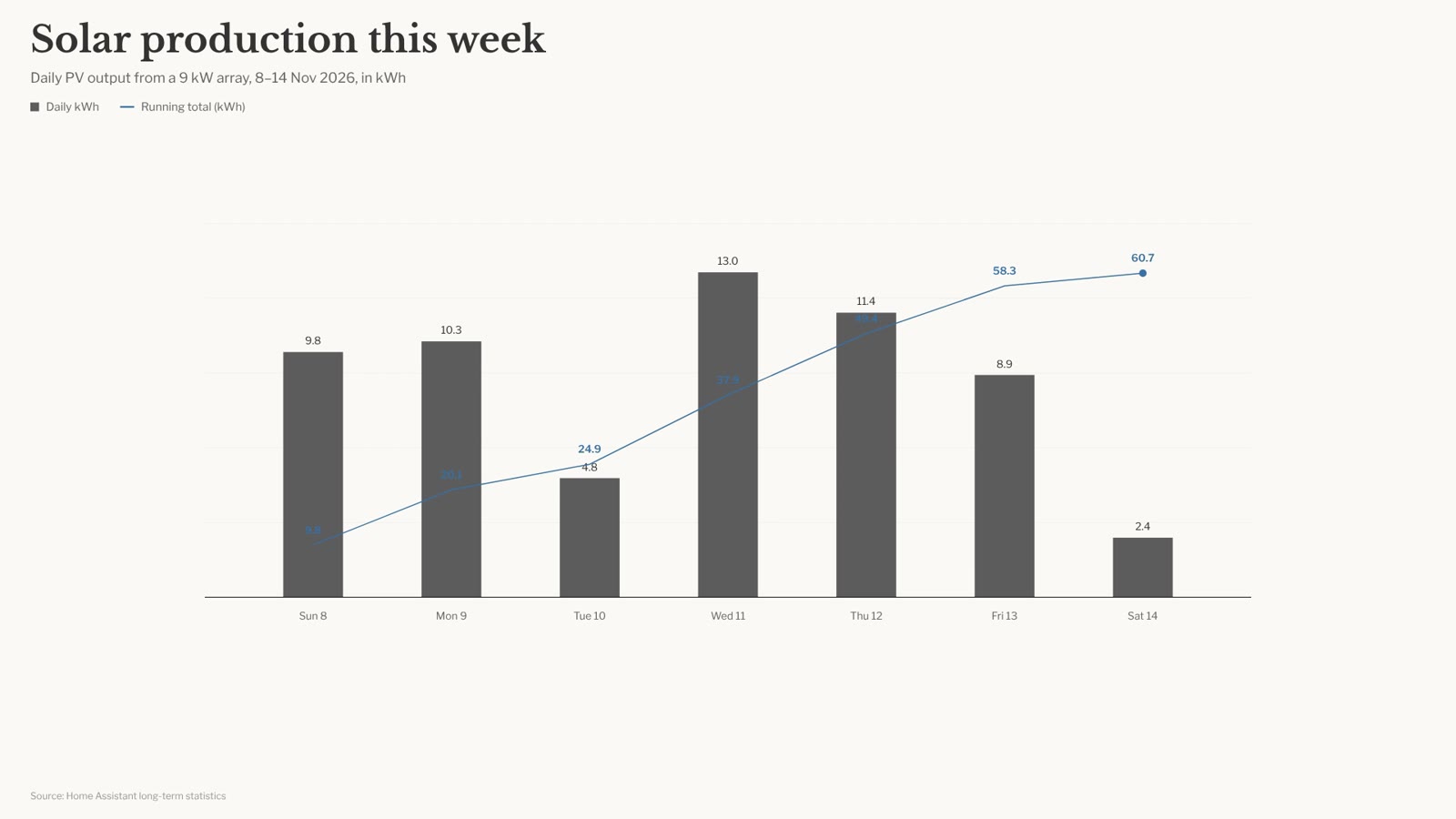
Blocks are ready-made scenes you add with one command, such as npx hyperframes add data-chart. They arrive as editable HTML, which I like. I pointed the chart block at a week of real solar production from my Home Assistant, and it took about five minutes of edits to get a working animated chart. The block is designed for a bar series plus a line on a second scale, though, and with my running total as the line, the line’s labels sit on top of the dark bars, where they’re unreadable. Fixable, but not automatic.
Asking an AI Agent for a Video
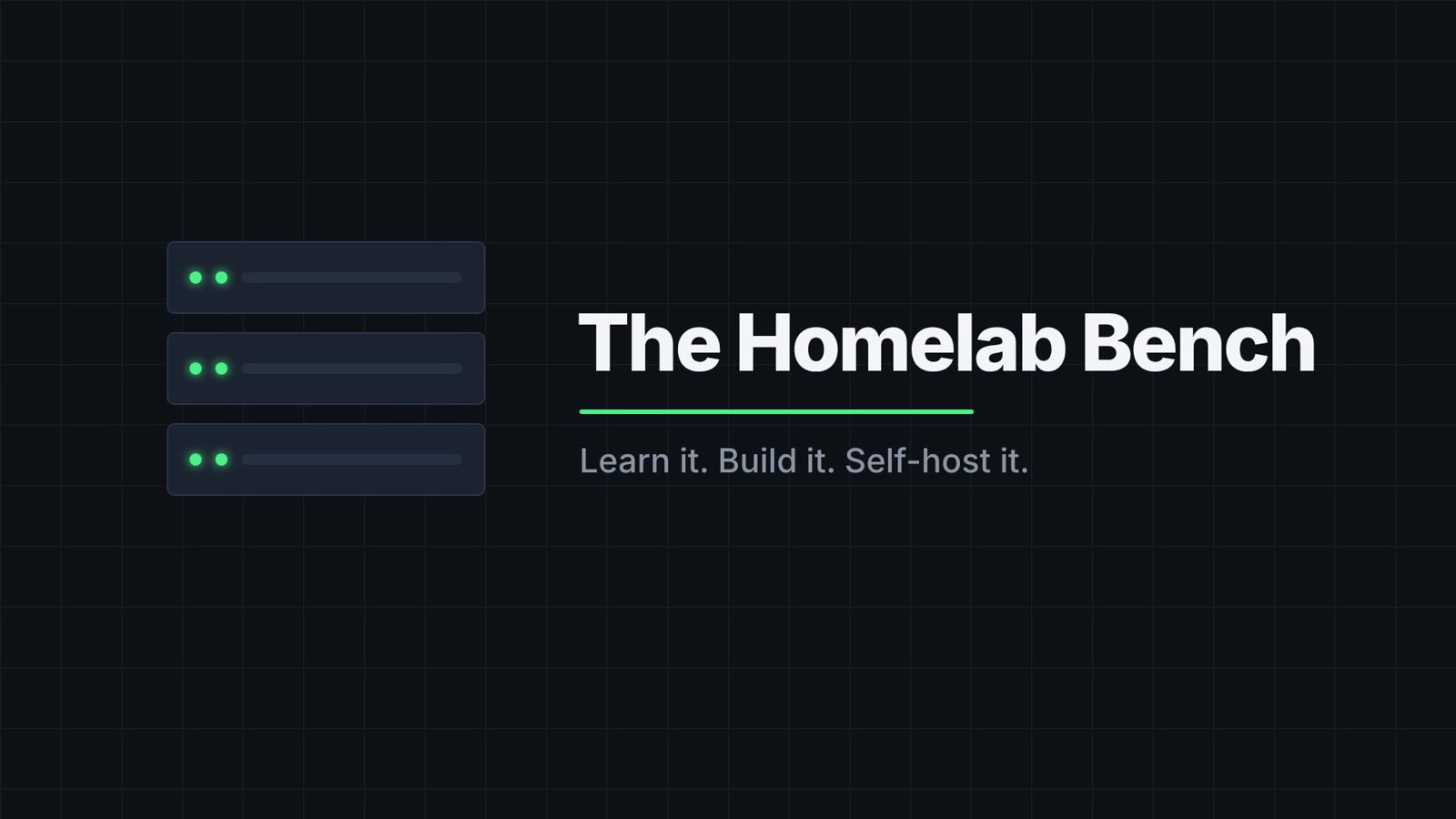
This is HyperFrames’ main selling point, so I tested it the way it’s meant to be used: I asked an AI agent (Claude) for a five-second channel intro for The Homelab Bench (dark background, a rack motif, the channel name and a tagline), following only the instructions HyperFrames puts in every project. I didn’t install the optional agent skills.
The first attempt looked right on screen. But npx hyperframes check, which runs the code checks, loads the page in headless Chrome, and checks layout, motion, text contrast and a few craft rules in about three seconds, failed it:
✗ gsap_css_transform_conflict: ".unit" has CSS `transform: translateX(-700px)`
  and a GSAP tween animates x. GSAP will overwrite the full CSS transform…
✗ gsap_css_transform_conflict: "#subtitle" has CSS `transform: translateY(20px)`
  and a GSAP tween animates y…
⚠ first_frame_empty: Frame 0 shows only the background, and the first frame
  is the thumbnail on social players…
◇  Check failed
Those are fair catches. The two errors didn’t show in this video, but the same pattern breaks centring or scaling in other layouts, and the first-frame warning matters because frame 0 becomes the thumbnail on social media. Each message comes with a suggested fix. The agent applied them, and the second attempt passed. (The contrast check had already found all seven pieces of text meeting the WCAG AA standard.)


One catch: a render goes ahead even when the checker reports errors, because “best effort” is the default. Add --strict if you want errors to stop the render, which I’d recommend for anything automated.
The result was good enough that it’s going to open our how-to videos on YouTube. My video pipeline adds it in front of each video’s own title sequence, with our existing music sting over the top. The first test render also exposed a hang in a separate step of that pipeline, the one that cuts the shorter version for X, so the intro is switched off until that’s fixed.
Smaller Rough Edges
doctorspotted the missingunzip, but nothing told me about it until I randoctor.- Using
npxmeans a version check against npm before every command. Pin a version in the project if you want repeatable behaviour; the generated project’s own scripts already do. - The help text says the
--skilloption is “recorded on render telemetry”, which is a further reason to switch telemetry off. - The command-line tool includes upload commands (
shareandpublish) that send projects or videos to HeyGen’s cloud storage. I didn’t use them; they’re opt-in.
What I Didn’t Test
The paid Pro tier (style templates, “reverse any video” and HeyGen’s AI models), HeyGen’s cloud rendering and the AWS Lambda and Google Cloud Run options, the share and publish uploads, the desktop Studio app, the Claude Code plugin and skills, and the local text-to-speech and transcription extras.
Pros and Cons
Pros
- Free and open source (Apache 2.0)
- Installs in under two minutes on a plain Debian container
- Byte-for-byte identical output, verified across five renders
- Runs without a GPU, in under 1 GB of RAM per render
- The
checkcommand is excellent and genuinely helps an AI agent get it right - Every project is set up for AI agents out of the box
- Blocks are installed as editable HTML, not a black box
- Telemetry is announced and easy to turn off
Cons
- Usage telemetry is on by default
- Templates and blocks download scripts, images and fonts from the internet on every render
- The automatic worker setting used one core of four
- The fast capture mode needs a GPU
- The starter example looks bare without your own footage, and portrait mode doesn’t rearrange a landscape layout
- Renders go ahead despite checker errors unless you add
--strict
Verdict
HyperFrames does what it says. It turns HTML into video reliably, the output really is the same every time, and it runs happily in a small container on a homelab server with no graphics card. The checker is the best part: it catches real mistakes, explains them, and gives an AI agent a clear target, which is why my intro came out right on the second attempt.
The weak spots are in the defaults rather than the engine: telemetry on until you switch it off, templates that reach out to the internet on every render, and a worker setting that leaves most of your CPU idle. All three are quick to fix once you know.
If you already make videos on a home server and you’re comfortable editing HTML, or happy to let an AI agent do it, HyperFrames is worth an evening. Turn telemetry off, set --workers to your core count, add --strict, and copy any CDN files into your project.
Tested on 14 November 2026 with the hyperframes command-line tool 0.9.47, in a Debian 13 container on Proxmox VE (Intel i5-8259U, 4 cores, 4 GB RAM, no GPU).